
Module 5: Going Live, lesson 5.9
Workaround for New Catalog Ads UI
18 steps11:10 long7 rules
This lesson provides a workaround for a specific Meta Ads UI update where advertisers are forced to use the carousel format and cannot select single image or video for catalog ads. It teaches how to bypass this limitation by turning off Advantage+ catalog ads at the campaign level and re-enabling it at the ad level. The coach walks through the exact campaign, ad set, and ad level configurations required to maintain the standard catalog ad strategy in this new interface.
Campaign structureBudget is set at the ad set level to $1.00 daily. Advantage+ campaign budget is turned off. Campaigns are scheduled to launch the next day at midnight.
Catalogue methodStandard setup uses Advantage+ catalog ads ON at the campaign level, with Media setup 'From catalog', Dynamic media enabled, Prioritize video checked, Optimized media selection checked, and Override catalog website deep links checked. For the new UI workaround, Advantage+ catalog ads is turned OFF at the campaign level. At the ad level, Media setup is set to 'Advantage+ catalog ads', Format is 'Single image or video', Override catalog website deep links is checked, Dynamic media is Enabled, and Format display options is set to 'Not showing additional formats'.
Rules and numbers
- Launch campaigns to the next day at midnight.
- Set daily budget to $1.00 at the ad set level.
- Remove Threads and Audience Network from placements because they don't convert as much.
- Headline must be the same as your page name.
- Call to action must be set to Learn more.
- Turn off multi-advertiser ads because it doesn't do anything.
- Remove all essential enhancements.
Gotchas
- If you have a specific new UI, you might be forced into the Carousel format at the ad level and unable to select Single image or video.
- If you are forced into Carousel format, you must turn off Advantage+ catalog ads at the campaign level first.
- If you don't have this specific UI issue, completely disregard this workaround and use the standard setup.
- You must click off 'show as collection' (Format display options = Not showing additional formats) when setting up the ad.
“If the UI changes, the principles are the same, but obviously sometimes it's a little bit more complex.”
“If you cannot select single image or video here at the ad setup... you're going to have to turn off Advantage+ catalog ads.”
“If you're not having issues with the UI... you can just honestly completely disregard it.”
Step 100:00 to 00:45
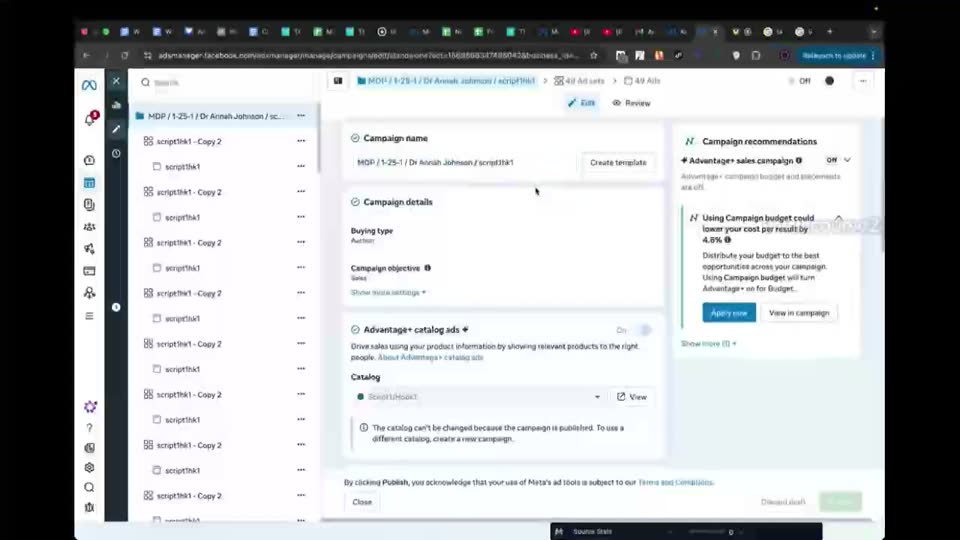
Review the standard campaign level setup for catalog ads in the Ads Manager.
- Campaign name = MDP | 1-25-1 | Dr Annah Johnson | script1hk1
- Advantage+ catalog ads = ON
- Catalog = script1hk1
Because remember guys, this was the standard way.
Step 200:45 to 01:02
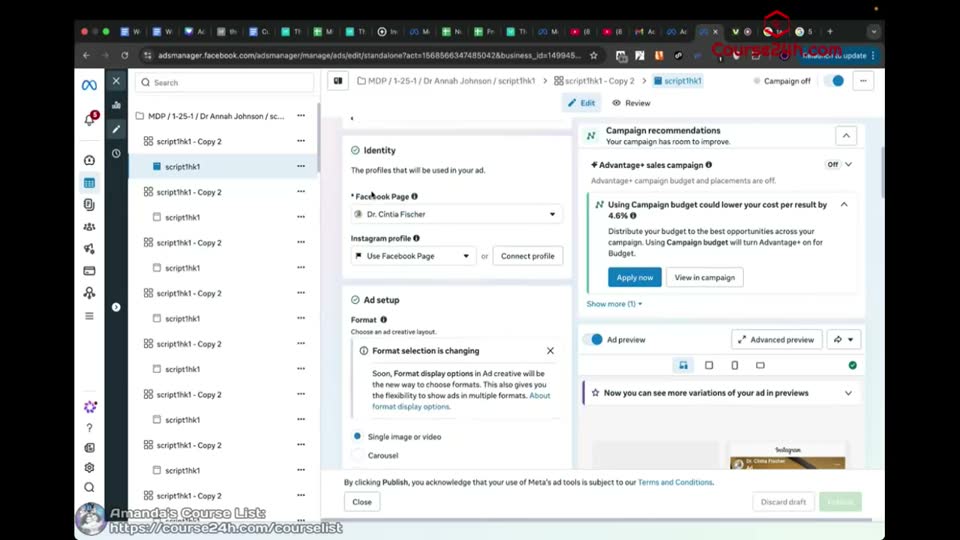
Review the standard ad format setup at the ad level.
- Ad name = script1hk1
- Format = Single image or video
Most people can just select single image or video here at the ad setup.
Step 301:02 to 01:09
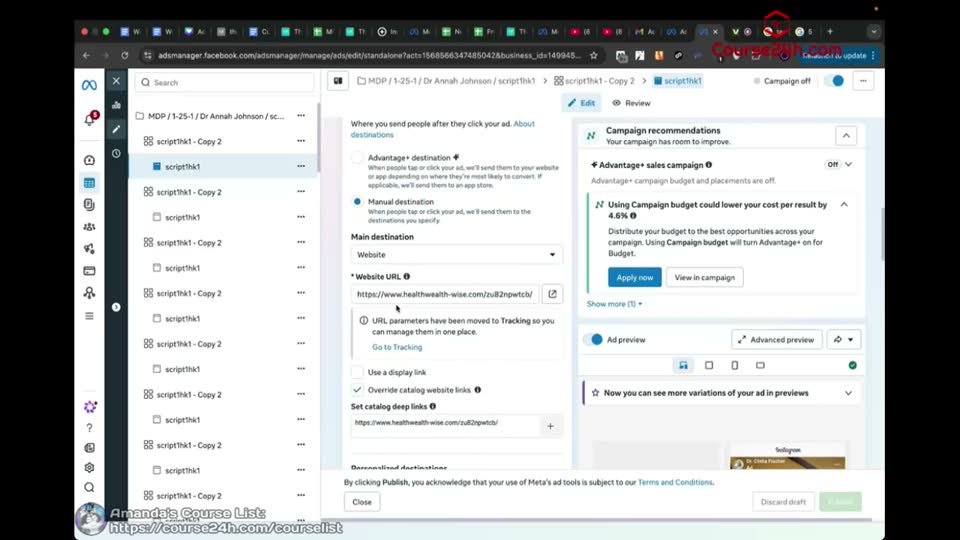
Review the standard destination settings at the ad level.
- Main destination = Website
- Website URL = [filled]
- Override catalog website links = checked
Step 401:09 to 01:22
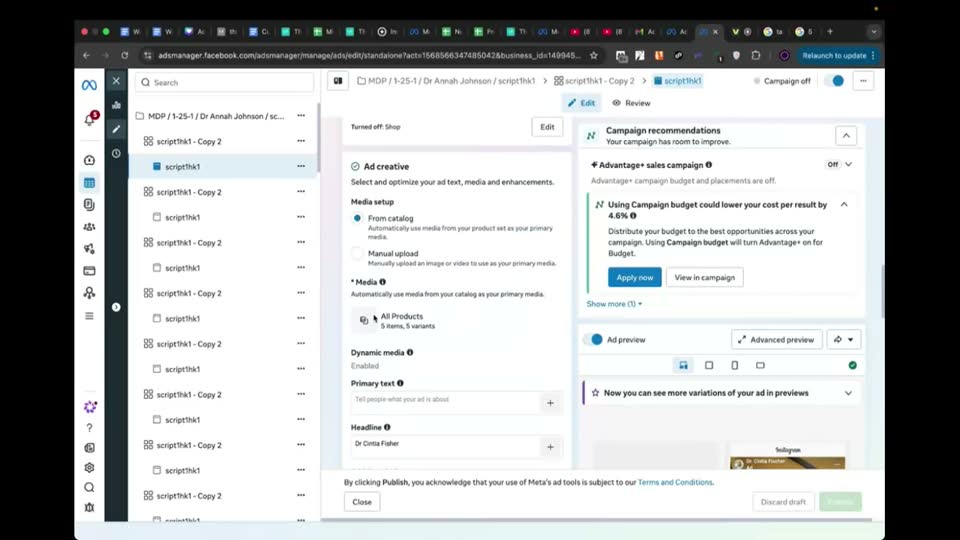
Review the standard ad creative and dynamic media settings.
- Media setup = From catalog
- Dynamic media = enabled
- Prioritize video = checked
- Optimized media selection = checked
Very, very important, hover your mouse on dynamic media, prioritize video and optimize media selection.
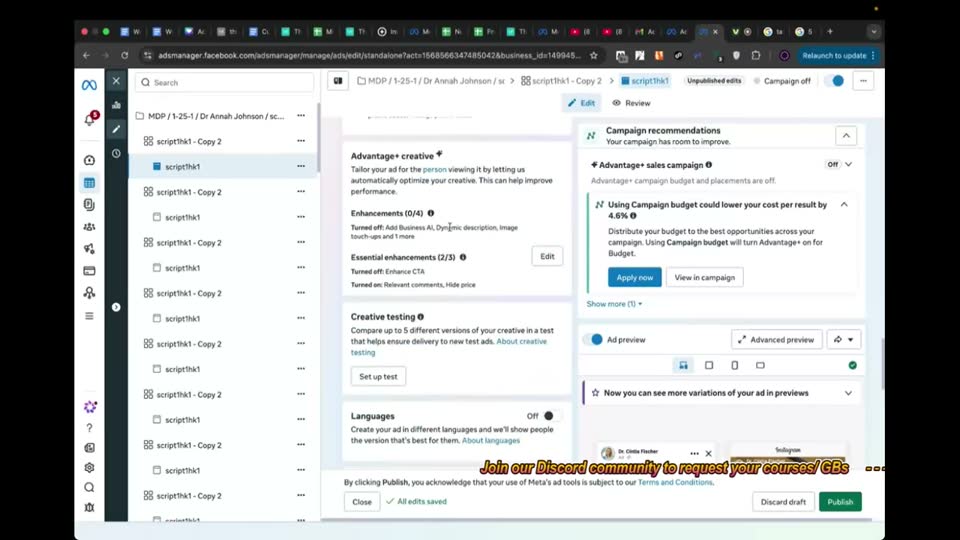
Step 501:22 to 01:28
Review the standard enhancements settings to ensure they are removed.
- Essential enhancements (0/3) = unchecked
Obviously we're going to remove all the essential enhancements.
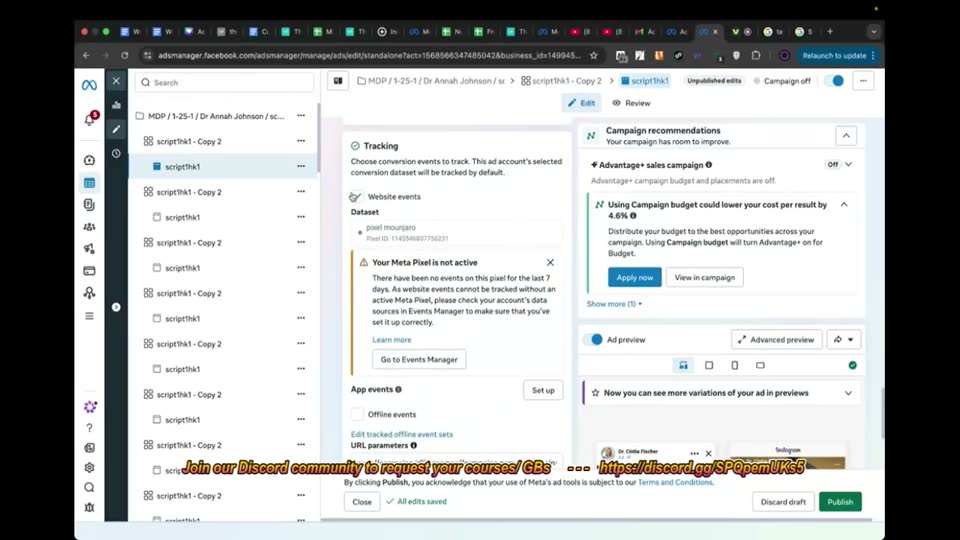
Step 601:28 to 02:14
Review the standard tracking settings at the ad level.
- Website events = checked
- URL parameters = [filled]
Step 702:14 to 02:27
Identify the new UI issue at the campaign and ad level.
- Campaign name = MDP | 1-25-1 | Dr Nancy Fischer | ad6hook1
- Advantage+ catalog ads = ON
- Catalog = Ad 6 Hook 1
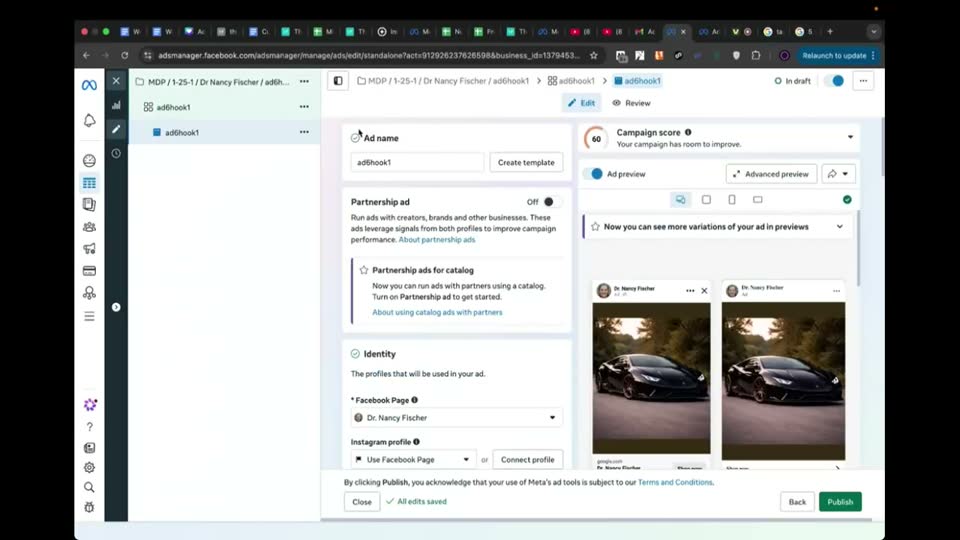
- Ad name = ad6hook1
- Format = Carousel
They get to the ad level and this happens, where it just shows carousel and then they can't really select single image or video.
Step 803:06 to 03:25
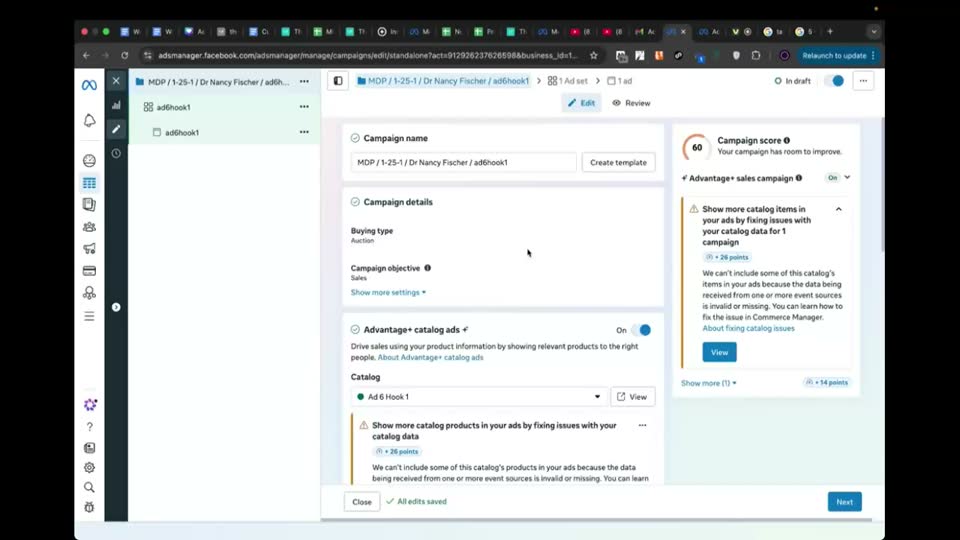
Turn off Advantage+ catalog ads at the campaign level to bypass the UI limitation.
- Advantage+ catalog ads = OFF
- Campaign budget = OFF
If you cannot select single image or video here at the ad setup... you're going to have to turn off Advantage+ catalog ads.
Step 903:25 to 04:00
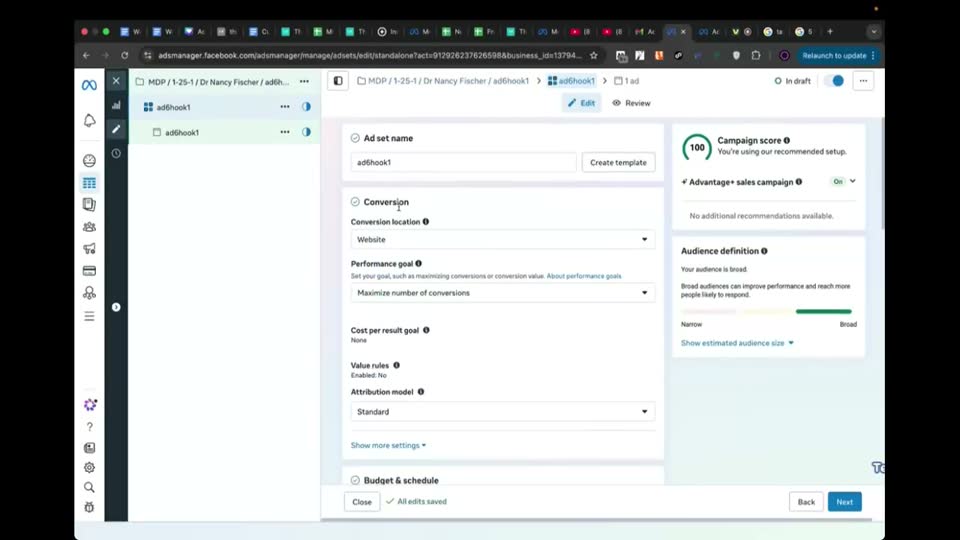
Configure the ad set budget and schedule.
- Ad set name = ad6hook1
- Dataset = [selected]
- Daily budget = $1.00
- Start date = Apr 19, 2024 at 12:00 AM CDT
Typically I recommend you launching to the next day at midnight.
Step 1004:00 to 05:12
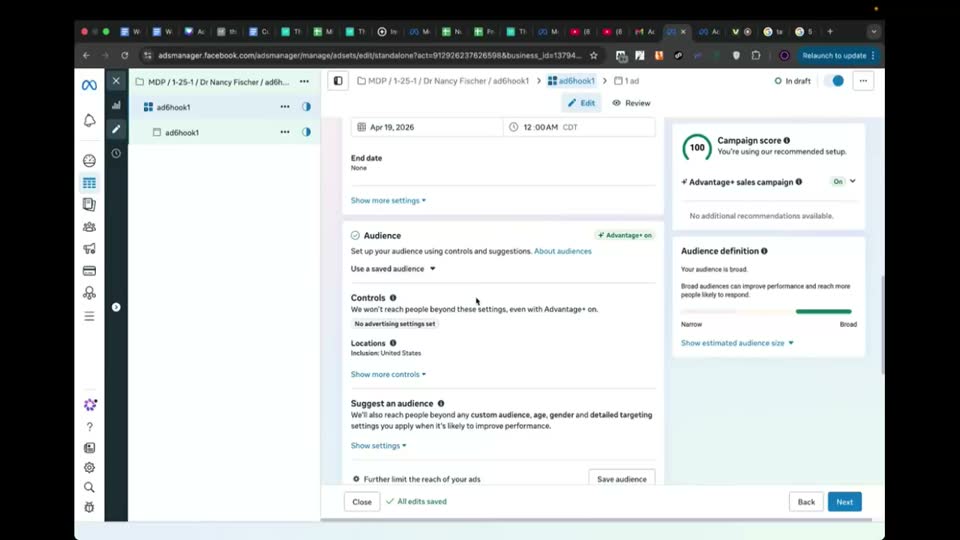
Configure the ad set audience targeting based on the offer document.
- Locations = Germany, Austria, Switzerland
- Age = 45 - 65+
- Gender = Women
Just follow the Notion doc, guys... follow everything that is in the offers document.
Step 1105:12 to 05:57
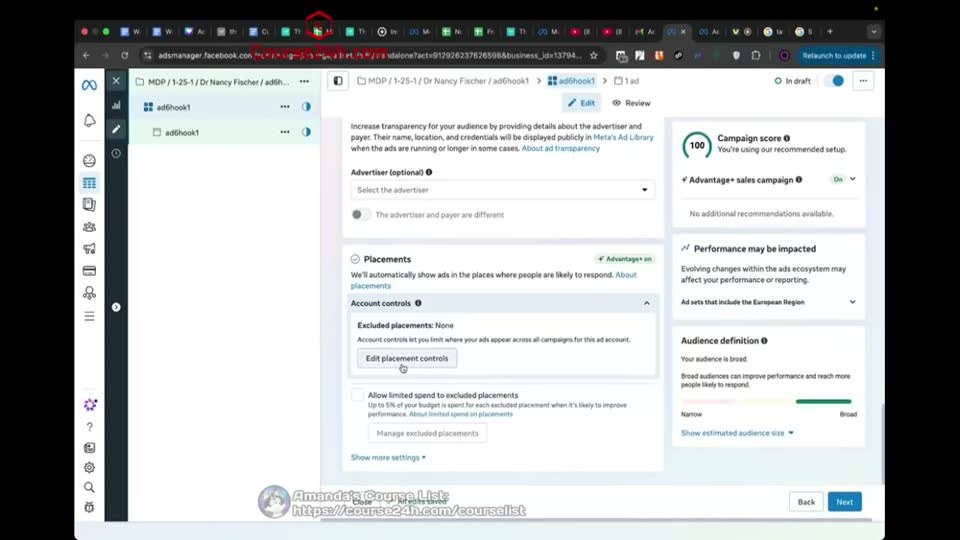
Edit placement controls to exclude specific platforms.
- Platforms = Audience Network and Threads unchecked
Because they don't convert as much.
Step 1205:57 to 06:53
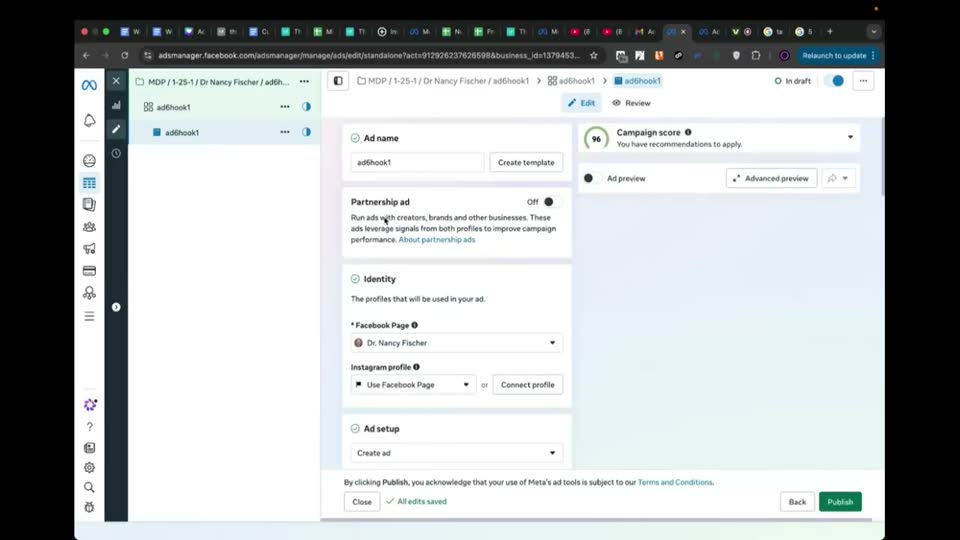
Set the initial media setup to manual upload at the ad level.
- Media setup = Manual upload
- Format = Single image or video
Now you're going to be able to do manual upload, single image or video.
Step 1306:53 to 07:04
Paste the destination URL into the ad setup.
- Website URL = [pasted URL]
Just use your own link, obviously.
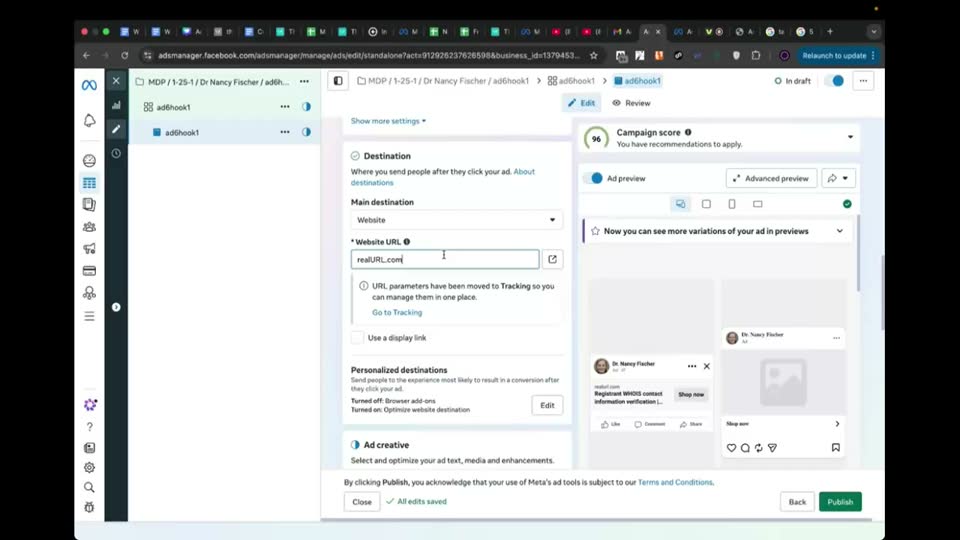
Step 1407:04 to 07:17
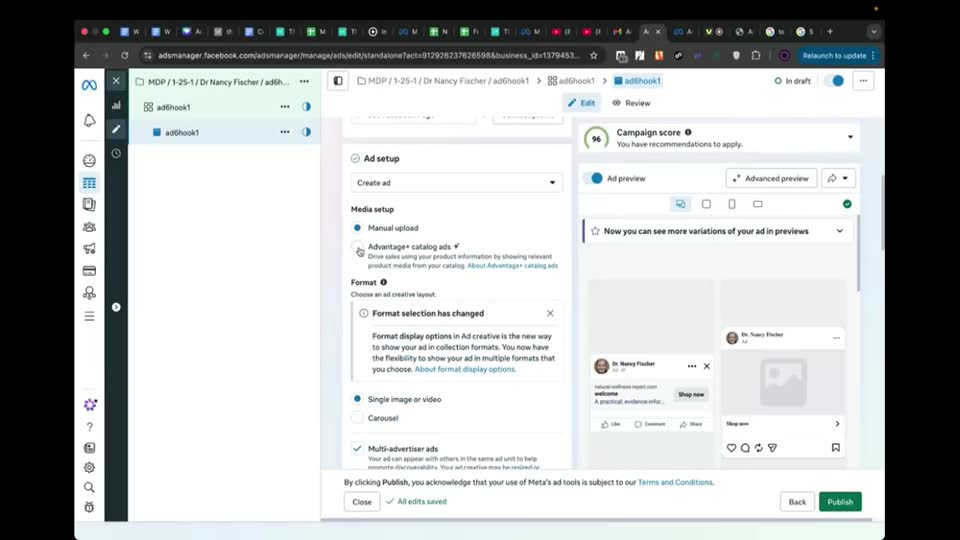
Switch media setup back to Advantage+ catalog ads.
- Media setup = Advantage+ catalog ads
- Format = Single image or video
- Multi-advertiser ads = unchecked
You're going to turn off multi-advertiser ads, it doesn't do anything.
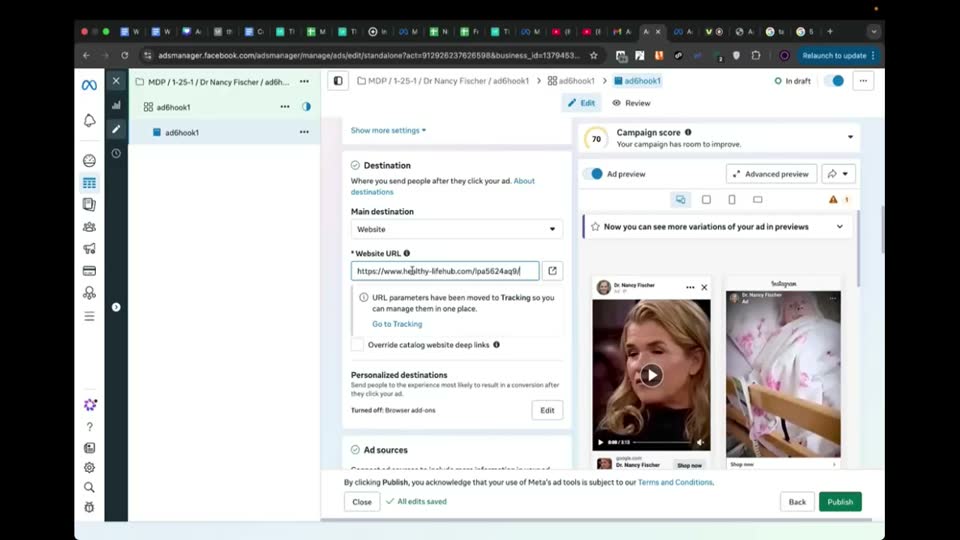
Step 1507:17 to 07:33
Configure the catalog and destination override settings.
- Website URL = [filled]
- Override catalog website deep links = checked
- Catalog = Ad 6 Hook 1
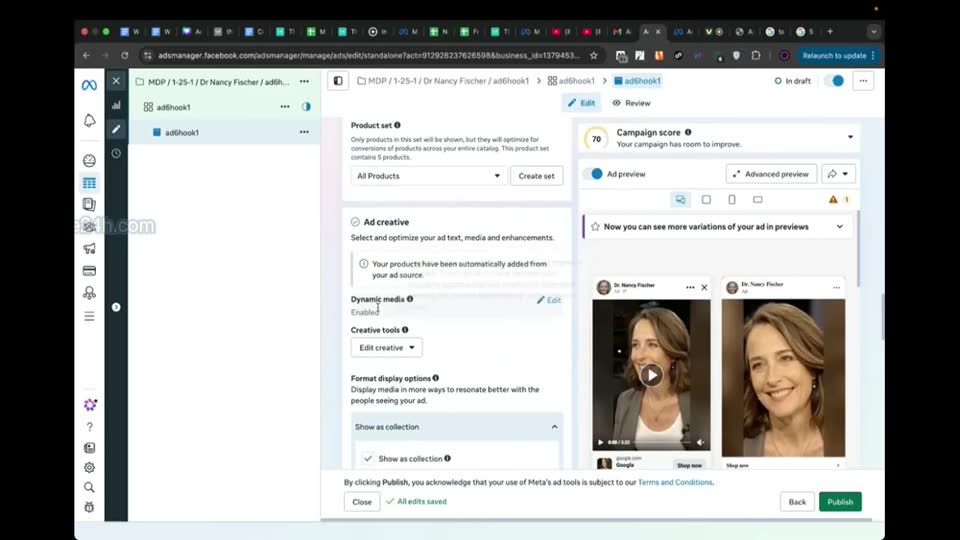
Step 1607:33 to 08:21
Configure dynamic media and ad copy.
- Dynamic media = Enabled
- Format display options = Not showing additional formats
- Call to action = Learn more
- Headline = Dr Nancy Fischer
Remember to change the call to action to learn more. To change the headline to the name of your page.
Step 1708:21 to 08:47
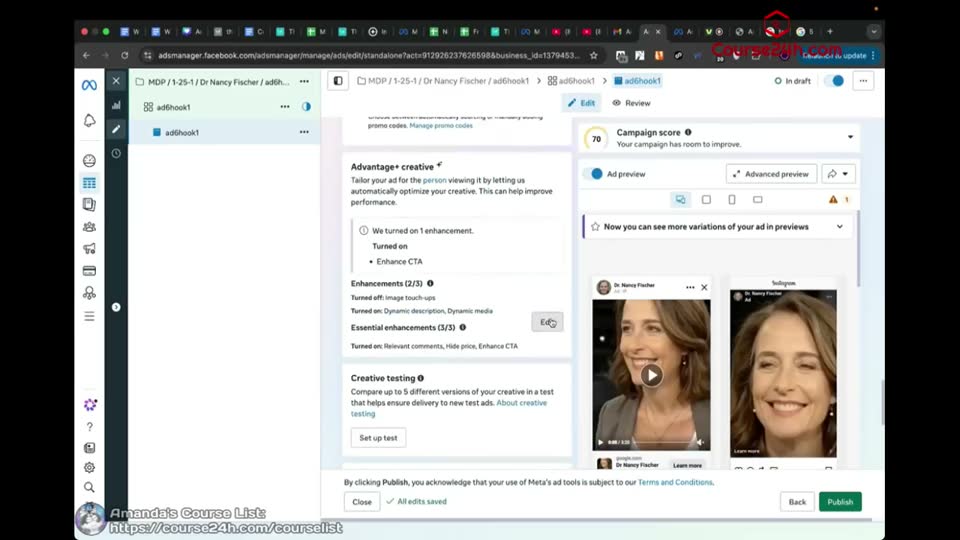
Remove essential enhancements in the advanced preview window.
- Relevant comments = unchecked
- Hide price = unchecked
- Enhance CTA = unchecked
- Dynamic media = ON
We can remove all the enhancements as we did before.
Step 1808:47 to 09:50
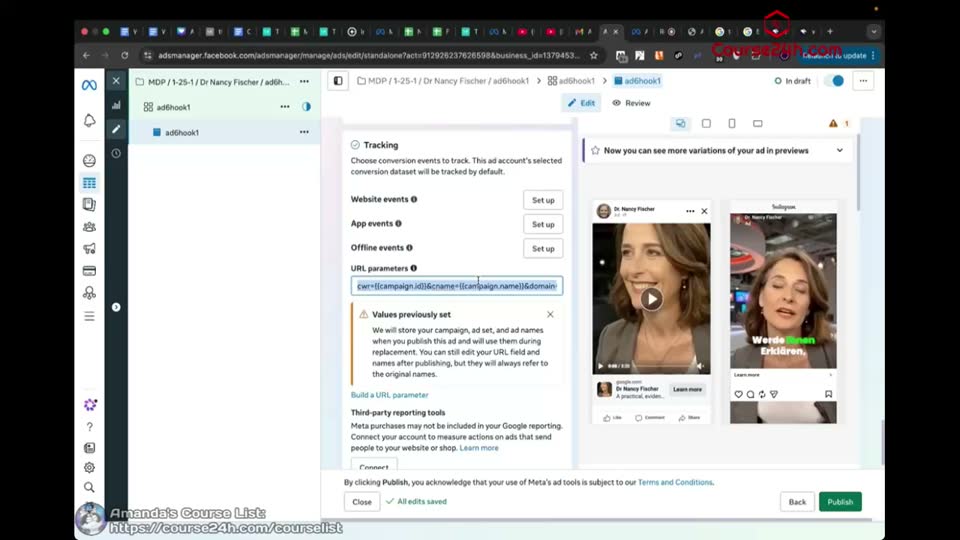
Add URL parameters for tracking at the bottom of the ad level.
- URL parameters = [filled]
URL parameters just like Chris shared as well.
Full timestamped transcript with on-screen notes
[00:00] COACH: Hey guys, we're here to talk about catalog ads once again because there are a few people that have been seeing the new UI. And guys, remember, I always tell you that if the UI changes, the principles are the same, but obviously sometimes it's a little bit more complex than other times. So that's why for a very specific new UI that some people are seeing, I want to show an alternative way to run catalog ads. Because remember guys, this was the standard way. So the whole setup is going to stay the same. Campaign level, ad set level, ad level. But with a very, very important distinction at the campaign level and ad level. So all the rest is going to be the same. The only thing that will change from the class where I teach you guys how to run the catalog ads, I'm going to show you in this class. Okay? So I'm going to show you this. Because remember, at the end of the day, for your catalog ads, this is the old setup with the old UI. Most people still have that UI, by the way, guys. Very, very important. Okay? So most people can just select single image or video here at the ad setup, at the ad level, just like I told you guys. And all the rest is going to be the same. The website URL is going to be the real URL, the override catalog website deep links, then from catalog, no primary text, the headline being the same as your page name. And very, very important, hover your mouse on dynamic media, prioritize video and optimize media selection. So that's very, very important. And obviously we're going to remove all the essential enhancements and all the enhancements in general. Select website events and the right pixel and copy and paste the URL parameters just like Chris showed. So everything is going to be the same, but with a very important difference. That's going to be the standard setup for everybody, except for the people who are facing this. So let me show you guys. So once again, if you're not seeing anything different from this, everything that I just showed, you don't have to worry about this. This is literally just a class for people with brand new ad accounts that are seeing a very specific UI. Even for some people with brand new ad accounts, they're seeing exactly this. They can just go to their ad setup after having set up the catalog at the campaign level, they can go to the ad setup and just select single image or video. But for some people, so just for these people, this class is for you. Some people, they set up everything properly, right? So at the campaign level, they select the catalog, they have the good naming convention and all that fun stuff. But then they get to the ad level and this happens, where it just shows carousel and then they can't really select single image or video, right? Which is a problem. So this is going to show format selection has changed. If you have one of these accounts, guys, this is account per account. So it's only if you have one of these accounts where if you do everything correctly, you get to the ad level and you cannot select what I shared before, right? If you cannot select single image or video here at the ad setup. So if this is what you see, format carousel, and you cannot change this, then you're going to have to do two main changes. So the first main change is going to be at the campaign level, right? So at the campaign level, you're going to have to turn off Advantage+ catalog ads. So you're going to have to turn this off. Your budget, you're still going to select your budget at the ad set level, just like we did before. You're going to unselect share some of your budget, just like we did before as well, right? And all the rest of the setup is going to be the same at the ad set level. So all the rest of the setup is going to be exactly the same as we saw before, literally. But you do, you're going to have to choose a pixel here, the one that you selected. So in this account, I haven't selected a pixel yet, but you're just going to have to choose the pixel just like you created before here, okay? The budget is going to be just $1, just like we did before. And then all the other settings below, they're going to be the same. So typically I recommend you launching to the next day. So for example, launching to the next day at midnight, right? Always recommend that you guys do that. For the audience, I recommend that you guys select obviously to the right locations that is in the Notion doc, that is in the document of the offers. So it's not going to be United States. You're going to have to change it here to Germany, Luxembourg, et cetera, et cetera. Okay? So just for the sake of the example, I'm going to show you. Germany. I think based on my memory, there's Austria, Switzerland. So just literally just follow the Notion doc, guys. I'm just doing an example here, right? So follow everything that is in the offers document, very, very important. You're going to change the, okay, so that's for the locations. So you're going to change the ages as well, right? So you're also going to change the ages. Just follow the Notion doc. But I know for a lot of offers, for example, it's going to be age 45 plus. It really depends on the offer. Some are 40 plus, some are 45 plus. Gender for a lot of the offers is just going to be just for women. So everything we saw already. You're going to change the placements. You're going to edit the placements control. Okay, sorry, not here. Show more settings. You're going to remove Threads and Audience Network because they don't convert as much. You're not going to allow Facebook to spend on them. Right? So everything just like we saw before. If I forgot something, just check the class where I showed you guys how to do all that, but it should be pretty much it. Okay? I go into more details into the class where I show you guys how to launch campaigns step by step. But that's pretty much it. Just everything just like we saw before, but you're going to have to select a pixel here, right? So here you're going to have to select the pixel that you have already created because this is a dummy account, I do not have a pixel created, okay? And then at the ad level, it's going to change a little bit as well for you guys who have this specific account. And once again, guys, if you guys don't have the accounts where you just can't directly select single image or video in the ad setup, do not worry about this class that we're seeing here. Please do not worry about this class. But if you are seeing an account where you can't see this setup, then that's where you're going to need to change this at the campaign level, just have it off, because typically it's on, but for this specific UI, you have to turn it off. Then at the ad level, you're going to have create ad, and now you're going to be able to do manual upload, single image or video. And now you have the single image or video option. Very, very important. You're going to put the website URL. Just like we shared with you guys. Just use your own link, obviously. Just like Chris shared with you guys. Okay? And then you're going to have to select Advantage+ catalog ads, very important. Then single image or video. You're going to turn off multi-advertiser ads, it doesn't do anything. Then website, you're going to put the real URL just like you saw, override catalog website deep links. You're going to have the name of your catalog, just select the right one. So for example, Ad 6 Hook 1, I'm just selecting the right one, Ad 6 Hook 1. Okay? And then enable media, then you're going to be able to do exactly what I shared before. You can select prioritize video. Come back here. You can even take out automatic video cropping. Both can work, it's not very, very important. But you can have optimized media selection and you have to click on prioritize video. And then you have to click off show as collection. Okay? That's very important. Click off show as collection. Remember to change the call to action to learn more. To change the headline to the name of your page. So in this case, I think it's Dr. Cynthia Fischer, right? Nancy Fischer. We can remove all the enhancements as we did before. There are some we can leave, but for now, just for the sake of the example, a safe option is just... So for you to be able to do optimized media selection and prioritize video, you need to come here and it's going to leave just this one on. So dynamic media is going to be on. Okay? And then URL parameters just like Chris shared as well. So guys, that's very important. And that's only if you're seeing this UI. Because for most UIs, most people are seeing correctly. Just follow the other class where I showed you guys how to launch your ads step by step. You can just follow it 100%. You can just select single image directly here. Then manual destination, website URL, override catalog deep links, from catalog, dynamic media, same thing, prioritize video, optimize media selection, headline, page name, learn more, remove all the enhancements if you want, website events, select the dataset, and then URL parameters. Just for you guys who are not seeing this exact UI here, and simply you can see this because you won't have the option to select single image or video, then, only then, at the campaign level, you're going to have to turn this off, right? Then select ad set budget, and then do everything the same in the ad set level. And then at the ad level, just do what I showed you guys today. So Advantage+ catalog ads, single image or video, have your website here, select the right catalog, all products, dynamic media, always very important with the prioritize video selection and not having automatic video cropping, the headline of the page, just letting that enhancement on, and having the URL parameters. That's it. So these are the two options, guys, to run the catalog ads successfully. Very, very important. This is just for people who have this specific UI. Typically, I don't do videos for specific UIs because honestly, the UIs are always changing. But because there were a few different options to select in the UI, we did decide for me to create a video just for this specific UI. But it's just for people who are having issues with the UI. Okay? If you're not having issues with the UI and it's just like the way I shared before, where you can just select single image or video directly, while at the campaign level having this on, then you don't need to worry about this class here today. You can just honestly completely disregard it. But if you ever have a completely new account where you cannot do that, then you're going to have to do all the setup that I showed today. Understood? That's perfect. See you guys in the next one.

[SCREEN 00:00] Ads Manager. Campaign level. Campaign name: "MDP | 1-25-1 | Dr Annah Johnson | script1hk1". "Advantage+ catalog ads" is ON. Catalog: "script1hk1".
[SCREEN 00:28] Clicks through ad sets and ads in the left navigation pane.
[SCREEN 00:45] Ad level. Ad name: "script1hk1". "Ad setup" section: "Format" is set to "Single image or video".
[SCREEN 01:02] Scrolls down. "Destination" section: "Main destination" is "Website". "Website URL" is filled. "Override catalog website links" is checked.
[SCREEN 01:09] Scrolls up. "Ad creative" section: "Media setup" is "From catalog". "Dynamic media" is enabled.
[SCREEN 01:18] Hovers over "Dynamic media". Shows "Prioritize video" and "Optimized media selection" are checked.
[SCREEN 01:22] Scrolls down. "Advantage+ creative" section: "Essential enhancements (0/3)" are all unchecked.
[SCREEN 01:28] Scrolls down. "Tracking" section: "Website events" is checked. "URL parameters" field is filled.
[SCREEN 02:14] Switches to a different campaign in the left navigation pane: "MDP | 1-25-1 | Dr Nancy Fischer | ad6hook1".
[SCREEN 02:17] Campaign level. "Advantage+ catalog ads" is ON. Catalog: "Ad 6 Hook 1".
[SCREEN 02:24] Switches to Ad level. Ad name: "ad6hook1".
[SCREEN 02:27] "Ad setup" section: "Format" only shows "Carousel". A message says "Format selection has changed".
[SCREEN 03:06] Switches to Campaign level.
[SCREEN 03:11] Toggles "Advantage+ catalog ads" to OFF.
[SCREEN 03:14] "Budget" section: "Campaign budget" (Advantage+ campaign budget) is OFF.
[SCREEN 03:25] Switches to Ad set level. Ad set name: "ad6hook1".
[SCREEN 03:29] "Conversion" section: "Dataset" dropdown is shown.
[SCREEN 03:44] "Budget & schedule" section: "Daily budget" is set to $1.00.
[SCREEN 03:49] "Schedule" section: "Start date" is changed to "Apr 19, 2024" at "12:00 AM CDT".
[SCREEN 04:00] Scrolls down to "Audience" section.
[SCREEN 04:09] "Locations": Removes "United States". Searches and adds "Germany", "Austria", "Switzerland".
[SCREEN 04:53] "Audience" -> "Age": Changes from "18 - 65+" to "45 - 65+".
[SCREEN 05:07] "Audience" -> "Gender": Changes from "All" to "Women".
[SCREEN 05:12] Scrolls down to "Placements" section. Clicks "Edit" on "Placement controls".
[SCREEN 05:17] Clicks "Show more settings".
[SCREEN 05:20] "Platforms": Unchecks "Audience Network" and "Threads".
[SCREEN 05:57] Switches to Ad level.
[SCREEN 06:30] "Ad setup" section: "Media setup" is "Manual upload". "Format" is "Single image or video".
[SCREEN 06:38] Scrolls down to "Destination" section.
[SCREEN 06:43] Switches tab to a text document containing URLs. Selects and copies a URL.
[SCREEN 06:53] Switches back to Ads Manager. Pastes URL into "Website URL" field.
[SCREEN 07:04] Scrolls up to "Ad setup" section. Changes "Media setup" to "Advantage+ catalog ads".
[SCREEN 07:10] "Format" is "Single image or video".
[SCREEN 07:12] Unchecks "Multi-advertiser ads".
[SCREEN 07:17] Scrolls down to "Destination" section. "Website URL" is filled.
[SCREEN 07:20] Checks "Override catalog website deep links".
[SCREEN 07:24] "Ad sources" section: "Catalog" dropdown. Selects "Ad 6 Hook 1".
[SCREEN 07:33] "Ad creative" section: "Dynamic media" is Enabled.
[SCREEN 07:38] "Format display options" dropdown: currently "Show as collection".
[SCREEN 07:54] Changes "Format display options" to "Not showing additional formats".
[SCREEN 08:00] "Call to action" dropdown: Changes from "Shop now" to "Learn more".
[SCREEN 08:04] "Headline" field: Types "Dr Nancy Fischer".
[SCREEN 08:21] "Advantage+ creative" section: "Enhancements (2/4)". Clicks "Edit".
[SCREEN 08:23] "Advanced preview" window opens.
[SCREEN 08:26] Under "Essential enhancements", unchecks "Relevant comments", "Hide price", and "Enhance CTA".
[SCREEN 08:33] Clicks "Save".
[SCREEN 08:35] "Dynamic media" section: Clicks "Edit".
[SCREEN 08:40] "Advanced preview" window opens. "Dynamic media" toggle is ON.
[SCREEN 08:44] Clicks "Save".
[SCREEN 08:47] Scrolls down to "Tracking" section. "URL parameters" field is shown.
[SCREEN 08:58] Switches back to the first campaign ("MDP | 1-25-1 | Dr Annah Johnson | script1hk1") at the Ad level to show the standard setup again.
[SCREEN 09:40] Switches back to the second campaign ("MDP | 1-25-1 | Dr Nancy Fischer | ad6hook1") at the Campaign level. "Advantage+ catalog ads" is OFF.
[SCREEN 09:45] Switches to Ad set level.
[SCREEN 09:50] Switches to Ad level. Reviews settings: "Ad setup" -> "Advantage+ catalog ads", "Single image or video". "Destination" -> "Website URL" filled, "Override catalog website deep links" checked. "Ad sources" -> Catalog "Ad 6 Hook 1". "Ad creative" -> "Dynamic media" enabled, "Format display options" -> "Not showing additional formats", "Headline" -> "Dr Nancy Fischer", "Call to action" -> "Learn more". "Advantage+ creative" -> Enhancements removed. "Tracking" -> "URL parameters" filled.
Recording 5 9 Trouble Shooting Ad Set Up NEW UI – How To Set Up Catalog In Ad Level.mp4. Gemini video pass. Rebuilt 31 Oct 2026 15:24 Melbourne.