
Module 5: Going Live, lesson 5.8
Troubleshooting Catalog Video Bugs
48 steps5:38 long6 rules
This lesson teaches how to troubleshoot and fix a common bug in Meta Commerce Manager where videos disappear from catalog products. It demonstrates how to manually check each product within a catalog to ensure the video asset is present alongside the image. If the video is missing, the instructor shows how to re-upload it to prevent ad spend from being wasted on static images. Finally, it emphasizes the importance of daily checks and refreshing the page after creation to verify the video remains attached.
Campaign structureAt the ad level, you must select Advantage+ catalog campaigns. The catalog is attached at the campaign level.
Catalogue methodCatalogs are managed in Commerce Manager > Catalog > Products. Each catalog should have 5 products. Each product must have both an image and a video under the 'Media' tab ('Images and videos'). If the video is missing, click 'Edit item', go to 'Images and videos', and re-upload a video under 100 MB. Always refresh the page after uploading to ensure the video doesn't disappear due to a bug.
Rules and numbers
- Check the catalogs that are running at the campaign level every day.
- You're going to have 5 products in your catalog.
- Video files uploaded to the catalog must be under 100 MB.
- Do not run the campaigns if the video is not showing up for each product.
- Always refresh the page after creating a catalog to verify the video is still there.
- Select Advantage+ catalog campaigns at the ad level.
Gotchas
- Sometimes even if you upload the video correctly, it just disappears due to a bug on Facebook's side.
- If the catalog only has an image, you will waste money because the real ad is the video.
- If a video is over 100 MB, you will get an error message and it won't upload.
“If it's only showing the image, you're going to need to edit this, literally. So I just click on the button Edit, and you need to re-upload the video.”
“If it's not like that, please guys, do not run the campaigns. That's a very important troubleshooting technique for you guys.”
“Sometimes even if you upload it correctly, it just disappears. So I always refresh the page after I create a catalog.”
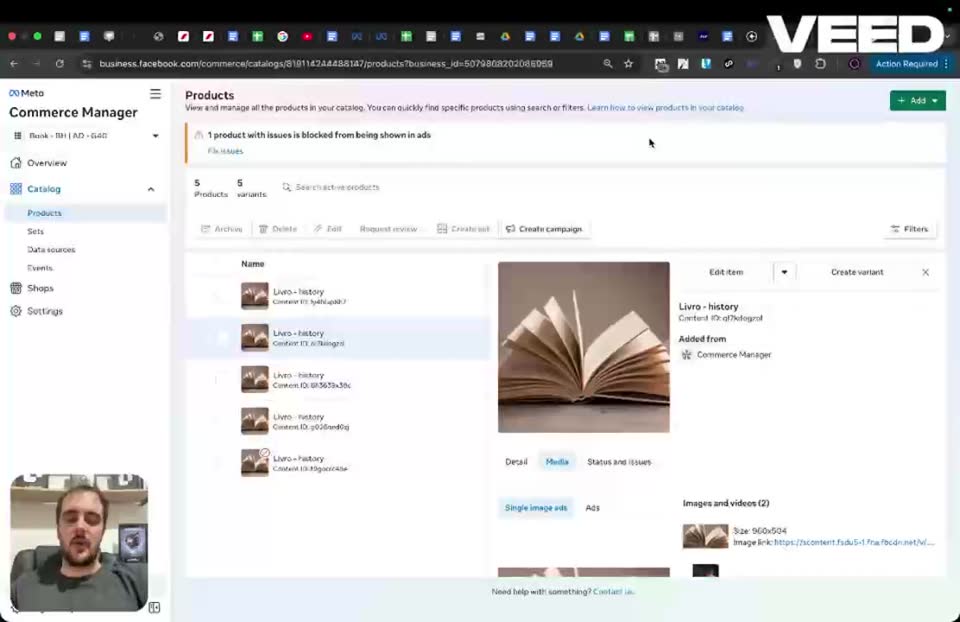
Step 100:00 to 00:18
Inspect the media tab of a product to ensure both image and video are present.
- Page = Commerce Manager > Catalog > Products
- Product selected = Livro - history
- Content ID = id1historyid1
- Added from = Commerce Manager
- Tab selected = Media
- Single image ads = image of an open book
- Images and videos (2) = image and a video
Every day, guys, check the catalogs that are running at the campaign level.
Step 200:18 to 00:23
Open Commerce Manager from the main menu.
- Menu = All tools
- Selection = Commerce Manager (under Sell products and services)
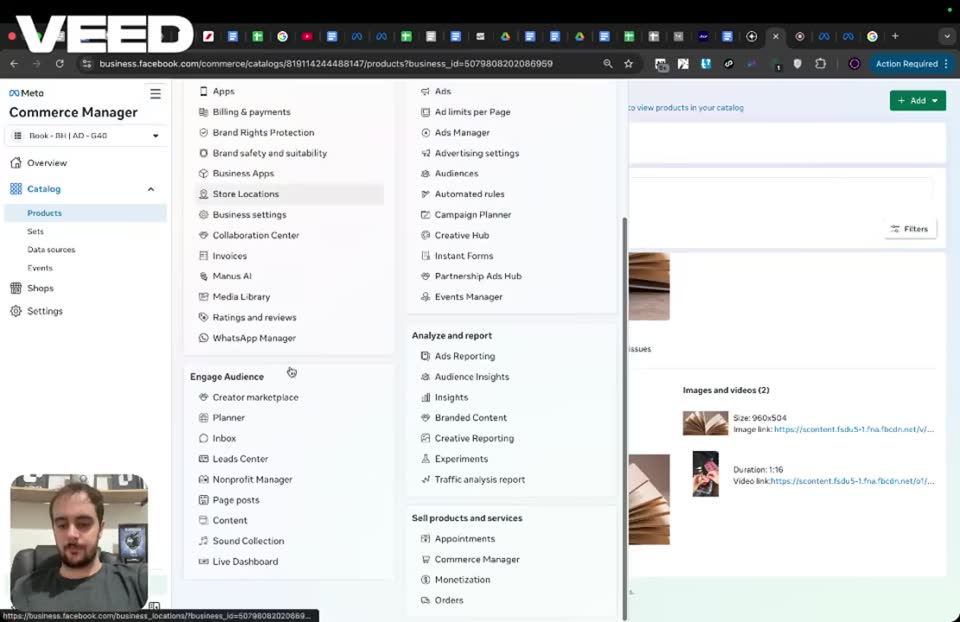
Step 300:23 to 00:31
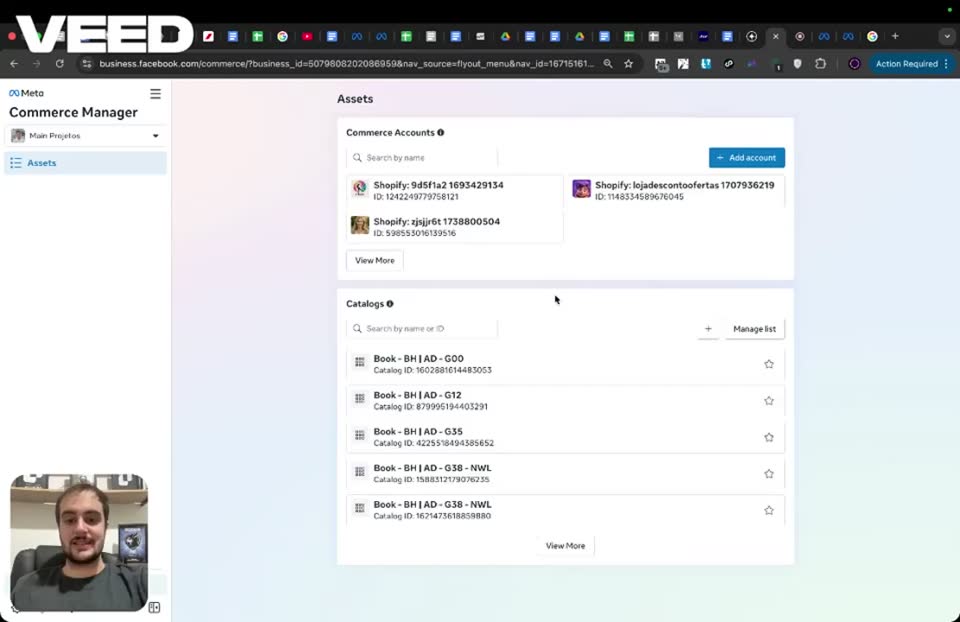
Select the specific catalog you want to check.
- Page = Commerce Manager > Assets
- Catalog selected = Book - EH | AD - G00
- Catalog ID = 902388314483555
Step 400:31 to 00:35
View the overview for the selected catalog.
- Page = Commerce Manager > Overview

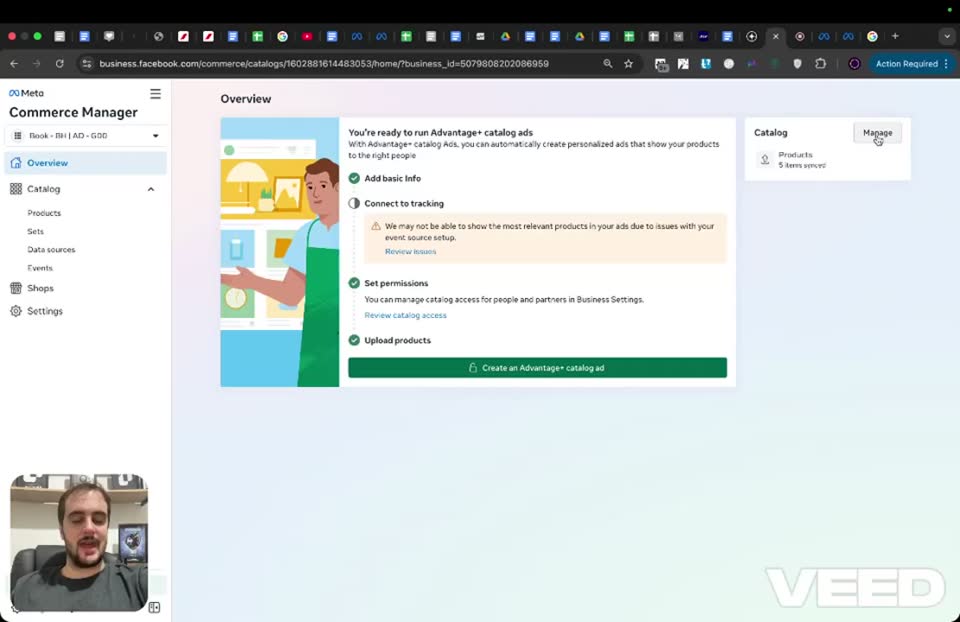
Step 500:35 to 00:39
Navigate to the Products section.
- Button clicked = Manage (in the Products box)
Step 600:39 to 00:43
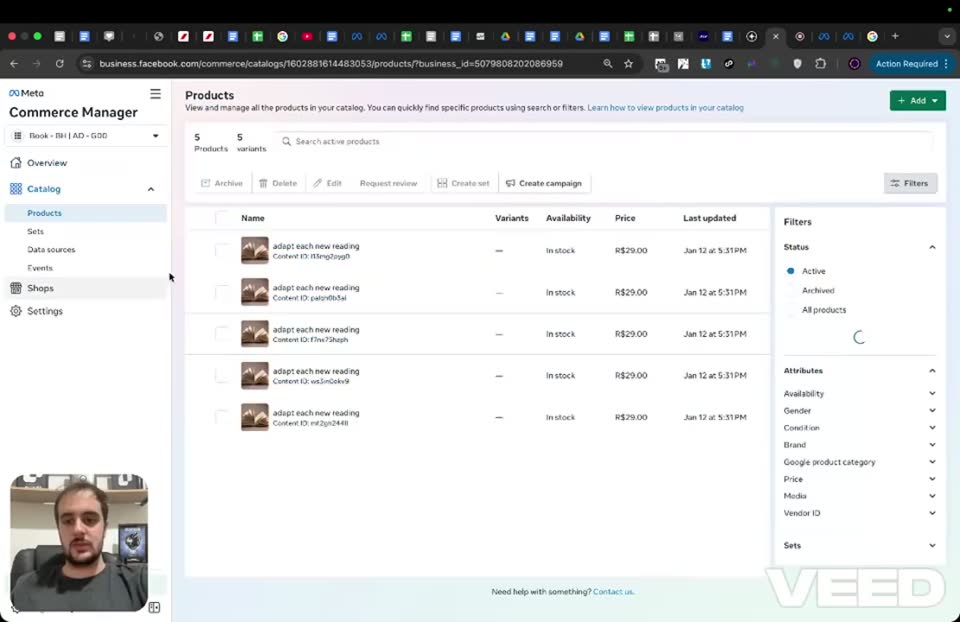
View the list of products in the catalog.
- Page = Commerce Manager > Catalog > Products
- Products listed = 5 products named 'adapt each new reading'
And then you check each product to see if it has the media.
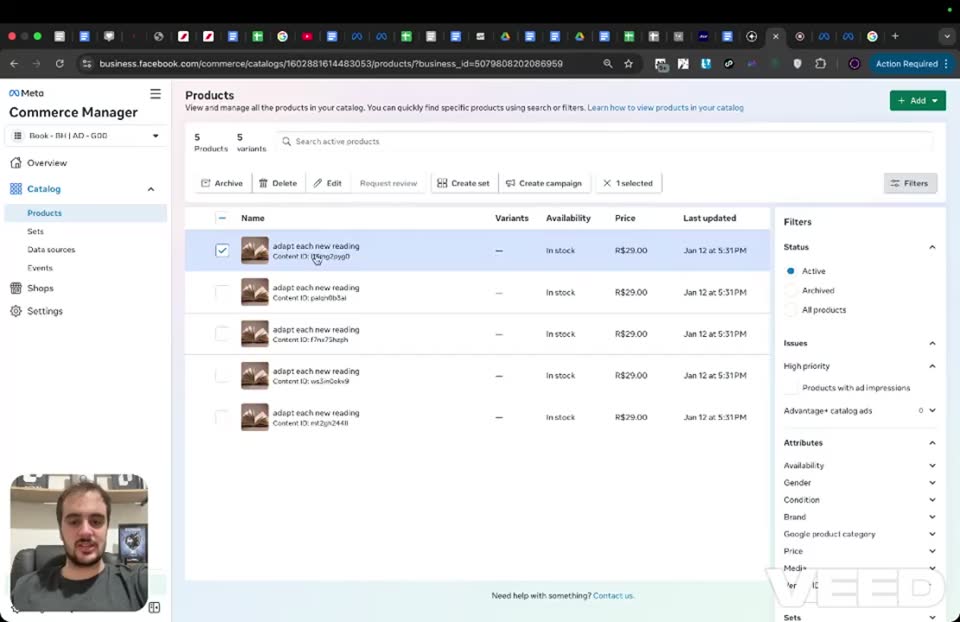
Step 700:43 to 00:48
Select the first product to inspect its details.
- Product selected = adapt each new reading (first in list)
- Content ID = id1historyid1
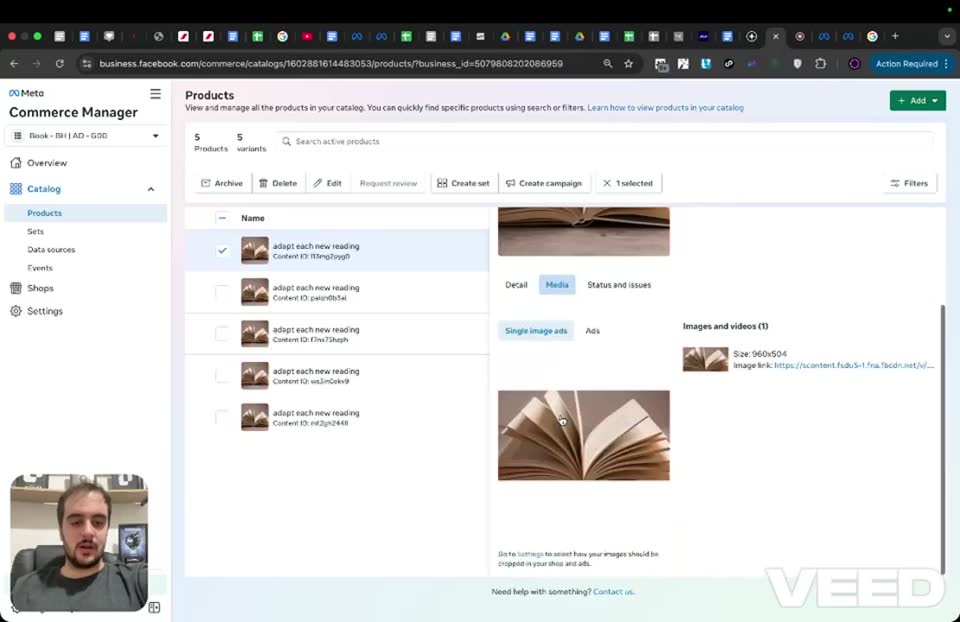
Step 800:48 to 01:10
Check the Media tab to see if the video is missing.
- Tab selected = Media
- Single image ads = image of an open book
- Images and videos (1) = only the image
If it's only showing the image, you're going to need to edit this, literally.
Step 901:10 to 01:11
Click the edit icon to modify the product.
- Icon clicked = Edit item (pencil icon)
So I just click on the button Edit, and you need to re-upload the video.
Step 1001:11 to 01:15
Open the Edit products page.
- Page = Edit products

Step 1101:15 to 01:19
Click the Images and videos cell to open the upload popup.
- Cell clicked = Images and videos
- Popup = Add Images and Videos
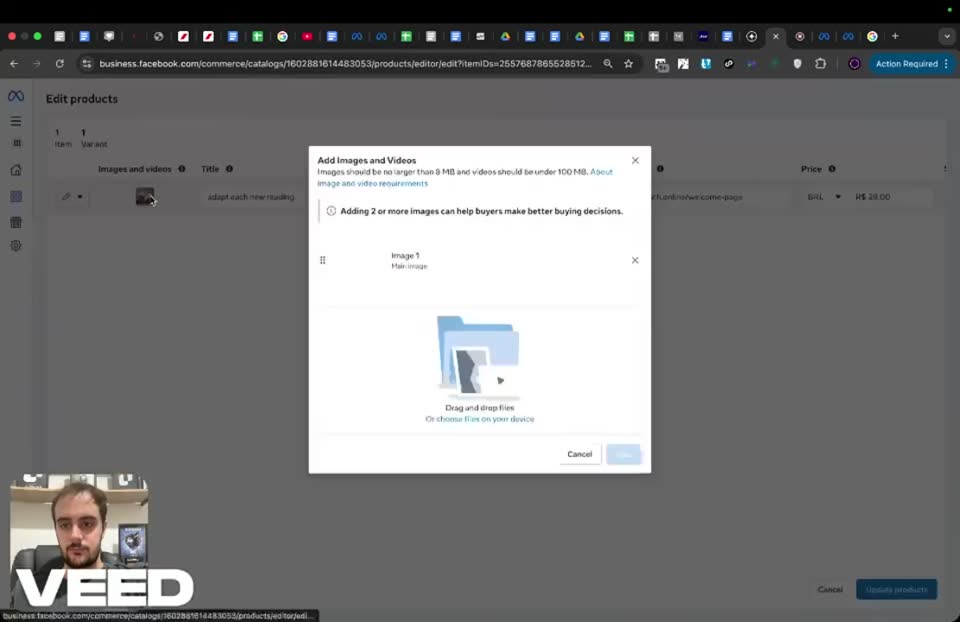
Step 1201:19 to 01:25
Choose to upload a file from your device.
- Button clicked = Choose files on your device
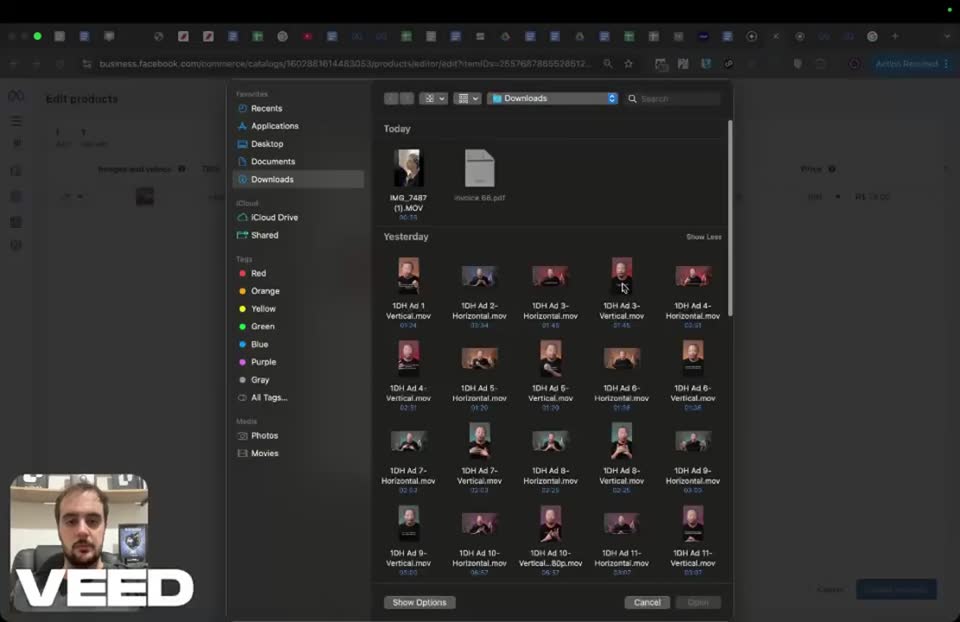
Step 1301:25 to 01:29
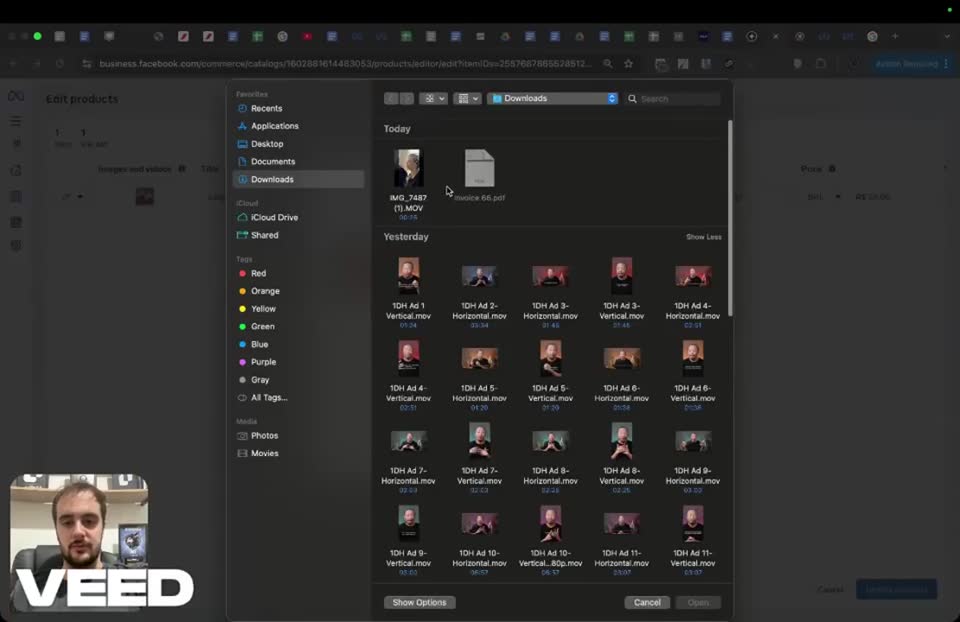
Select a video file to upload.
- File selected = IMG_7487 (1).MOV
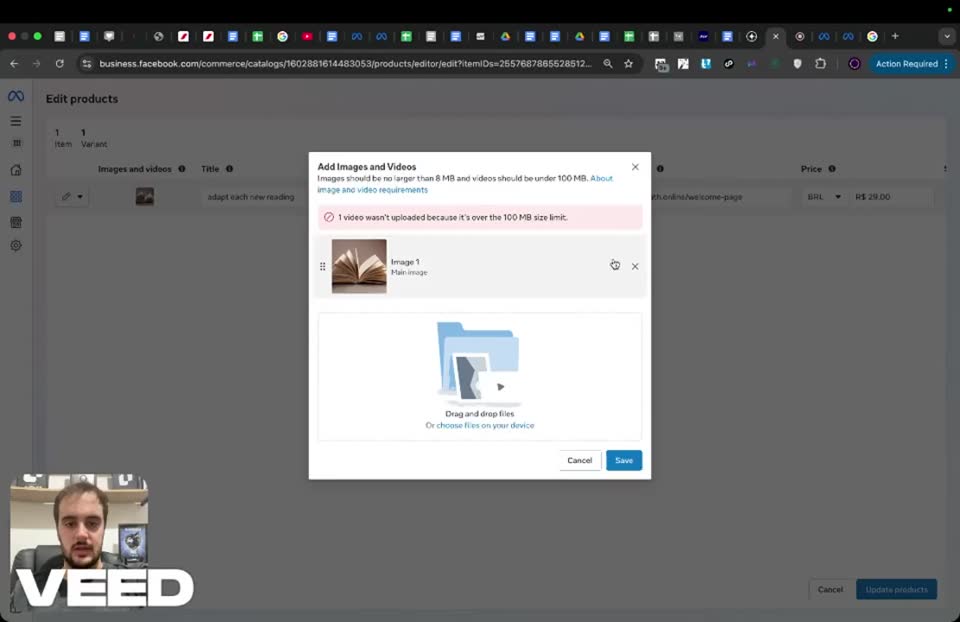
Step 1401:29 to 01:33
Observe the file size limit error.
- Error message = 1 video wasn't uploaded because it's over the 100 MB size limit.
Yeah, this is not under 100.
Step 1501:33 to 01:48
Browse for a smaller video file.
- Button clicked = Choose files on your device
Let me see if I find a very short video just to show you guys how it's going to look like.
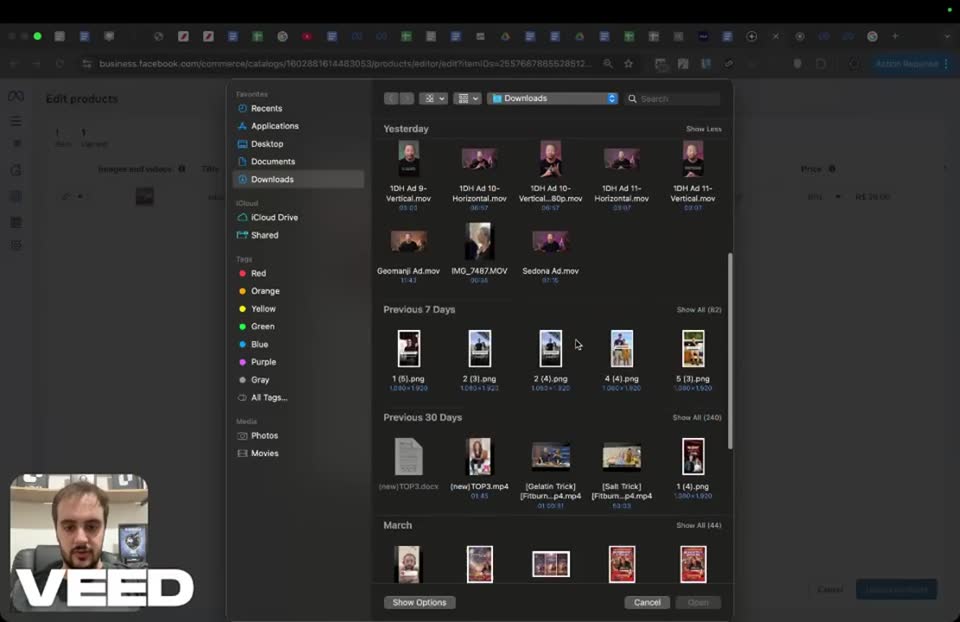
Step 1601:48 to 01:51
Select a valid video file under the size limit.
- File selected = Reddit Ad Needha - re-edit (1) (1).mp4
So you're going to upload the video with the right naming convention.
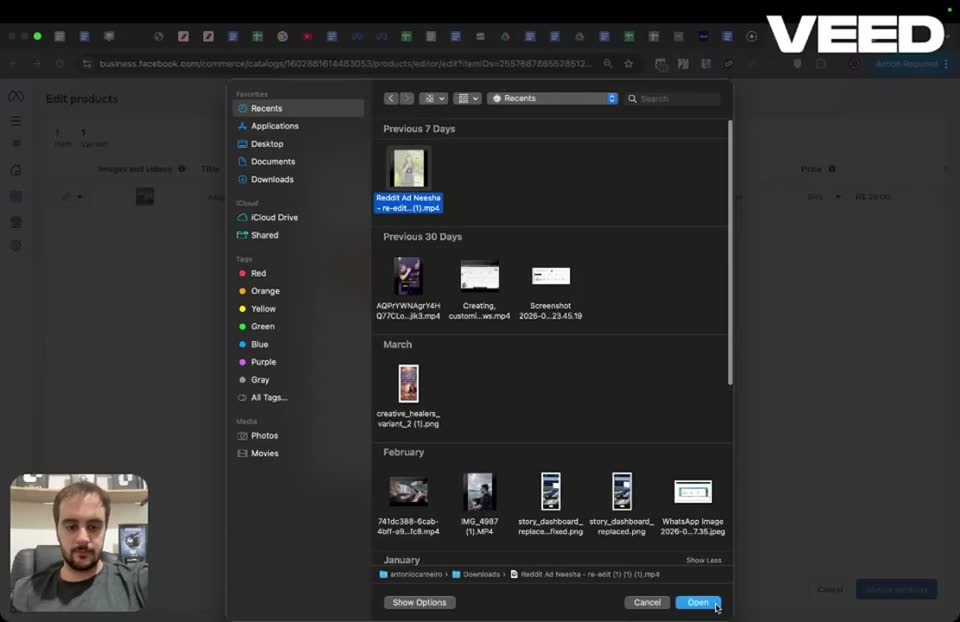
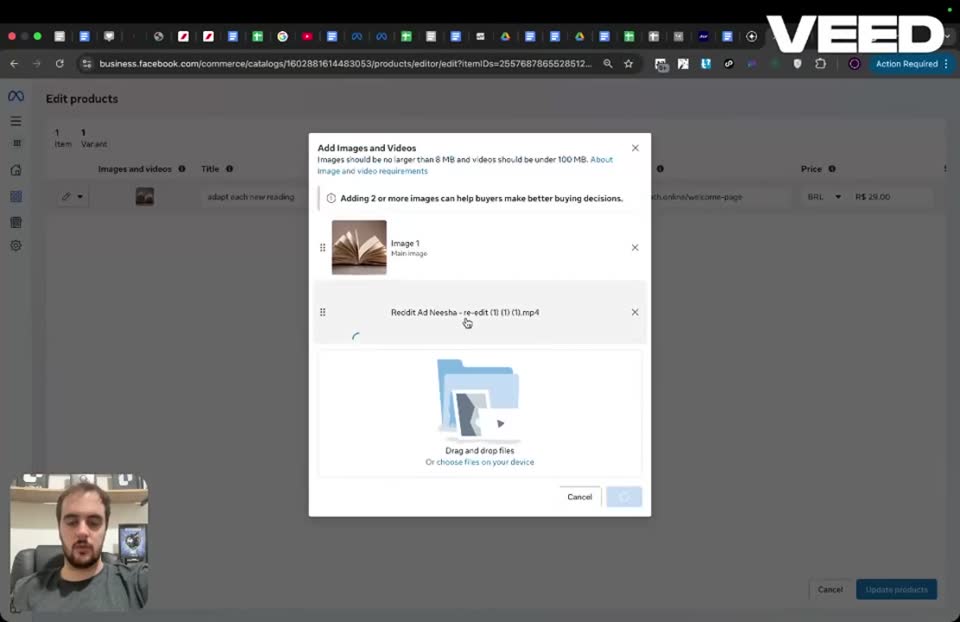
Step 1701:51 to 02:07
Wait for the video to upload successfully.
- Upload status = successfully uploaded in popup
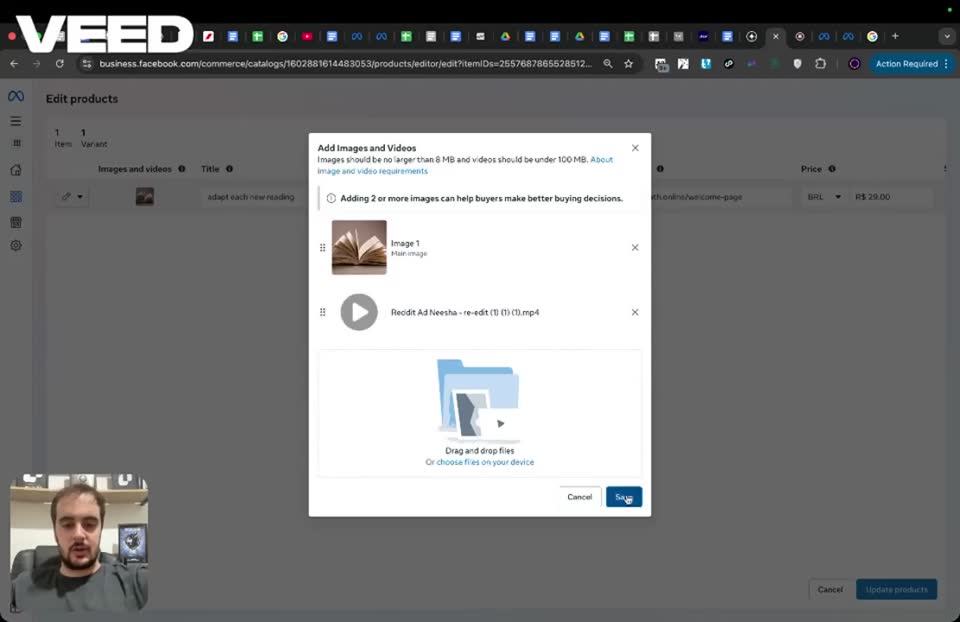
Step 1802:07 to 02:09
Save the newly uploaded video.
- Button clicked = Save
So now I click on Save.
Step 1902:09 to 02:11
Update the product with the new media.
- Button clicked = Update products (bottom right)
Now I'm going to click Update products.
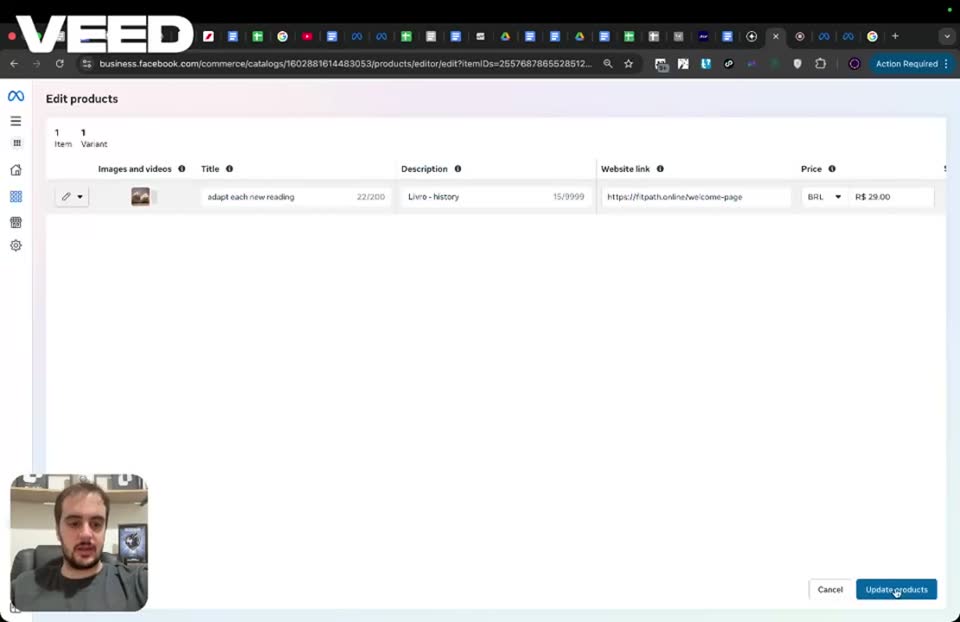
Step 2002:11 to 02:16
Wait for the changes to save.
- Loading screen text = Your changes are being saved...

Step 2102:16 to 02:27
Return to the Products page.
- Page = Commerce Manager > Catalog > Products
And then I'm going to do this for literally each of these products within this catalog, right?
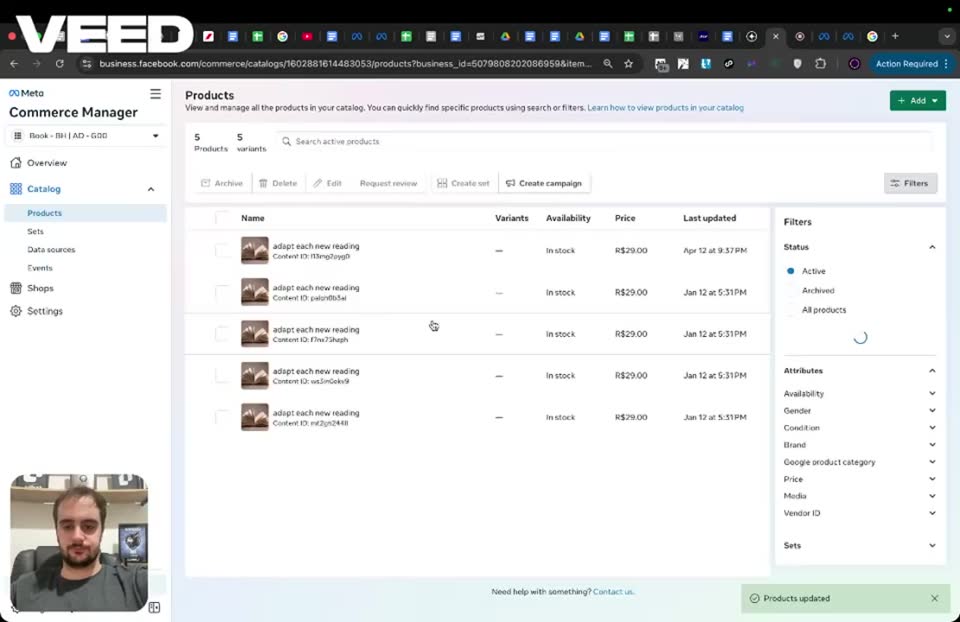
Step 2202:27 to 02:31
Select the second product to check its media.
- Product selected = second product in the list
And then you're going to double-check each of them, like I'm doing here.
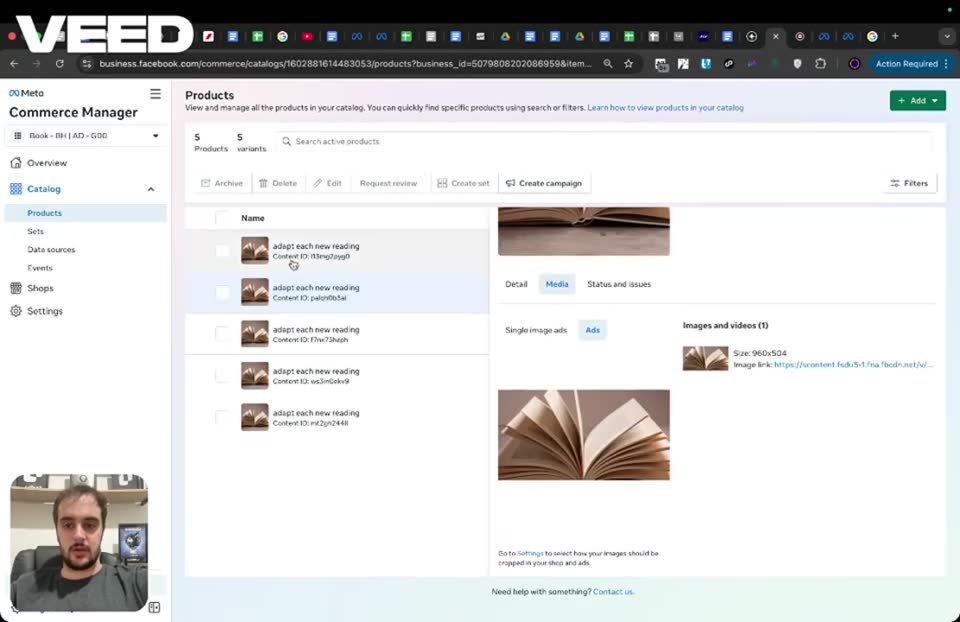
Step 2302:31 to 02:41
Verify the second product is missing its video.
- Tab selected = Media
- Images and videos (1) = only the image
So in this case, as you can see, the video is not showing up, which is a big problem.
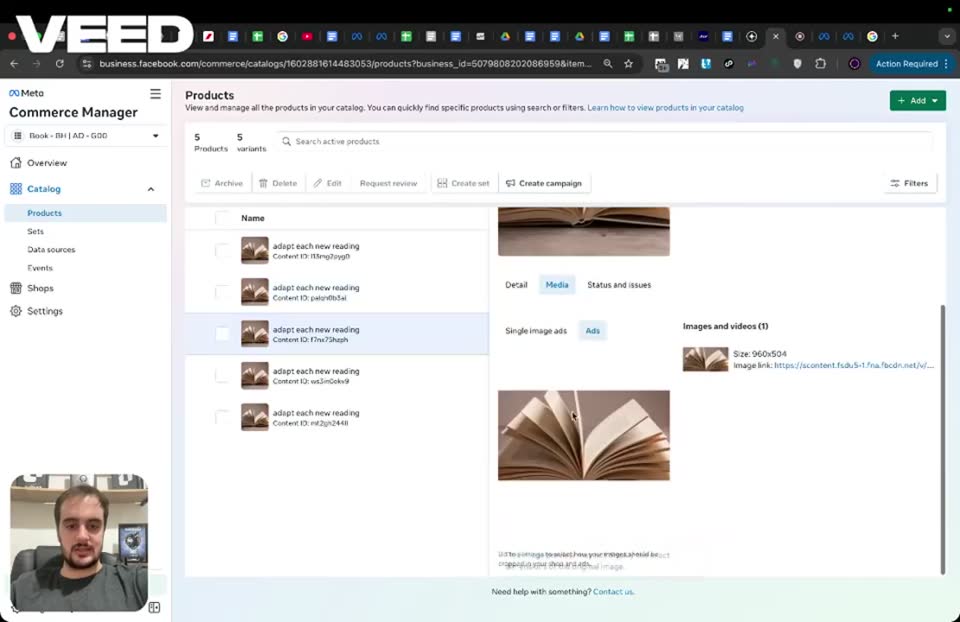
Step 2402:41 to 02:45
Select the third product to check its media.
- Product selected = third product
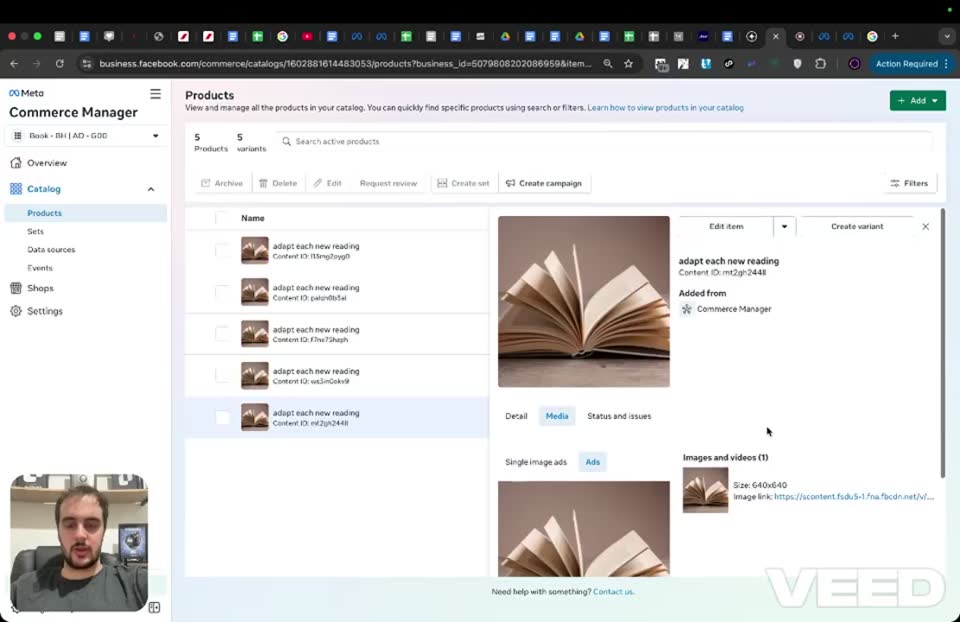
Step 2502:45 to 02:52
Verify the third product is missing its video.
- Tab selected = Media
- Images and videos (1) = only the image
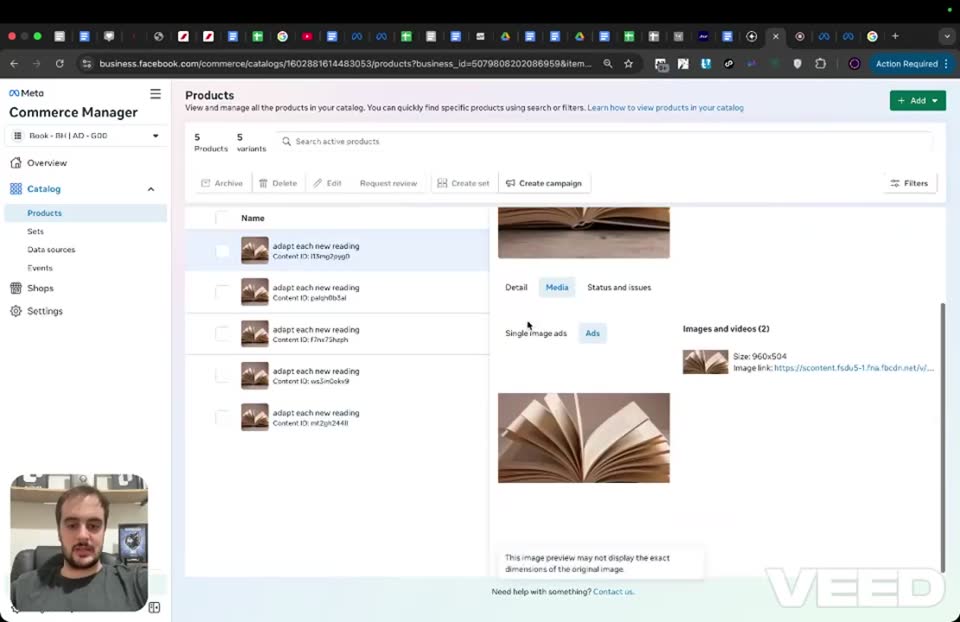
Step 2602:52 to 02:55
Click back on the first product.
- Product selected = first product
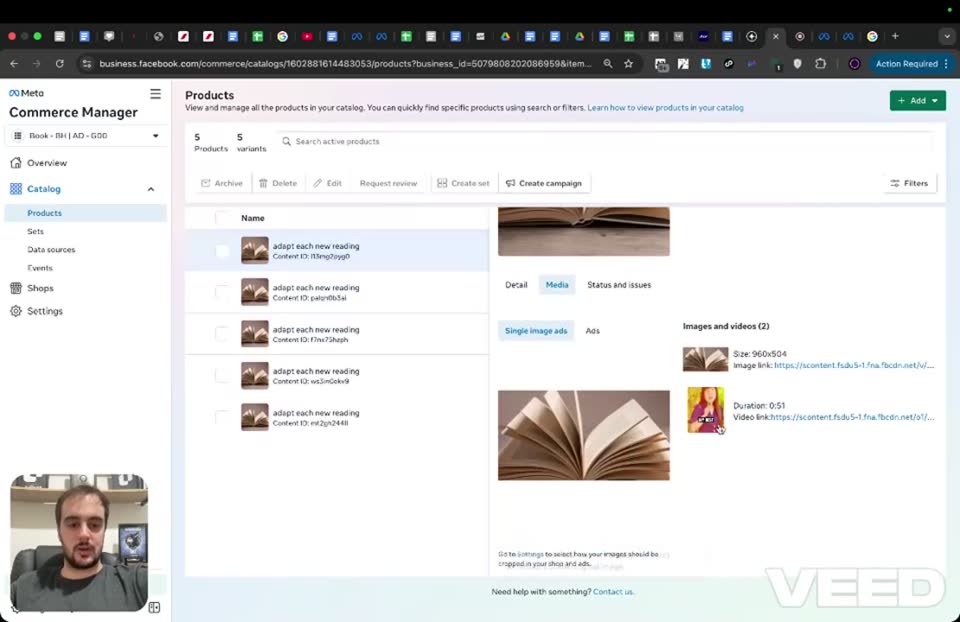
Step 2702:55 to 03:09
Verify the first product now has both image and video.
- Tab selected = Media
- Images and videos (2) = image and the newly uploaded video
That's how it's supposed to look, right?
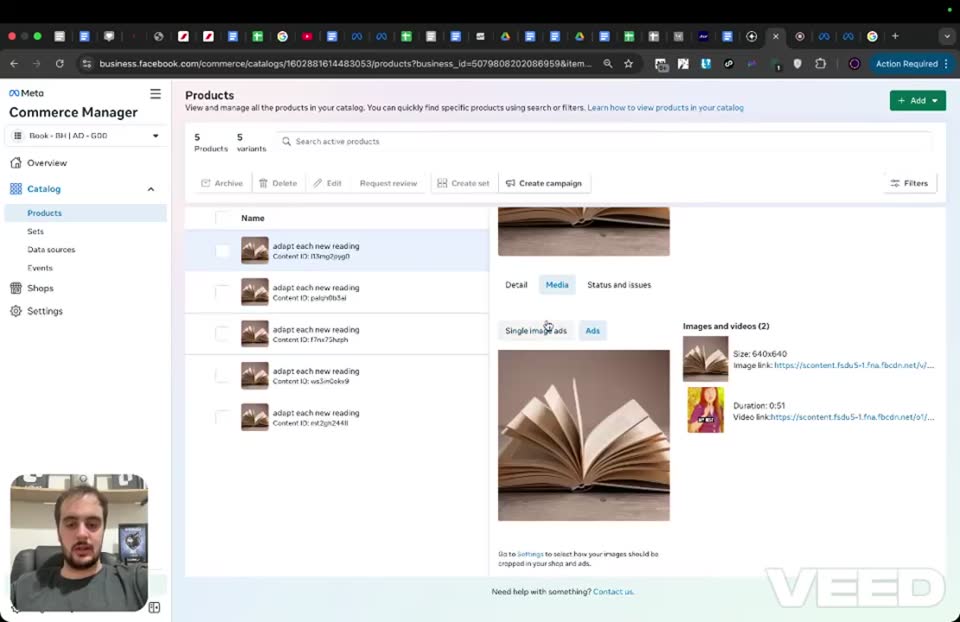
Step 2803:09 to 03:26
Click on the second product again to show it still lacks a video.
- Product selected = second product
- Images and videos (1) = only the image
Obviously, it's not the same right now for these other ones because I haven't re-uploaded the video like I did for the first one.
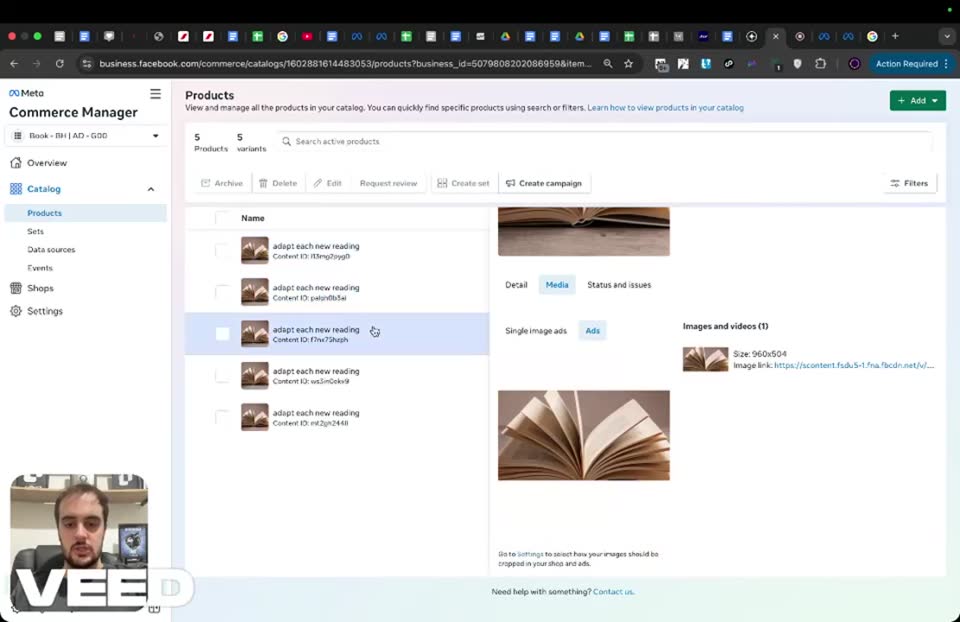
Step 2903:26 to 03:28
Open the catalog dropdown menu.
- Menu clicked = catalog dropdown (top left)
So for example, I just selected another catalog here to show you guys.
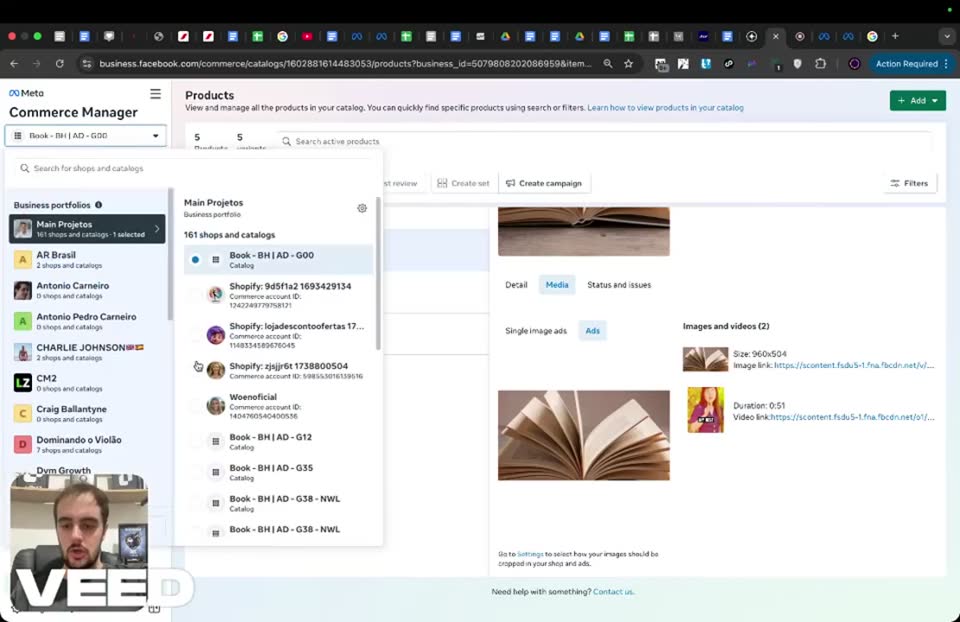
Step 3003:28 to 03:32
Select a different catalog to inspect.
- Catalog selected = Book - EH | AD - G38
- Catalog ID = 10224614483555
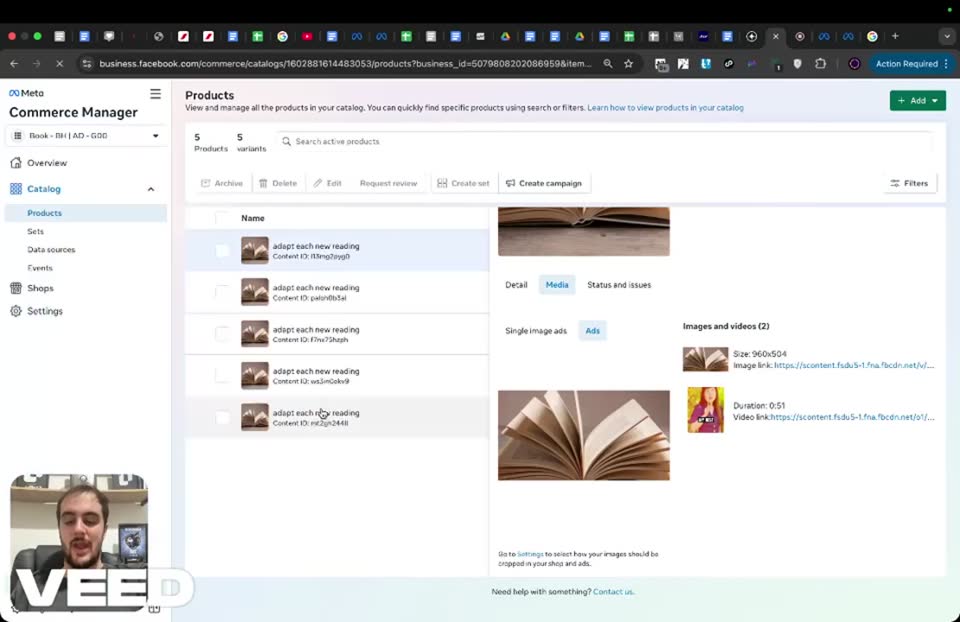
Step 3103:32 to 03:35
View the overview for the newly selected catalog.
- Page = Commerce Manager > Overview

Step 3203:35 to 03:38
Navigate to the Products section of the new catalog.
- Button clicked = Manage (in the Product status box)
So once again, just go to Manage on the top right within the catalog you selected
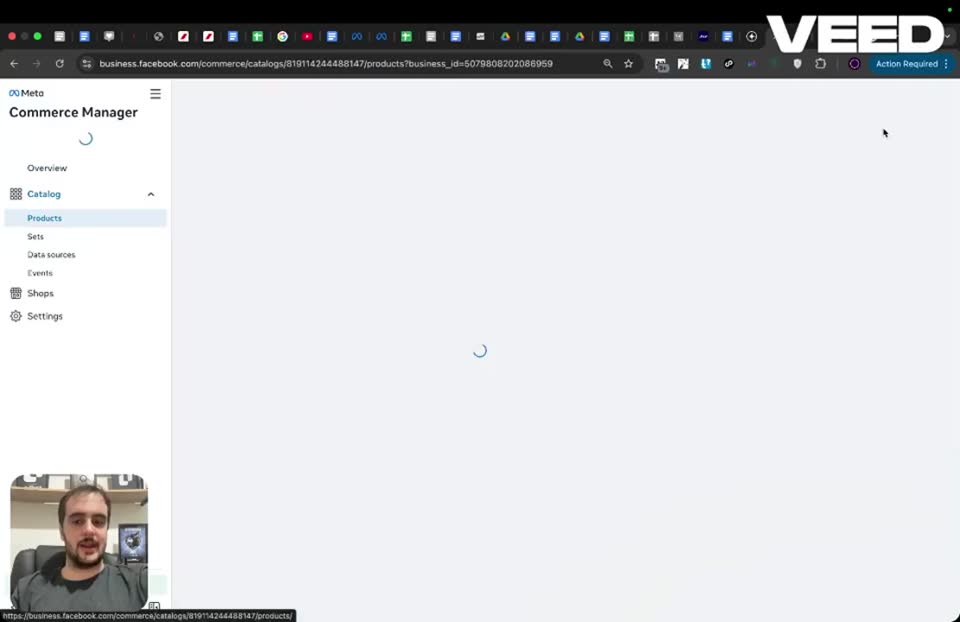
Step 3303:38 to 03:40
View the list of products in the new catalog.
- Page = Commerce Manager > Catalog > Products
- Products listed = 5 products named 'Livro - history'
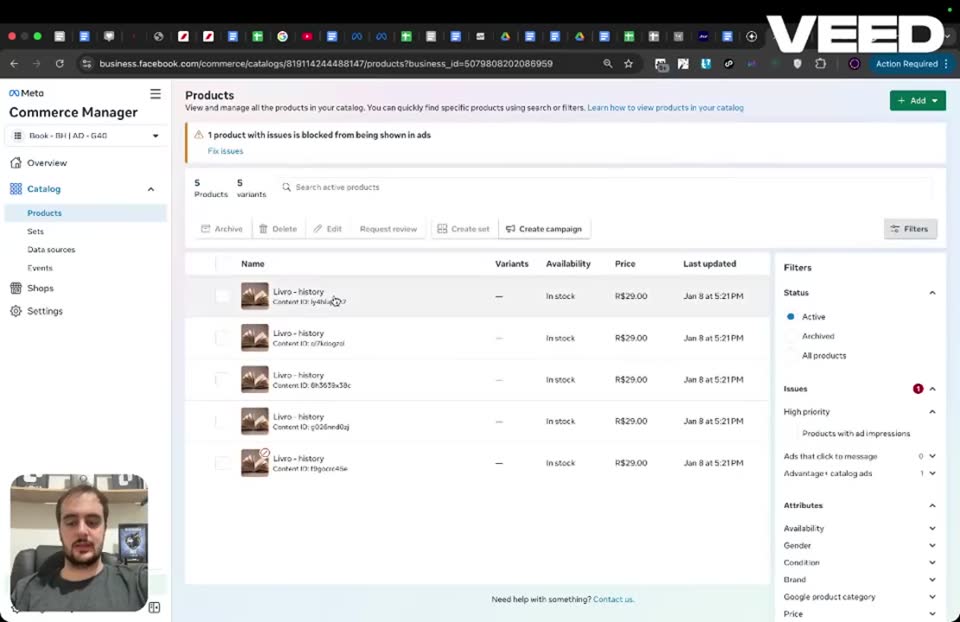
Step 3403:40 to 03:44
Select the first product in the new catalog.
- Product selected = first product
click on the first product, and then check product by product, right?
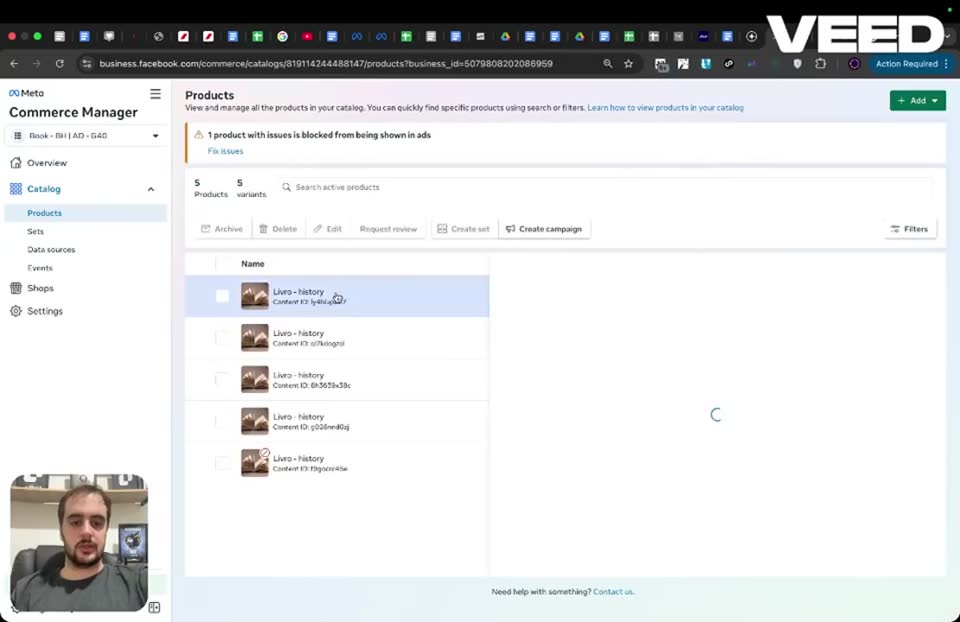
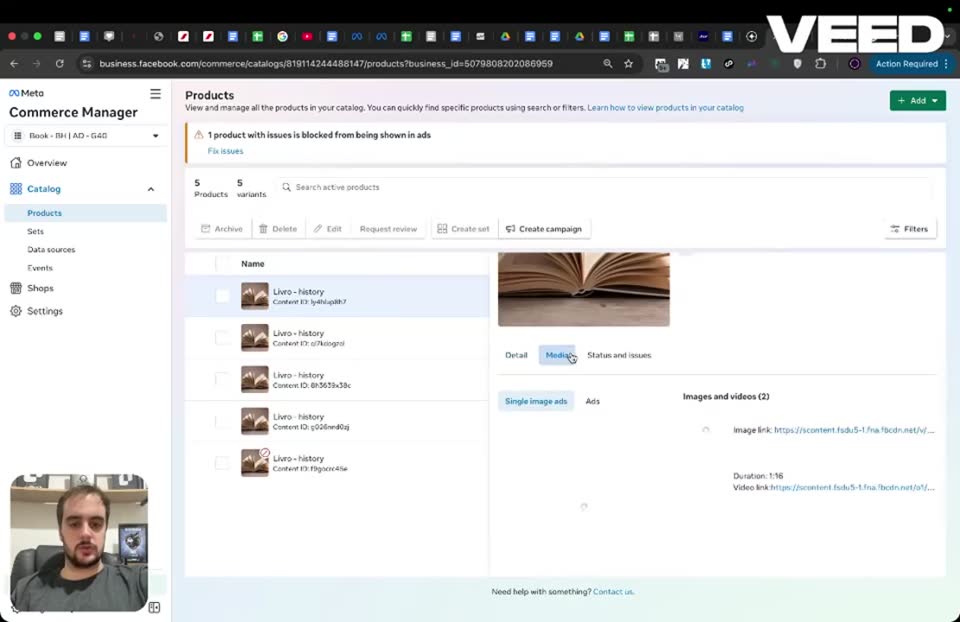
Step 3503:44 to 03:49
Verify the first product has both image and video.
- Tab selected = Media
- Images and videos (2) = image and a video
So now if you go to Media, we have a video here for each product.
Step 3603:49 to 03:50
Verify the second product has both image and video.
- Product selected = second product
- Tab selected = Media
- Images and videos = image and a video
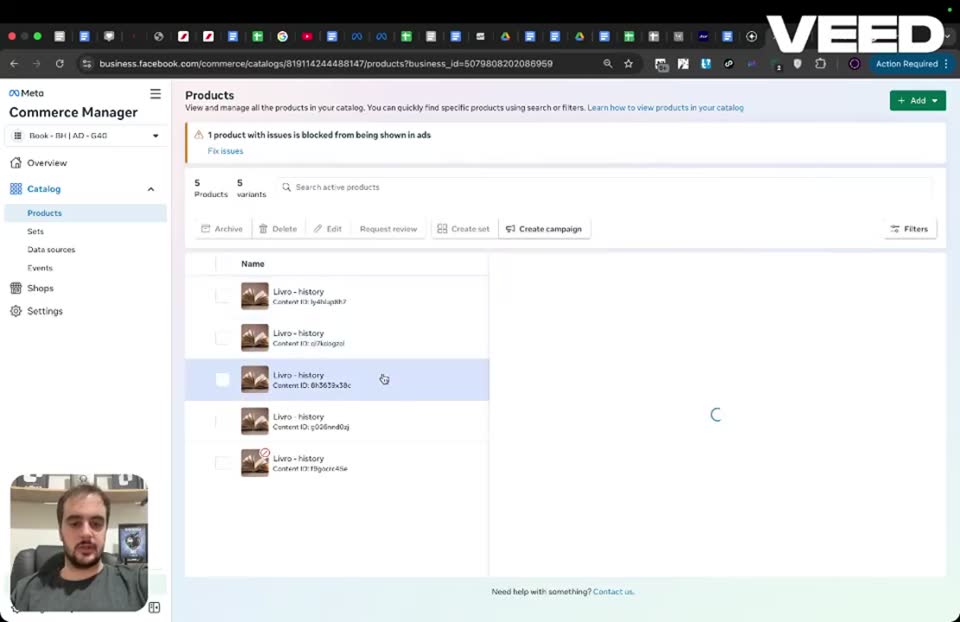
Step 3703:50 to 03:51
Verify the third product has both image and video.
- Product selected = third product
- Tab selected = Media
- Images and videos = image and a video
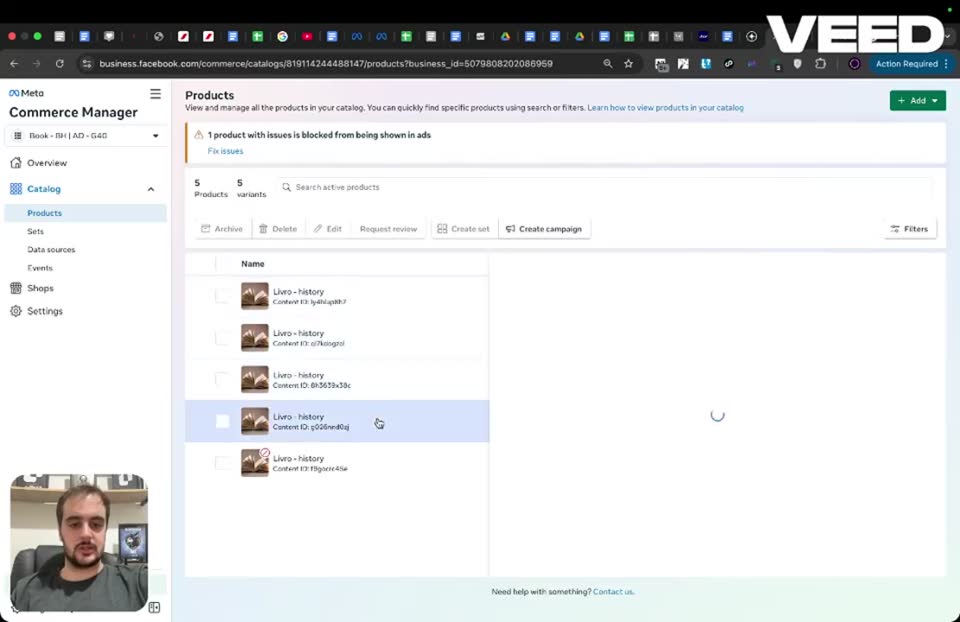
Step 3803:51 to 03:52
Verify the fourth product has both image and video.
- Product selected = fourth product
- Tab selected = Media
- Images and videos = image and a video
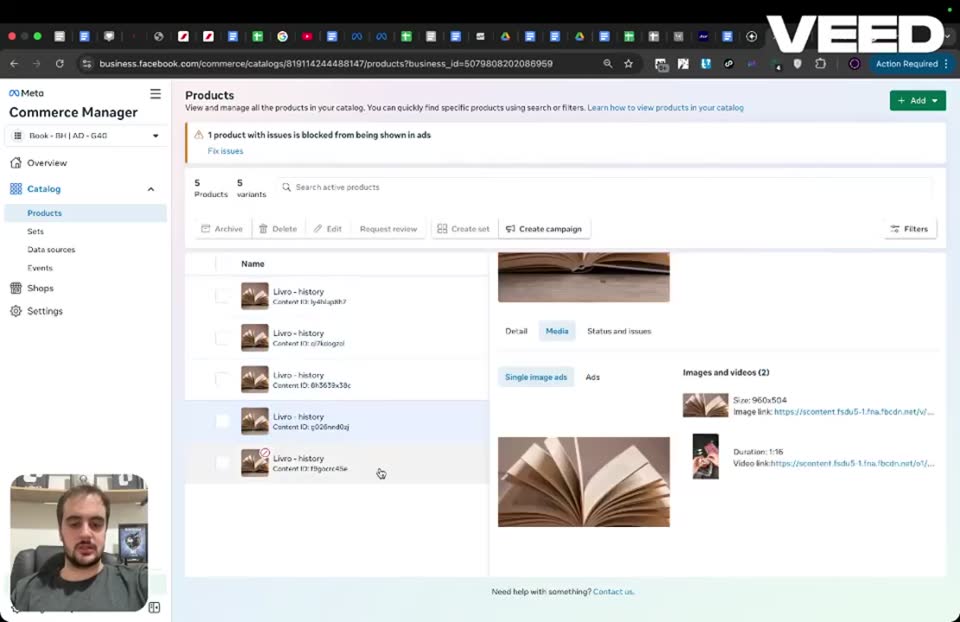
Step 3903:52 to 04:22
Verify the fifth product has both image and video.
- Product selected = fifth product
- Tab selected = Media
- Images and videos = image and a video
That's how it's supposed to be. For each product, you need to have the image, but obviously also the video.
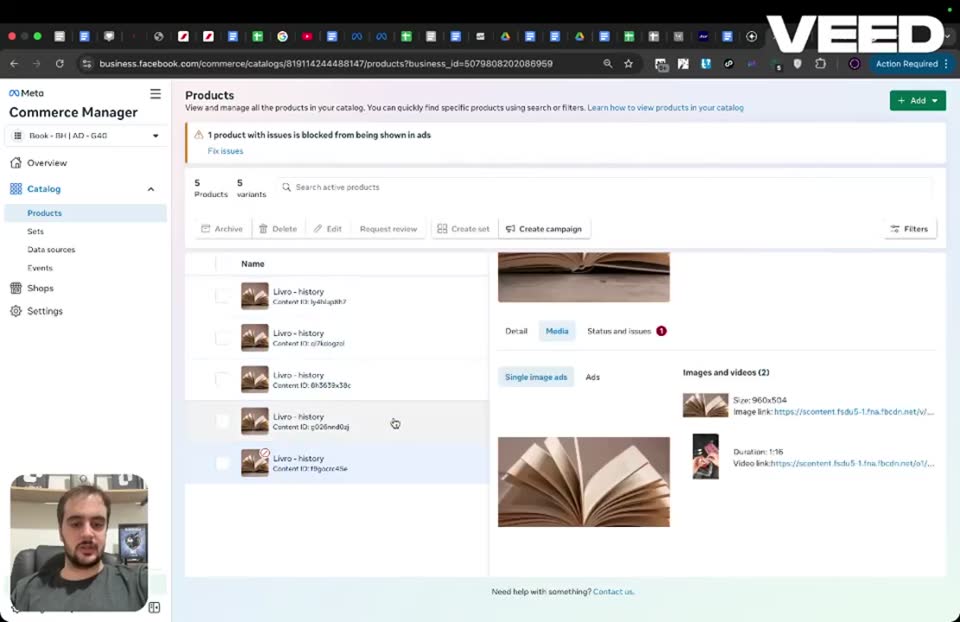
Step 4004:22 to 04:24
Click the All tools menu.
- Menu clicked = All tools hamburger menu
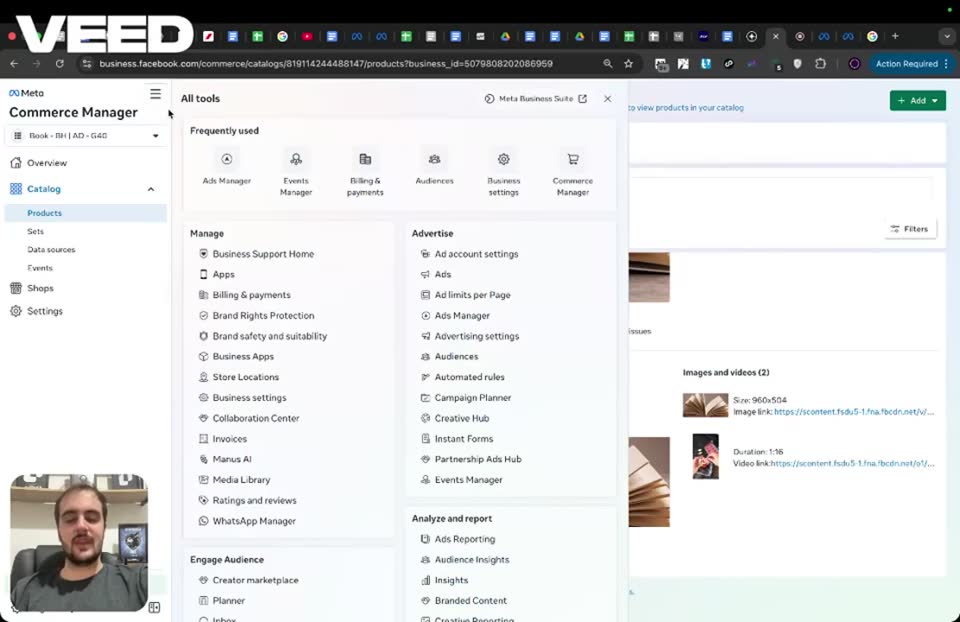
Step 4104:24 to 04:56
Close the menu by clicking back on Commerce Manager.
- Action = close menu
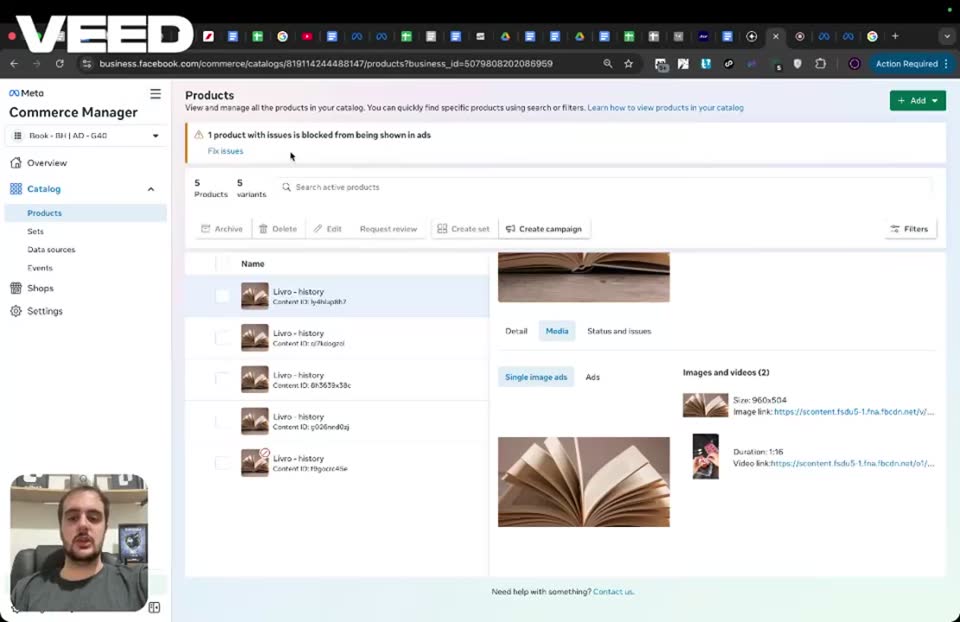
Step 4204:56 to 04:58
Refresh the browser page to ensure changes persist.
- Action = Refresh browser page
So I always refresh the page after I create a catalog, and then I go back to each product of the catalog

Step 4304:58 to 05:00
Wait for the page to reload.
- Page = Commerce Manager > Catalog > Products
- Catalog = Book - EH | AD - G38
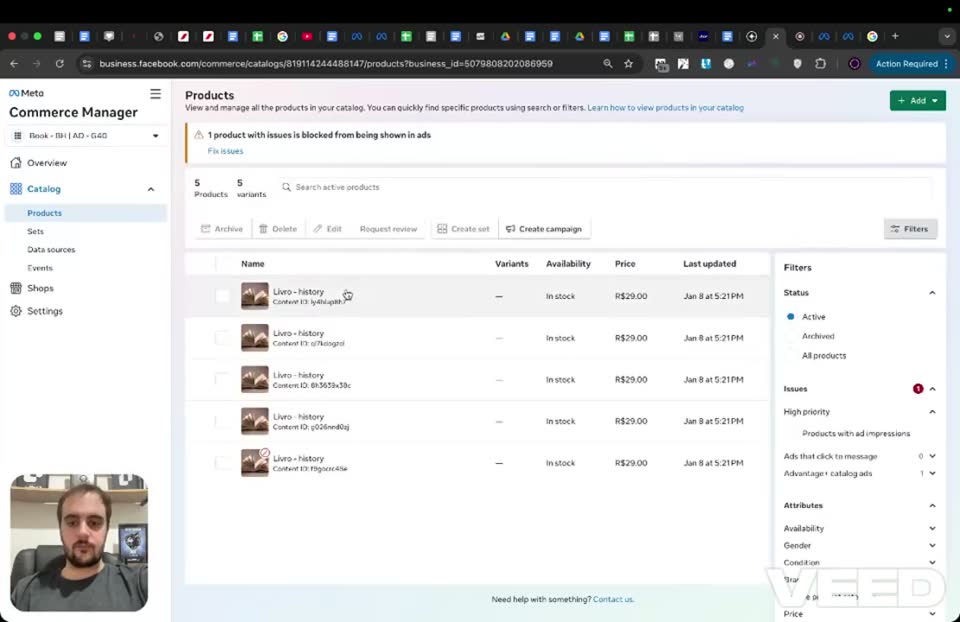
Step 4405:00 to 05:02
Select the first product after refreshing.
- Product selected = first product
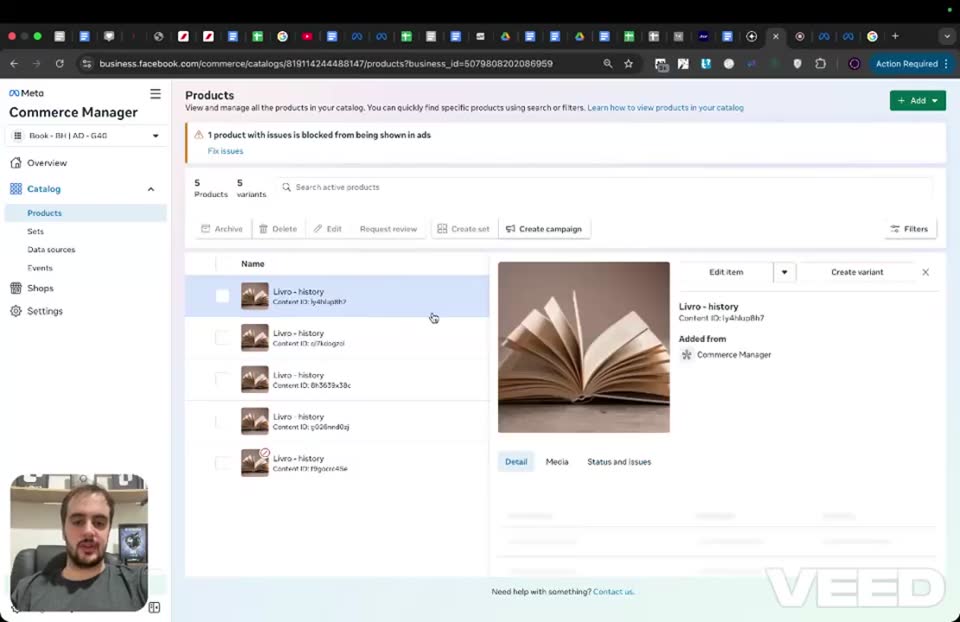
Step 4505:02 to 05:05
Verify the video is still present after refresh.
- Tab selected = Media
- Images and videos = image and video are still present
just to see if the video is still there. So in this case, it's still there, so it worked
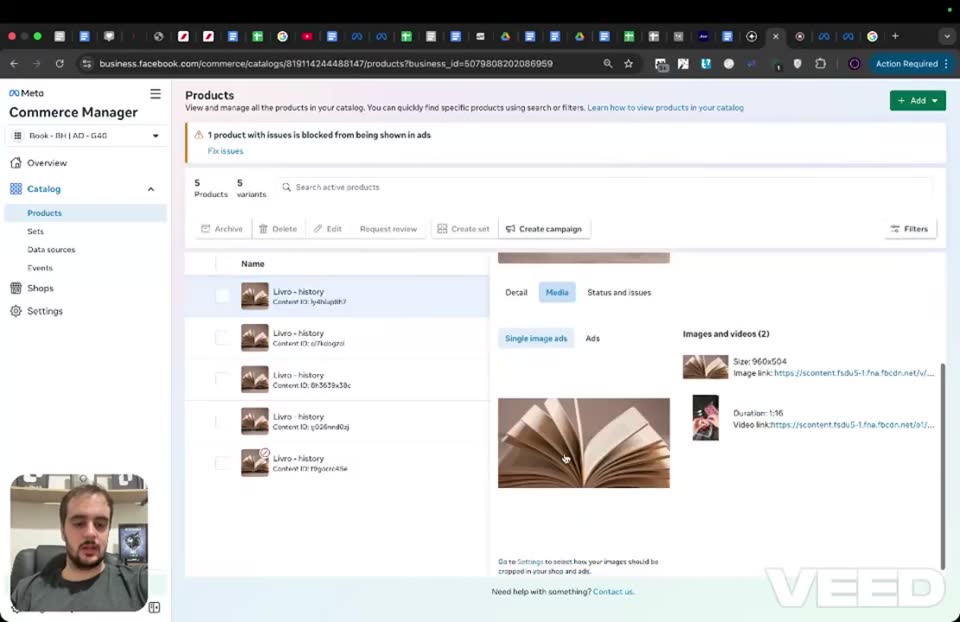
Step 4605:05 to 05:07
Select the second product after refreshing.
- Product selected = second product
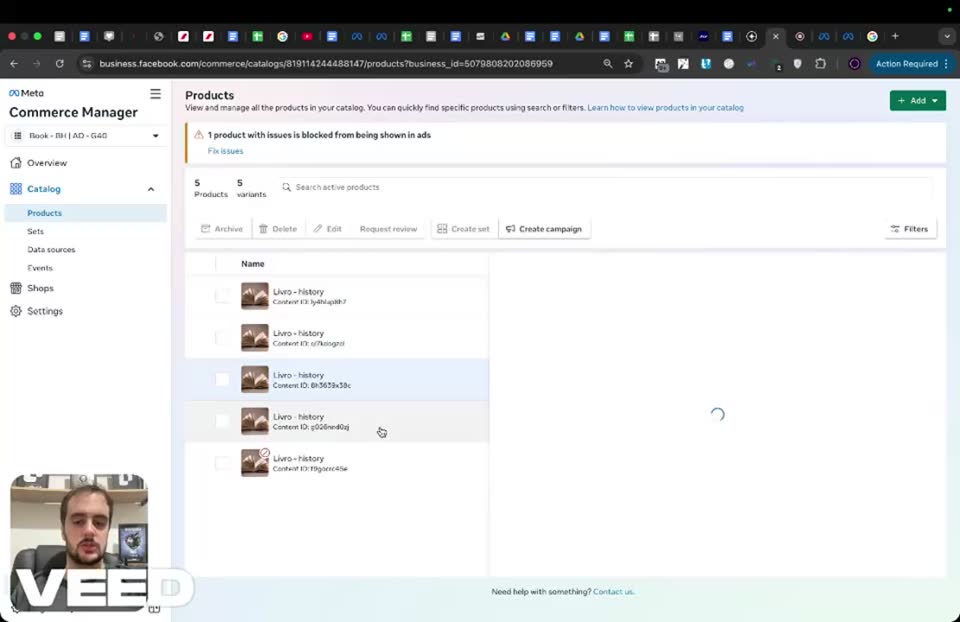
Step 4705:07 to 05:09
Select the third product after refreshing.
- Product selected = third product
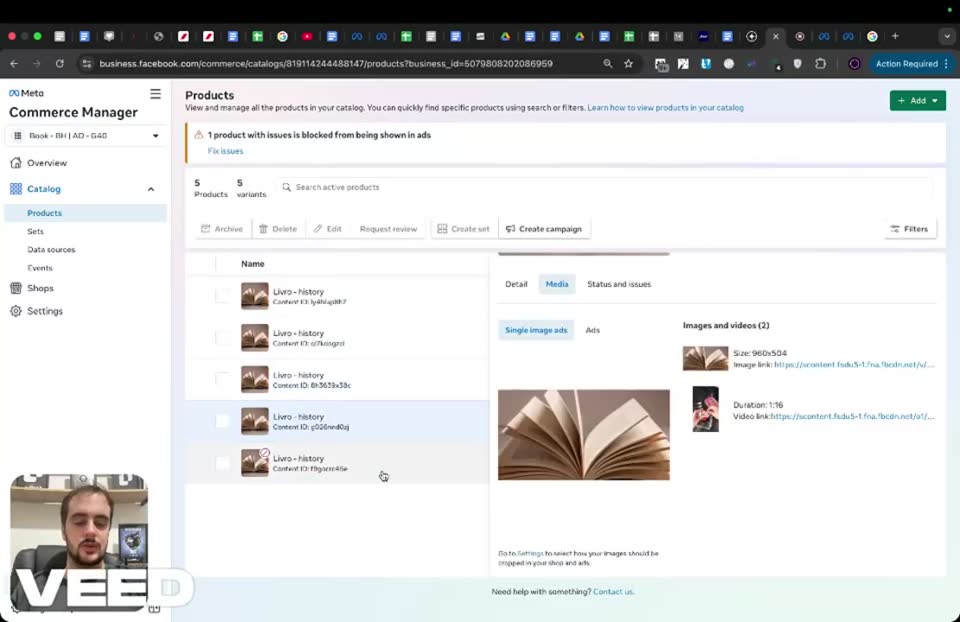
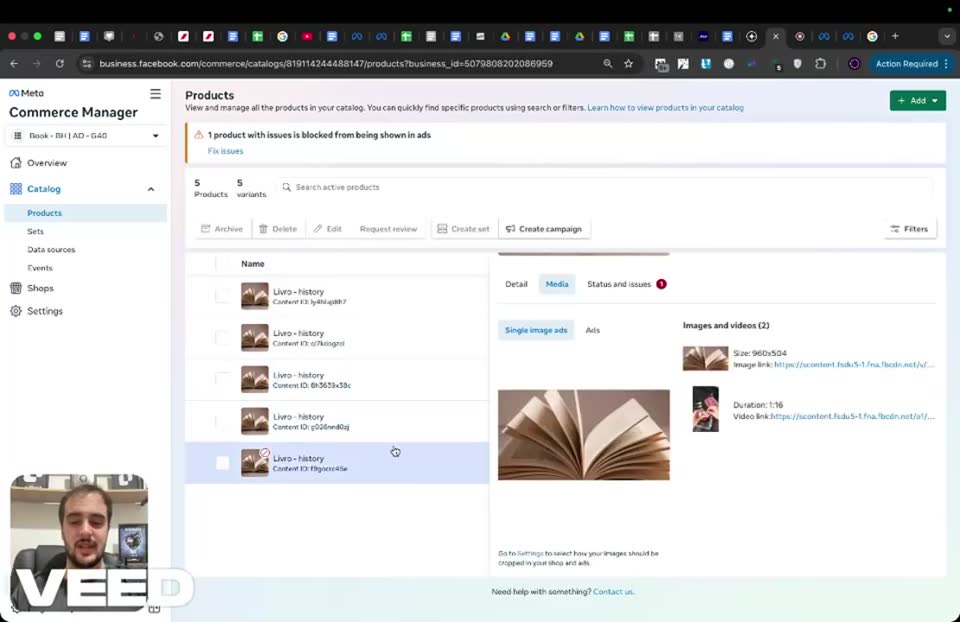
Step 4805:09 to 05:11
Select the fourth product after refreshing.
- Product selected = fourth product
Full timestamped transcript with on-screen notes
[00:00] ANTONIO: Hey guys, very, very important. Guys, you need to make sure the catalog is showing the video as well and not just the image. I've seen bugs in the past, so I do want to cover this in this class. Every day, guys, check the catalogs that are running at the campaign level, right? So you just need to go to the Commerce Manager as usual. So Commerce Manager, select the catalog of your ad with the right naming convention. So just as an example, let's say it's this one. By the way, I know this one is not working right now, so I'm going to show an example that's not working. Then you go to Products and Manage on the top right.

[SCREEN 00:00] Commerce Manager > Catalog > Products. A product named "Livro - history" is selected. The right panel shows "Livro - history", "Content ID: id1historyid1", "Added from: Commerce Manager". Below, tabs: "Detail", "Media", "Status and issues". "Media" tab is selected. It shows "Single image ads" with an image of an open book, and "Images and videos (2)" showing the same image and a video.

[SCREEN 00:18] Clicks the "All tools" hamburger menu. Selects "Commerce Manager" under "Sell products and services".

[SCREEN 00:23] Commerce Manager > Assets. A list of Catalogs is shown. Clicks on a catalog named "Book - EH | AD - G00" with Catalog ID 902388314483555.

[SCREEN 00:31] Commerce Manager > Overview for the selected catalog.

[SCREEN 00:35] Clicks on "Manage" button in the "Products" box on the right.

[00:39] ANTONIO: And then you check each product to see if it has the media. You can just click on it, literally. And then you go to Media. And then, for example, in this one here, if I go to Single image ads and Ads, it just has the image. So it wouldn't be working. If I spend on this one, it would just have the image, so it would be wasted money, obviously, because the real ad is the video, right? So this is very important, guys, that you check. If it's only showing the image, you're going to need to edit this, literally. So I just click on the button Edit, and you need to re-upload the video. So you need to come here and re-upload the video. Okay? That's, guys, that's so, so, so important. You need to make sure... Let me just upload a random video. Not sure if this video is going to be under 100... Yeah, this is not under 100. Let me see if I find a very short video just to show you guys how it's going to look like.

[SCREEN 00:39] Commerce Manager > Catalog > Products. A list of 5 products named "adapt each new reading" is shown.

[SCREEN 00:43] Clicks on the first product in the list. The right panel opens for "adapt each new reading", Content ID: id1historyid1.

[SCREEN 00:48] Clicks on the "Media" tab in the right panel. It shows "Single image ads" with an image of an open book, and "Images and videos (1)" showing only the image.

[SCREEN 01:10] Clicks the "Edit item" pencil icon in the right panel.

[SCREEN 01:11] "Edit products" page opens.

[SCREEN 01:15] Clicks on the "Images and videos" cell for the product. A popup "Add Images and Videos" appears.

[SCREEN 01:19] Clicks "Choose files on your device". A file browser window opens.

[SCREEN 01:25] Selects a video file named "IMG_7487 (1).MOV".

[SCREEN 01:29] An error message appears in the popup: "1 video wasn't uploaded because it's over the 100 MB size limit."

[SCREEN 01:33] Clicks "Choose files on your device" again. Browses files.

[01:41] ANTONIO: Yeah, these are all going to be very, very heavy, to be honest. Let me do this one. Yeah, cool. So just as an example, right? So you're going to upload the video with the right naming convention. So I'm basically just re-uploading it, and you're going to have to do this for every product. Remember, you're going to have five products in your catalog, just like I showed you guys. So now I click on Save. Now I'm going to click Update products. Bam. It's saying your changes are being saved.

[SCREEN 01:48] Selects a video file named "Reddit Ad Needha - re-edit (1) (1).mp4".

[SCREEN 01:51] The video uploads successfully in the "Add Images and Videos" popup.

[SCREEN 02:07] Clicks the "Save" button in the popup.

[SCREEN 02:09] Clicks the "Update products" button at the bottom right of the "Edit products" page.

[SCREEN 02:11] A loading screen appears with the text "Your changes are being saved...".

[02:19] ANTONIO: And then I'm going to do this for literally each of these products within this catalog, right? And then you're going to double-check each of them, like I'm doing here. For each product, I'm going to go into Image, Ads, and see if the video is there or not. Okay? So that's very, very, very important. Very important. So in this case, as you can see, the video is not showing up, which is a big problem. So I will need to rebuild it. Because if it's not showing up the video, it doesn't make sense to spend on this catalog, right? So just this one is showing the video. That's how it's supposed to look, right? When you go here, you click on the product within the catalog, and then you click on Media, you have the image, but you also have the real video that you want to show to people. That's the way it should look like within the catalog.

[SCREEN 02:16] Returns to the Commerce Manager > Catalog > Products page.

[SCREEN 02:27] Clicks on the second product in the list.

[SCREEN 02:31] Clicks on the "Media" tab for the second product. It shows only the image under "Images and videos (1)".

[SCREEN 02:41] Clicks on the third product.

[SCREEN 02:45] Clicks on the "Media" tab for the third product. It shows only the image.

[SCREEN 02:52] Clicks back on the first product.

[SCREEN 02:55] Clicks on the "Media" tab for the first product. It now shows "Images and videos (2)", displaying both the image and the newly uploaded video.

[03:08] ANTONIO: And then for each one you click, it should be the same. Obviously, it's not the same right now for these other ones because I haven't re-uploaded the video like I did for the first one. But that's how it should look like for each one of the products. And then for each catalog, it's going to have... you're going to have to check each product for each catalog to make sure that you're actually going to spend on the video that you want. So for example, I just selected another catalog here to show you guys. So once again, just go to Manage on the top right within the catalog you selected, click on the first product, and then check product by product, right?

[SCREEN 03:09] Clicks on the second product again to show it still only has the image.

[SCREEN 03:26] Clicks the catalog dropdown menu in the top left.

[SCREEN 03:28] Selects a different catalog named "Book - EH | AD - G38" with Catalog ID 10224614483555.

[SCREEN 03:32] Commerce Manager > Overview for the newly selected catalog.

[SCREEN 03:35] Clicks on "Manage" button in the "Product status" box on the right.

[SCREEN 03:38] Commerce Manager > Catalog > Products page for the new catalog. A list of 5 products named "Livro - history" is shown.

[SCREEN 03:40] Clicks on the first product in the list.

[03:44] ANTONIO: So now if you go to Media, we have a video here for each product. So this product, this product, this product, this product. That's how it's supposed to be. For each product, you need to have the image, but obviously also the video. If it's not like that, please guys, do not run the campaigns. That's a very important troubleshooting technique for you guys to be checking all the catalogs that you're running right now. Go into Products, for each product, go to Media, and then check if the video is there. If it's not, just re-upload the video. It's a very simple bug to fix. It's on Facebook's side, but it's very important for you guys to check.

[SCREEN 03:44] Clicks on the "Media" tab for the first product. It shows "Images and videos (2)" with an image and a video.

[SCREEN 03:49] Clicks on the second product. The "Media" tab shows an image and a video.

[SCREEN 03:50] Clicks on the third product. The "Media" tab shows an image and a video.

[SCREEN 03:51] Clicks on the fourth product. The "Media" tab shows an image and a video.

[SCREEN 03:52] Clicks on the fifth product. The "Media" tab shows an image and a video.

[04:21] ANTONIO: And then obviously, at the ad level, you just need to make sure you selected Advantage+ catalog campaigns, like I showed you guys in the launching campaigns step-by-step. And then you're going to have the catalog at the campaign level. That's very important. But for you to be able to do all of that, you need to have the video as well for each of the products in each of the catalogs. So these are products within each of the catalogs, right, that we have. That's pretty much it. That's how you troubleshoot it. Because sometimes, that's very important guys, sometimes even if you upload it correctly, it just disappears. So I always refresh the page after I create a catalog, and then I go back to each product of the catalog, I go into Media, just to see if the video is still there. So in this case, it's still there, so it worked, so I can run ads to it. But this is something honestly I check even every day, guys, because even a tiny, tiny mistake on this is just going to make you lose a lot of money because you're just going to be spending on a random image that nobody is going to click, or they're going to click randomly, which is even worse, right? So please double-check for all the ones that you have already launched and for all the ones that you're going to launch in the future. Double-check that each product within that catalog has the right video that you named in the campaign as well. Okay? Very important troubleshooting. See you in the next class.

[SCREEN 04:22] Clicks the "All tools" hamburger menu.

[SCREEN 04:24] Clicks back onto the Commerce Manager page, closing the menu.

[SCREEN 04:56] Refreshes the browser page.

[SCREEN 04:58] The page reloads to Commerce Manager > Catalog > Products for the "Book - EH | AD - G38" catalog.

[SCREEN 05:00] Clicks on the first product in the list.

[SCREEN 05:02] Clicks on the "Media" tab. It shows the image and the video are still present.

[SCREEN 05:05] Clicks on the second product.

[SCREEN 05:07] Clicks on the third product.

[SCREEN 05:09] Clicks on the fourth product.
Recording 5 8 Troubleshooting Catalog Ads Bugs.mp4. Gemini video pass. Rebuilt 31 Oct 2026 15:24 Melbourne.