
Module 5: Going Live, lesson 5.6
Setting Up Custom Columns
13 steps6:25 long5 rules
This lesson teaches how to configure custom columns in Meta Ads Manager to track campaign performance effectively. It walks through deleting default metrics and adding specific ones like Delivery, Amount Spent, CPC, Checkouts, and Purchases in funnel order. Finally, it demonstrates how to save these columns as a preset for quick access when applying the million dollar testing protocol.
Campaign structureLaunch 3 ads, each with 1 different campaign. Each campaign has 25 ad sets. Each campaign has its own link and its own catalog. Decisions are made at the campaign level.
Catalogue methodEach campaign has its own catalog. Different ad in each catalog.
Rules and numbers
- Launch 3 ads, each with one different campaign.
- Each campaign must have 25 ad sets.
- Each campaign must have its own link and its own catalog.
- Make decisions at the campaign level for this specific structure.
- Amount spent and cost per click are the very important metrics you're going to be looking at in the million dollar testing protocol.
Gotchas
- If you have a bunch of other stuff in your columns, you can just delete them all and build it from scratch.
- If they're coming from ClickMagick to Facebook, then you're also able to make decisions within Facebook.
“So each new campaign, own link, own catalog, different ad in each catalog.”
“We're just going to be making decisions at the campaign level for this specific structure.”
“In terms of really important metrics, amount spent, and then cost per click.”
Step 100:50 to 00:52
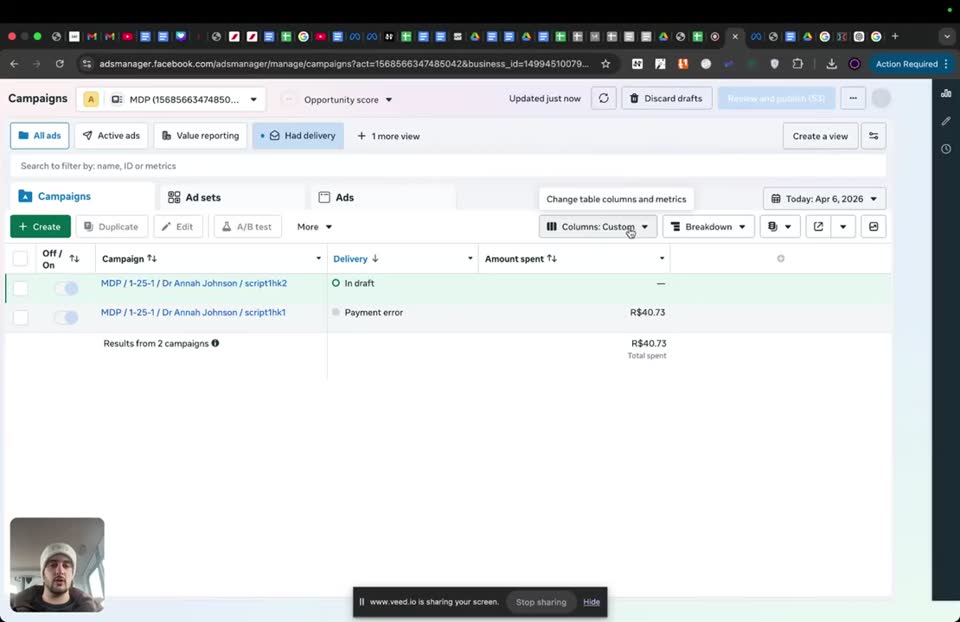
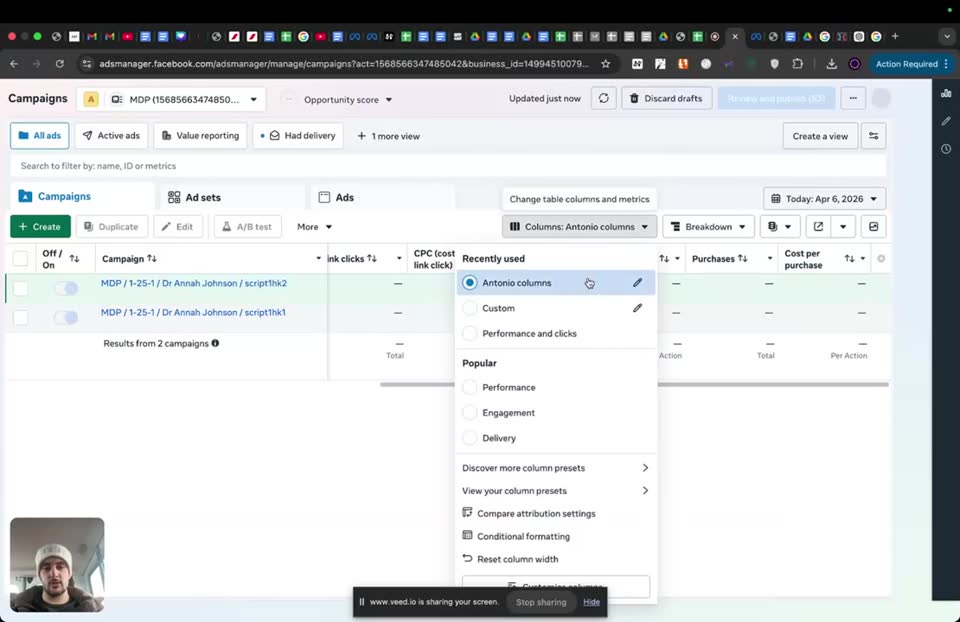
Click the pen icon next to Custom in the Columns dropdown menu.
- Columns = Custom
To customize your columns so you can actually make decisions.
Step 201:00 to 01:08
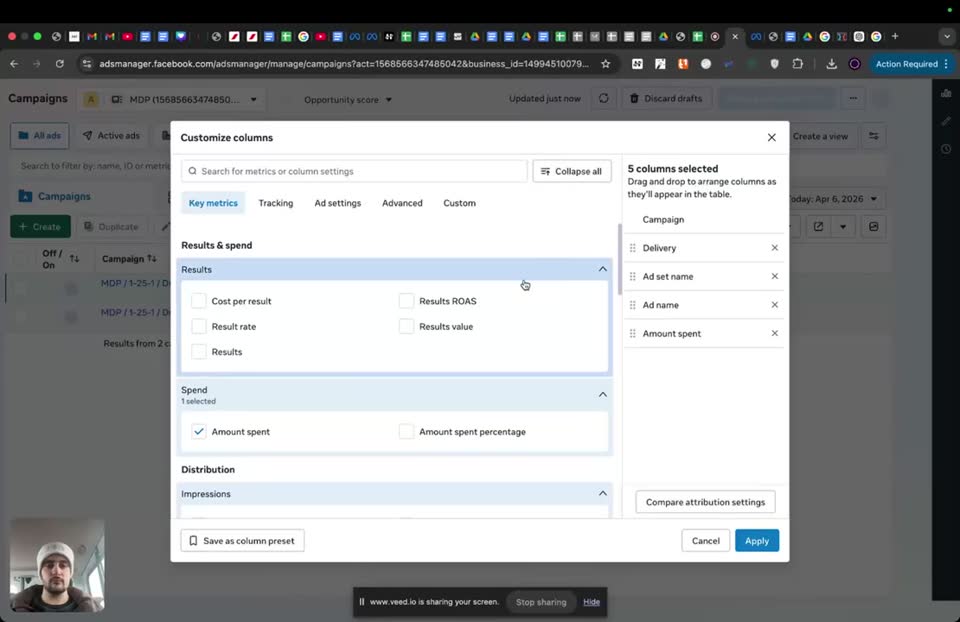
Delete the default columns by clicking the X next to them in the Customize columns modal.
- Ad set name = deselected
- Ad name = deselected
- Amount spent = deselected
- Delivery = deselected
To build the columns from scratch.
Step 301:14 to 01:14
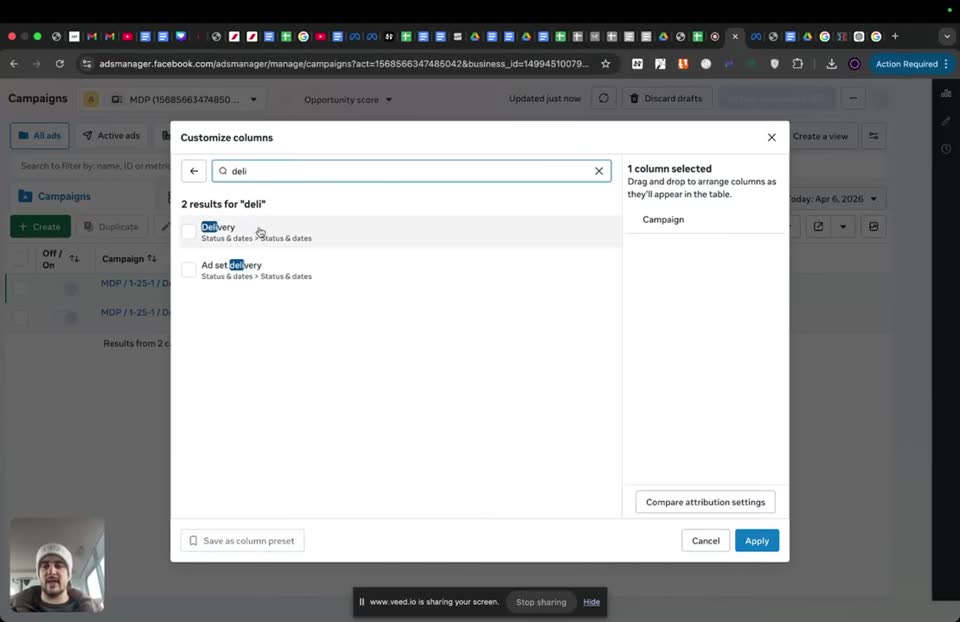
Search for and select Delivery in the Customize columns modal.
- Search for metrics or column settings = deli
- Delivery = checked
To know if the ad is delivering, approved, rejected, or has a payment error.
Step 401:27 to 01:27
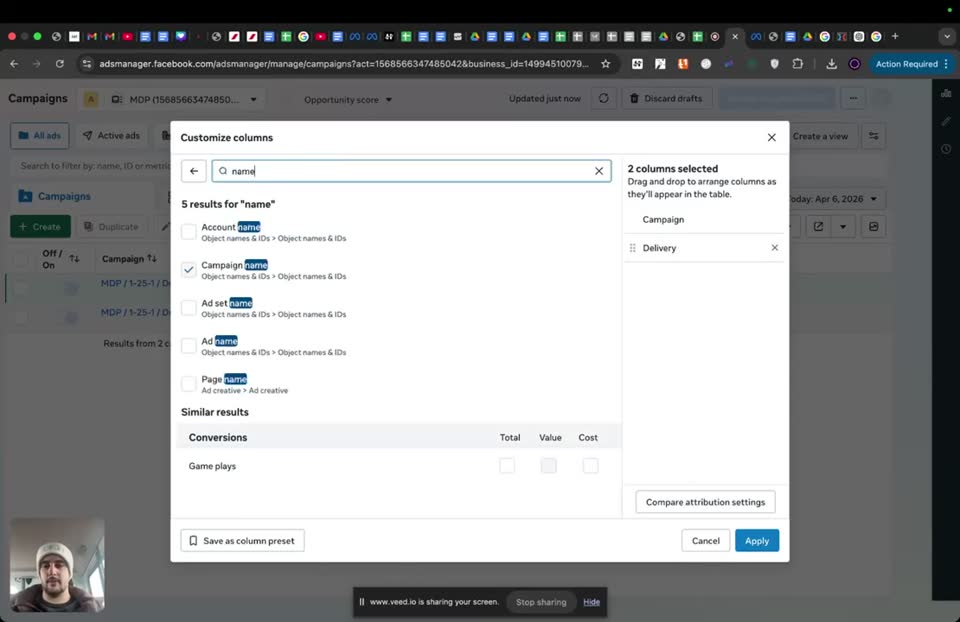
Search for and select Ad set name and Ad name.
- Search for metrics or column settings = name
- Ad set name = checked
- Ad name = checked
To see the names of the campaign, ad set, and ad.
Step 501:37 to 01:37
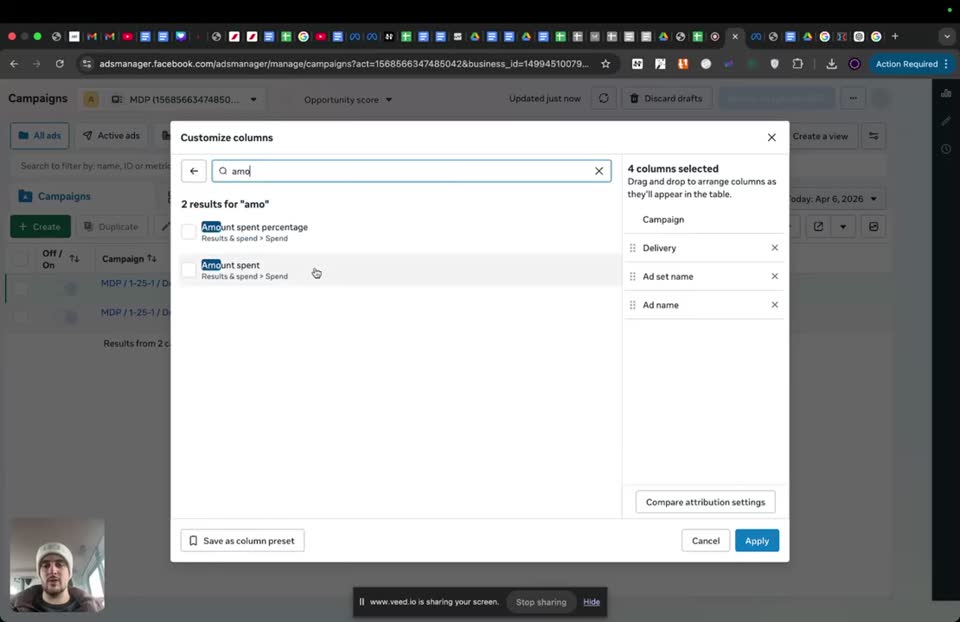
Search for and select Amount spent.
- Search for metrics or column settings = amo
- Amount spent = checked
To know how to make decisions using the million dollar testing protocol based on how much it spent.
Step 602:24 to 02:24
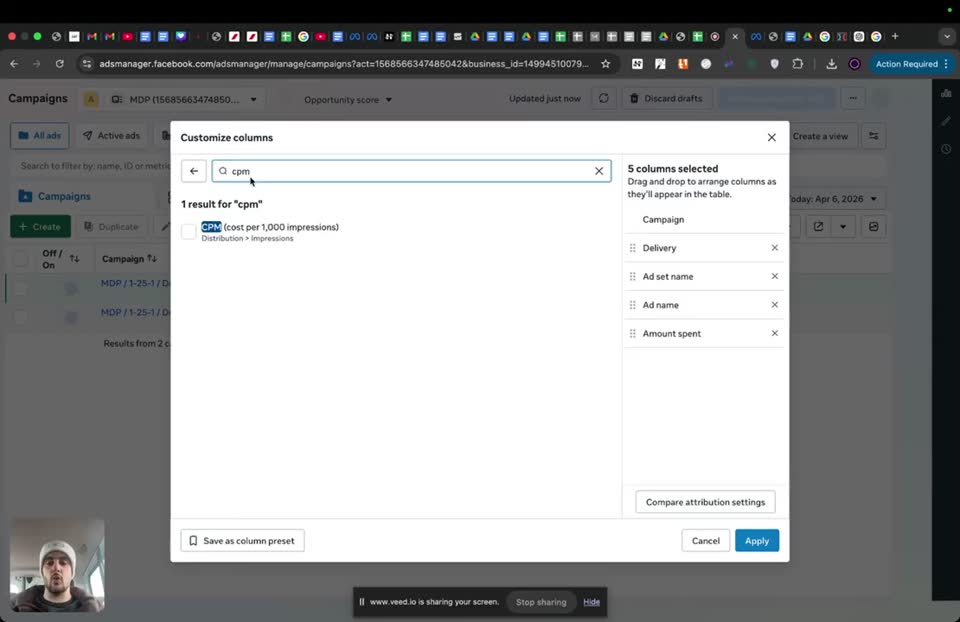
Search for and select CPM.
- Search for metrics or column settings = cpm
- CPM (cost per 1,000 impressions) = checked
To see how much you paid to make your ads show a thousand times, useful for troubleshooting later.
Step 702:51 to 02:51
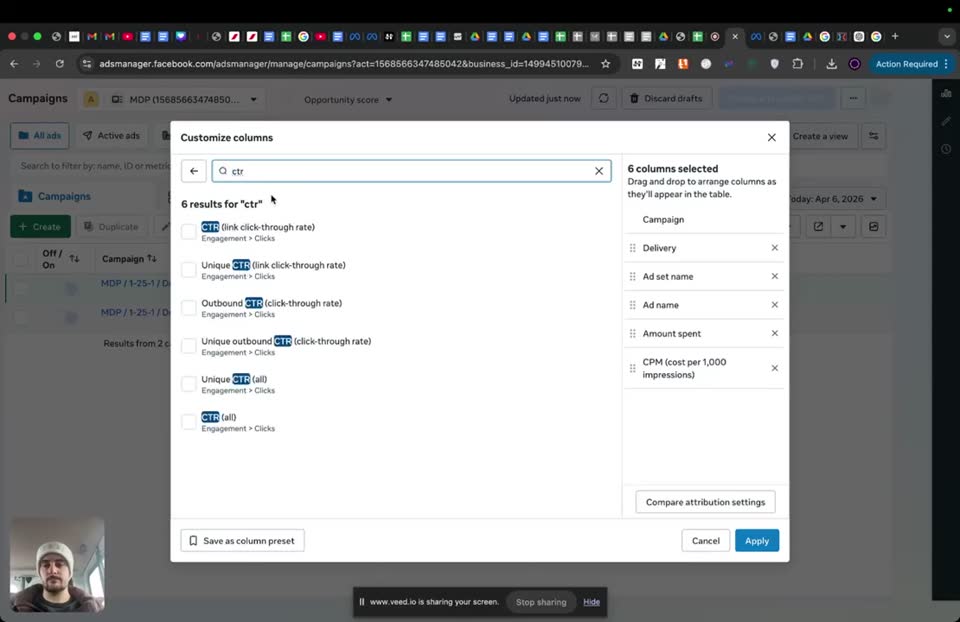
Search for and select CTR.
- Search for metrics or column settings = ctr
- CTR (link click-through rate) = checked
To see how relevant your ads are based on how many people clicked per 100 impressions.
Step 803:17 to 03:17
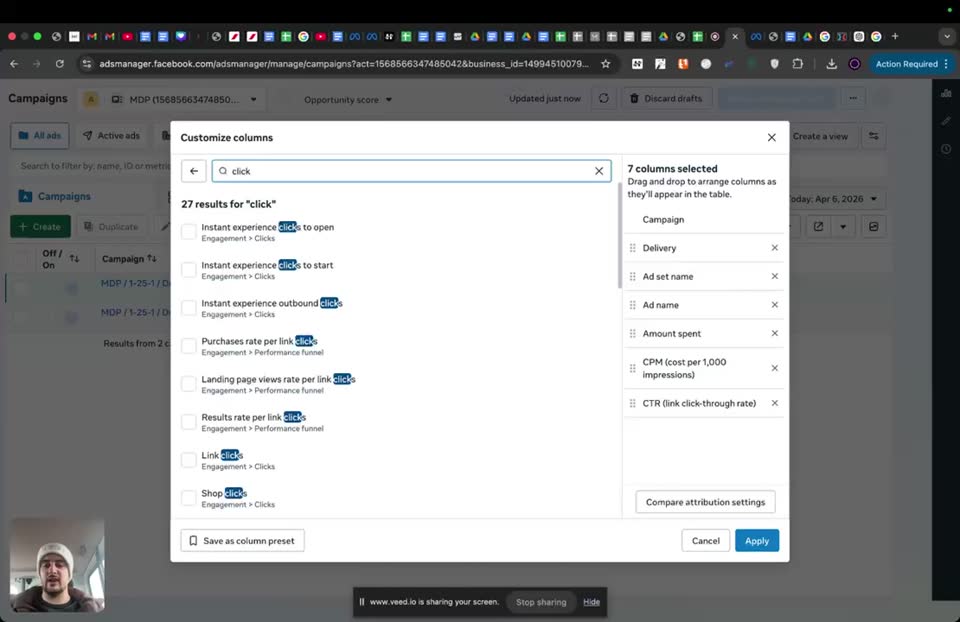
Search for and select Link clicks.
- Search for metrics or column settings = click
- Link clicks = checked
To see the amount of clicks.
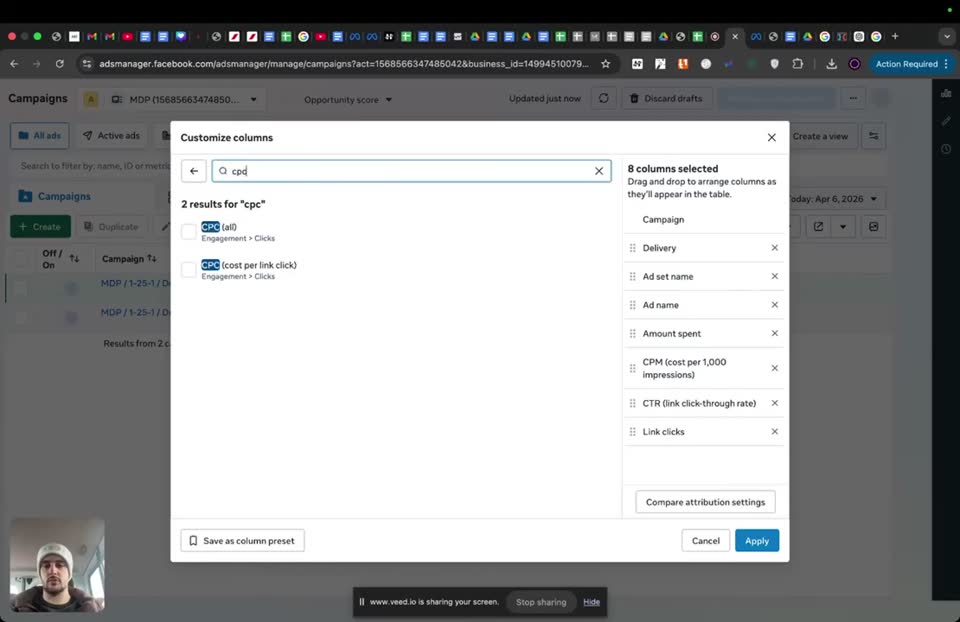
Step 903:27 to 03:27
Search for and select CPC.
- Search for metrics or column settings = cpc
- CPC (cost per link click) = checked
It is a very important metric in the million dollar testing protocol.
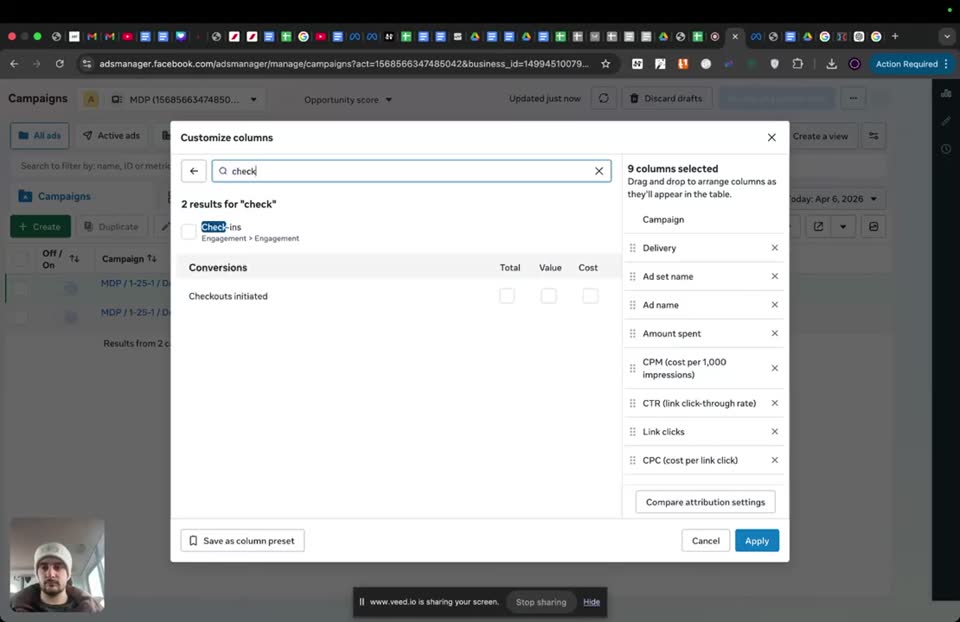
Step 1004:13 to 04:13
Search for and select Checkouts initiated Total and Cost.
- Search for metrics or column settings = check
- Checkouts initiated Total = checked
- Checkouts initiated Cost = checked
Cost per checkout is a very important metric for the million dollar testing protocol.
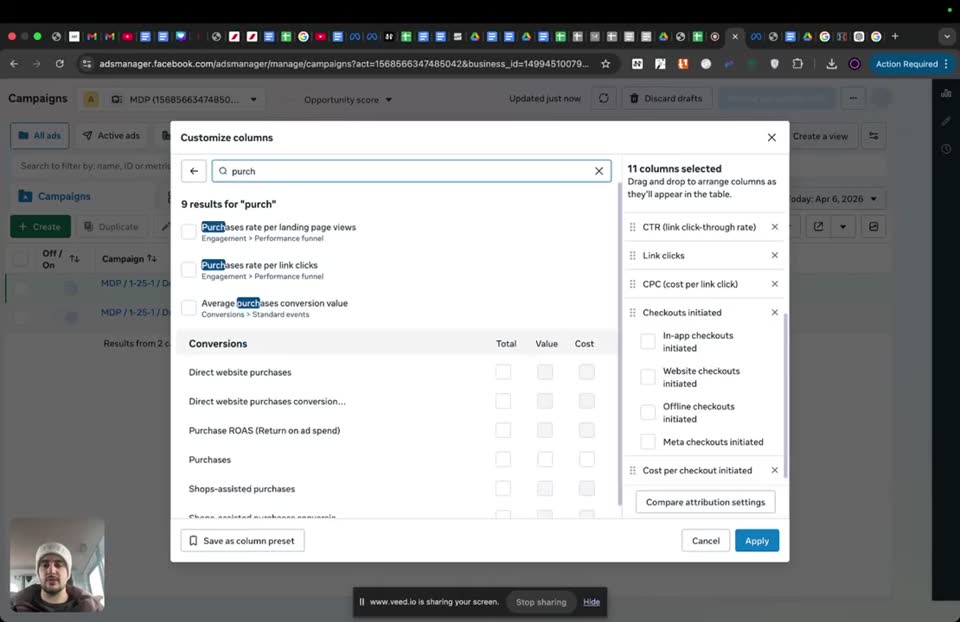
Step 1104:26 to 04:26
Search for and select Purchases Total and Cost.
- Search for metrics or column settings = purch
- Purchases Total = checked
- Purchases Cost = checked
To see the purchases and the cost to acquire a customer.
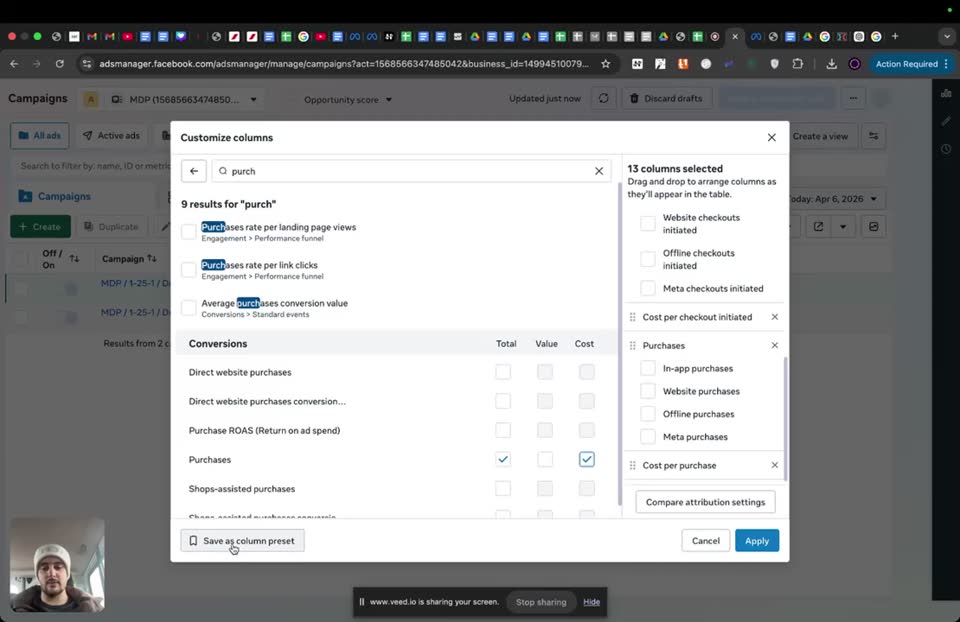
Step 1204:36 to 04:45
Save the column preset and apply it.
- Save as column preset = checked
- Name = Antonio columns
To save the columns for future use.
Step 1305:02 to 05:19
Edit the saved preset to add Purchase ROAS.
- Columns = Antonio columns
- Search for metrics or column settings = roas
- Purchase ROAS (return on ad spend) Total = checked
To see how much money you are making for every dollar you are spending.
Full timestamped transcript with on-screen notes
[00:00] ANTONIO: Hey guys, so after the past few classes, what you're going to have to have after these classes is launching the three ads, each with one different campaign. So for example, here we have two, right? Each campaign with its own catalog and each campaign at the ad level with its own link. Right? So with its different link per campaign, like we said. So if you're going to launch a new ad, you're going to have a different campaign with 25 ad sets with its own link and its own catalog, just to be very clear.

[SCREEN 00:00] Ads Manager. Campaigns tab selected. Search bar: "Search to filter by id, name, ID or metrics". Two campaigns listed: "MDP / 1-25 / 1 / Dr Annah Johnson / script1hk2" (Off, Delivery: In draft, Amount spent: -) and "MDP / 1-25 / 1 / Annah Johnson / script1hk1" (On, Delivery: Payment error, Amount spent: R$40.73). Total spent: R$40.73.

[SCREEN 00:20] Google Docs tab named "Antonio Launch". Document text:
Camp1 - LD - script1hk1 - 25
ClickMagic Redirect link:
http://direct.lifenews.com/offer?source_account=AF&utm_medium=memory&utm_campaign=camp1-LD-script1hk1-25&cmc_adid=[ad.id]
&cmc_redir=https%3A%2F%2Fweheal.online%2Fmemo-vs%2F%3Faff%3DA05C123%26sub1%3D[click_id]%26
https://www.healthwealth-wise.com/2u82npwtcb/
cwn={{campaign.id}}&cname={{campaign.name}}&domain={{domain}}&placement={{placement}}&adset={{adset.name}}&adname={{ad.name}}&site={{site_source_name}}&ad={{ad.id}}
Camp2 - LD - script1hk2 - 25
ClickMagic Redirect link:
http://direct.lifenews.com/offer?source_account=AF&utm_medium=memory&utm_campaign=camp2-LD-script1hk2-25&cmc_adid=[ad.id]

[00:33] ANTONIO: So each new campaign, own link, own catalog, different ad in each catalog. That's what you're going to have. However, now after that, you still need to know how to set up your columns. So you still need to know what I want you to see in your columns so you can actually make decisions. So what you're going to do, you're going to click here on Custom, right? As you can see, within my Ads Manager, so just adsmanager.facebook.com. You click on Custom. Now the little pen next to Custom to customize your columns.

[SCREEN 00:30] Ads Manager. Campaigns tab.

[SCREEN 00:50] Clicks "Columns: Custom" dropdown.

[SCREEN 00:52] Dropdown menu opens. Recently used: Custom, Performance and clicks. Popular: Performance, Setup, Delivery, Engagement, Video engagement, App engagement, Carousel engagement, Performance and clicks, Cross-device, Offline conversions, Targeting and creative, Bidding and optimization. Clicks the pen icon next to "Custom".

[01:01] ANTONIO: And these are the columns that I recommend. So the first one is just having the delivery. By the way guys, if you have a bunch of other stuff, because you probably will, you can just delete them all. Literally, delete, delete, delete, delete, delete, delete, and just build it from scratch like I'm doing here.

[SCREEN 01:00] "Customize columns" modal opens. Search bar: "Search for metrics or column settings". Right panel "5 columns selected": Campaign, Delivery, Ad set name, Ad name, Amount spent.

[SCREEN 01:08] Clicks the "X" next to Ad set name, Ad name, Amount spent, Delivery. Right panel now shows "1 column selected": Campaign.

[01:13] ANTONIO: So the first one is going to be the delivery status. Just so you know if it's delivering, if it got approved or not, if it got rejected, if you got a payment error, it's going to show you payment error and all that fun stuff. So it's just a useful one to have.

[SCREEN 01:14] Types "deli" in the search bar. Results: Delivery, Ad set delivery. Checks the box for "Delivery". Right panel updates to "2 columns selected": Campaign, Delivery.

[01:25] ANTONIO: The other one is going to be, for example, the name. So it's going to be what's the campaign name, what's the ad set name, what's the ad name. Right? So it's important.

[SCREEN 01:27] Types "name" in the search bar. Results under Account: Account name. Under Campaign: Campaign name. Under Ad set: Ad set name. Under Ad: Ad name. Checks the boxes for "Ad set name" and "Ad name". Right panel updates to "4 columns selected": Campaign, Delivery, Ad set name, Ad name.

[01:35] ANTONIO: Then you start having the metrics. So the first metric you're going to know is the amount spent. That's the first metric you're going to be looking at because based on how much it spent, you will know how to make decisions using the million dollar testing protocol. Right? So this is something that Chris already explained. You have all the rules in the million dollar testing protocol. So the amount spent is going to be the first metric that's going to tell you, should this campaign or should this, I mean, you're just going to be making decisions at the campaign level. You could see it at the ad set level and ad level, but we're just going to be making decisions at the campaign level for this specific structure. So for now, at the campaign level, you're going to see, okay, did it spend enough to get clicks? Did it spend enough to get checkouts? Did it spend enough to get purchases? And based on that, you're going to be making decisions to actually pause the losers and eventually scale the winners, obviously. So anyways, the first one is amount spent, obviously very important.

[SCREEN 01:37] Types "amo" in the search bar. Results under Spend: Amount spent percentage, Amount spent. Checks the box for "Amount spent". Right panel updates to "5 columns selected": Campaign, Delivery, Ad set name, Ad name, Amount spent.

[02:20] ANTONIO: Then it's in order of the funnel. So what do I mean by that? Because first your ads need to show. This is what we call impressions. Right? This is literally impressions. So how many times your ads have shown. And the metric for the impressions is the CPM. So how much you paid just to make your ads show a thousand times. Right? So it's not a very important metric. I'm not going to get into too many details for that. We're going to talk a little bit more about this metric down the line when we're talking about troubleshooting accounts sometimes. For now, it's not going to be very important.

[SCREEN 02:24] Types "cpm" in the search bar. Results: CPM (cost per 1,000 impressions). Checks the box for "CPM (cost per 1,000 impressions)". Right panel updates to "6 columns selected": Campaign, Delivery, Ad set name, Ad name, Amount spent, CPM (cost per 1,000 impressions).

[SCREEN 02:27] Types "impress" in the search bar. Results: Auto-refresh impressions, Gross impressions, Instant experience impressions, Impressions, CPM (cost per 1,000 impressions), In-app ad impressions, Out-of-app ad impressions.

[02:50] ANTONIO: Then you're going to have the CTR, which is the link click-through rate. So every 100 impressions, every time my ad shows 100 times, how many people clicked? That's the CTR. That's a percentage. So if it's 5%, it means every 100 times my ad showed, five people have clicked. Which is a kind of important metric to show you how relevant your ads are. Even though we don't focus too much on that, as you saw in the million dollar testing protocol.

[SCREEN 02:51] Types "ctr" in the search bar. Results: CTR (all), CTR (link click-through rate), Outbound CTR (click-through rate), Unique outbound CTR (click-through rate). Checks the box for "CTR (link click-through rate)". Right panel updates to "7 columns selected": Campaign, Delivery, Ad set name, Ad name, Amount spent, CPM (cost per 1,000 impressions), CTR (link click-through rate).

[03:17] ANTONIO: Then you're going to have the amount of clicks. So these are going to be link clicks. This is going to be the next metric. And the results of your CPM and your CTRs, that's what's going to give you the CPC, which is the cost per click. Right? So the higher your CPM are, the higher your CPC is. The more you're spending to make your ads show, the more you're going to spend, all things equal, to have one click. So one person clicking on your ad. And then obviously the more relevant your ads are, so the better your ads are, the higher your CTR and the cheaper your CPC. So these are the two forces that give you the CPC. You don't need to fully understand this, especially if you're a beginner. Right? You just need to understand that you definitely going to need to be looking at the CPC. It's a very important metric in the million dollar testing protocol. So in terms of really important metrics, amount spent, and then cost per click. These are the very important metrics that you're going to be looking at in the million dollar testing protocol. Okay?

[SCREEN 03:17] Types "click" in the search bar. Results include: Instant experience clicks to open, Instant experience clicks to start, Instant experience outbound clicks, Purchases rate per link click, Landing page views rate per link click, Link clicks. Checks the box for "Link clicks". Right panel updates to "8 columns selected": Campaign, Delivery, Ad set name, Ad name, Amount spent, CPM (cost per 1,000 impressions), CTR (link click-through rate), Link clicks.

[SCREEN 03:27] Types "cpc" in the search bar. Results: CPC (all), CPC (cost per link click). Checks the box for "CPC (cost per link click)". Right panel updates to "9 columns selected": Campaign, Delivery, Ad set name, Ad name, Amount spent, CPM (cost per 1,000 impressions), CTR (link click-through rate), Link clicks, CPC (cost per link click).

[04:11] ANTONIO: Now after that, after the CPC, you're going to have checkouts. So you're going to have checkouts initiated. You're going to have the total checkouts initiated and the cost per checkout. With the cost per checkout, once again, very important metric that you're going to be looking at in the million dollar testing protocol.

[SCREEN 04:13] Types "check" in the search bar. Results under Conversions: Checkouts initiated. Checks the boxes for "Total" and "Cost" next to Checkouts initiated. Right panel updates to "11 columns selected": Campaign, Delivery, Ad set name, Ad name, Amount spent, CPM (cost per 1,000 impressions), CTR (link click-through rate), Link clicks, CPC (cost per link click), Checkouts initiated, Cost per checkout initiated.

[04:25] ANTONIO: And then finally, the purchases. So finally the purchases and the CPA, which is the cost per purchase. So the cost to acquire a customer. Right? These are the metrics.

[SCREEN 04:26] Types "purch" in the search bar. Results include: Purchases rate per landing page views, Purchases rate per link click, Average purchase conversion value, Direct website purchases, Direct website purchases conversion..., Purchase ROAS (return on ad spend), Purchases, Shops assisted purchases. Checks the boxes for "Total" and "Cost" next to Purchases. Right panel updates to "13 columns selected": Campaign, Delivery, Ad set name, Ad name, Amount spent, CPM (cost per 1,000 impressions), CTR (link click-through rate), Link clicks, CPC (cost per link click), Checkouts initiated, Cost per checkout initiated, Purchases, Cost per purchase.

[04:34] ANTONIO: And then you can click Apply. If you want, you can save it as a name. So you can click here Save as column preset. And then I just name it Antonio columns, literally, because these are my columns. So I'm just going to save it as my name, Antonio columns.

[SCREEN 04:36] Clicks "Save as column preset" checkbox in the bottom left corner.

[SCREEN 04:39] "Save as column preset" dialog box appears. Field: "Name". Types "Antonio columns". Clicks "Save".

[SCREEN 04:45] Clicks "Apply" button in the bottom right corner.

[04:47] ANTONIO: And then once you save it, you see you already have all the columns here. So after it starts spending and getting clicks, you're going to be able to see how much it spent, CPM, CTR, link clicks, cost per click, the checkouts, the cost per checkout, and the purchases, and the cost per purchase.

[SCREEN 04:46] Ads Manager. Columns are now updated to the custom preset. Columns visible: Campaign, Delivery, Amount spent, CPM (cost per 1,000 impressions), CTR (link click-through rate), Link clicks, CPC (cost per link click), Checkouts initiated, Cost per checkout initiated, Purchases, Cost per purchase.

[05:01] ANTONIO: If you want to add another column, which I think is going to be interesting as well for you guys, you can just come back here. If you ever want to change it, you can click on the pen on what you saved. And then you can just add another one. For example, a lot of people like looking at the ROAS as well. Right? So you can just have results ROAS, the purchase ROAS. So you're just going to have the total ROAS too, for example. So you can definitely add ROAS too, which is just obviously how much money you're making for every dollar you're spending pretty much. If it's a 2x ROAS, you're making two dollars for every dollar you're spending. Right?

[SCREEN 05:02] Clicks "Columns: Antonio columns" dropdown.

[SCREEN 05:07] Clicks the pen icon next to "Antonio columns" in the dropdown menu.

[SCREEN 05:09] "Customize columns" modal opens.

[SCREEN 05:13] Types "roas" in the search bar. Results: Donation ROAS (return on ad spend), Purchase ROAS (return on ad spend). Checks the box for "Total" next to Purchase ROAS (return on ad spend). Right panel updates to "14 columns selected", adding "Purchase ROAS (return on ad spend)" at the bottom.

[SCREEN 05:19] Clicks "Save" button in the bottom right corner.

[05:31] ANTONIO: And then based on these columns that just follow the whole funnel, so ads showing, people clicking on your ads, then people initiating the checkouts, and then people eventually purchasing, and this gives you money, which is the ROAS. And then you just need to follow the million dollar testing protocol to make decisions at the campaign level to know, okay, this didn't spend enough to get a click, so I'm not going to look at clicks. Oh, it did spend enough to get a click, so let me check the CPC, for example, to see if I'm going to cut it or not. Now, what's the cost per checkout? Now, what's the cost per purchase? Etc, etc. Right? And then the rest, you can just follow the million dollar testing protocol. These are the metrics you're going to be looking at in ClickMagick as well. Right? But it's good because if they're coming from ClickMagick to Facebook, then you're also able to make decisions within Facebook. So that's how I recommend that you set up your columns so you can look, you can have an overall view of the metrics step by step as you start spending more.

[SCREEN 05:21] Ads Manager. Columns are updated. "Purchase ROAS (return on ad spend)" is added to the right of "Cost per purchase". The coach scrolls horizontally to show all columns.
Recording 5 6 How To Set Up Your Facebook Column KPI s.mp4. Gemini video pass. Rebuilt 31 Oct 2026 15:24 Melbourne.