
Module 5: Going Live, lesson 5.5
Launching Catalogue Ads Step-by-Step
18 steps29:51 long9 rules
This lesson provides a comprehensive, step-by-step walkthrough of launching a Meta Sales campaign using the 1-25-1 structure with Advantage+ catalog ads. It covers configuring campaign, ad set, and ad level settings, including calculating ad set minimum budgets, applying Notion-based audience targeting, and setting up destination overrides. Finally, it explains how to duplicate ad sets to reach the target campaign budget and how to duplicate the entire campaign to test new ads with new catalogs.
Campaign structureObjective: Sales. Catalog usage: Advantage+ catalog ads enabled at the campaign level. Ad sets per campaign: 25 (if minimum budget is $1). Budget per ad set: Minimum allowed by account (e.g., $1). Duplication: Create 1 ad set, duplicate it 24 times to get 25 total. Scaling/New Ads: Duplicate the entire campaign, change the catalog and tracking link, delete drafted ad sets, and duplicate the new ad set 24 times.
Catalogue methodBuilt in Commerce Manager by creating a new catalog for each specific ad (e.g., Professional services). Items are added manually: first upload a random white-hat image, then upload the real video ad. Settings: In Ads Manager, select 'From catalog', edit 'Dynamic media' to check 'Optimized media selection' and 'Prioritize video' to ensure spend goes to the video. Destination override: Must check 'Override catalog website deep links' and paste the real ClickMagick tracking link so traffic doesn't go to the dummy catalog link.
Rules and numbers
- Campaign naming convention: Account Name / Structure / Page Name / AdName
- Total budget per campaign should be $25
- Ad set budget must be the absolute minimum allowed by the ad account (e.g., $1 USD or 5.35 BRL)
- Number of ad sets = $25 total budget divided by the minimum ad set budget (e.g., 25 ad sets if minimum is $1)
- Start date must be scheduled for midnight (12:00 AM) of the next day
- One ad per campaign
- One catalog, one name, one tracking link per ad
- Call to action must be 'Learn more'
- Headline must be the exact name of the Facebook Page
Gotchas
- If the purchase conversion event is inactive, it's completely normal because you haven't received a purchase yet.
- If you have a foreign currency account, you must test entering '1' to find the exact minimum budget allowed by Facebook.
- If your minimum budget is higher (e.g., $5), you must reduce the number of ad sets (e.g., 5 ad sets) to maintain the $25 total campaign budget.
- If Facebook pre-selects 'Carousel' format, the strategy will not work; you must manually change it to 'Single image or video'.
- If you don't toggle 'Override catalog website deep links', Facebook might spend on the random white-hat page instead of your real affiliate page.
- Any mistake on any of these steps can cause a lot of money to be spent unsuccessfully.
“One catalog, one name, one tracking link per ad.”
“This makes it so Facebook doesn't rush to spend your full budget throughout the day you're launching.”
“This is telling Facebook, please spend on the real page and not on the catalog page.”
“Any mistake on each of these steps... can be a huge mistake that costs a lot of money.”
Step 100:47 to 01:00
Create a new campaign in the Ads Manager Campaigns tab
- Choose a campaign objective = Sales
To launch your ads step by step using our suggested account structure and using catalog ads as well.
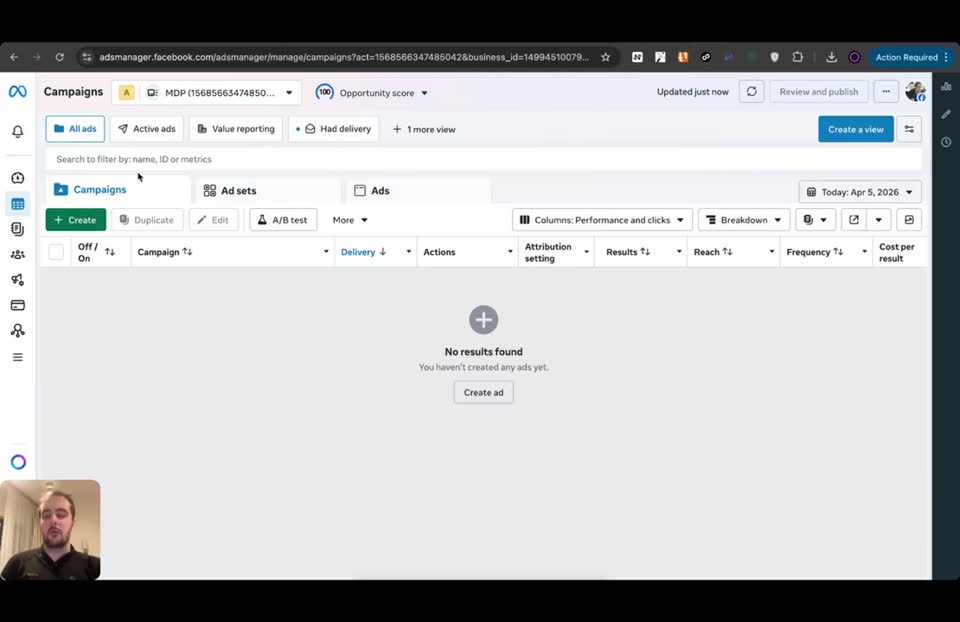
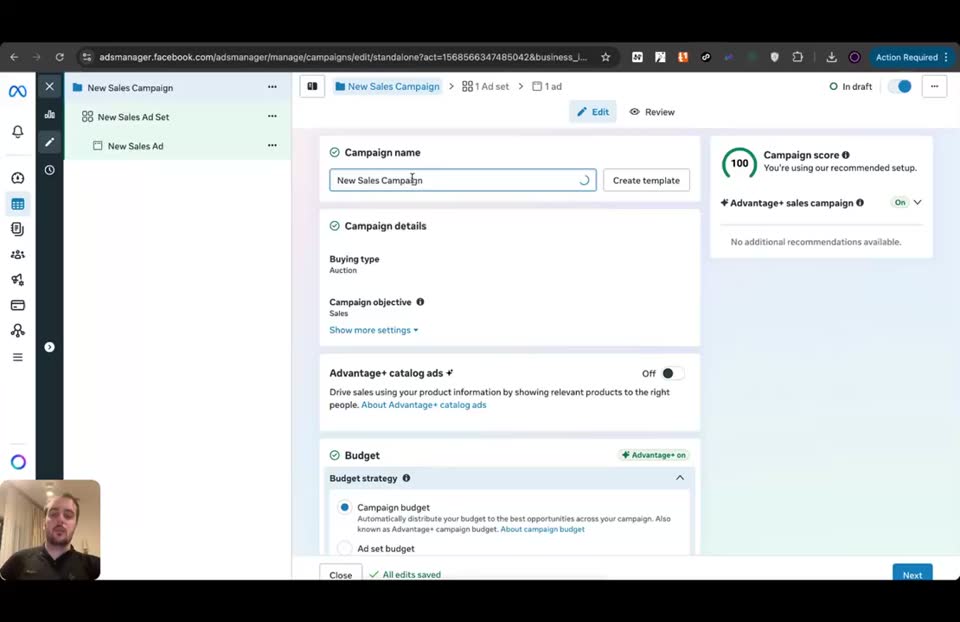
Step 201:05 to 01:44
Name the campaign using the recommended naming convention at the Campaign level
- Campaign name = MDP / 1-25-1 / Dr Annah Johnson / script1hk1
Very important, it's very organized.
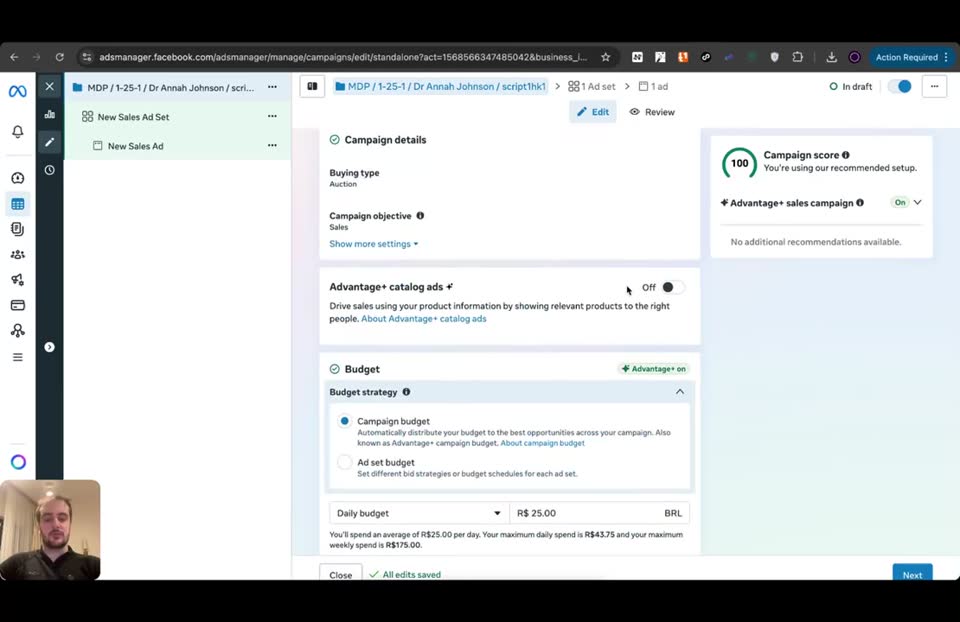
Step 301:56 to 02:12
Enable catalog ads and select the specific catalog for this ad at the Campaign level
- Advantage+ catalog ads = ON
- Catalog = Script1Hook1
Very important that you always pick the ad that you're going to be running here.
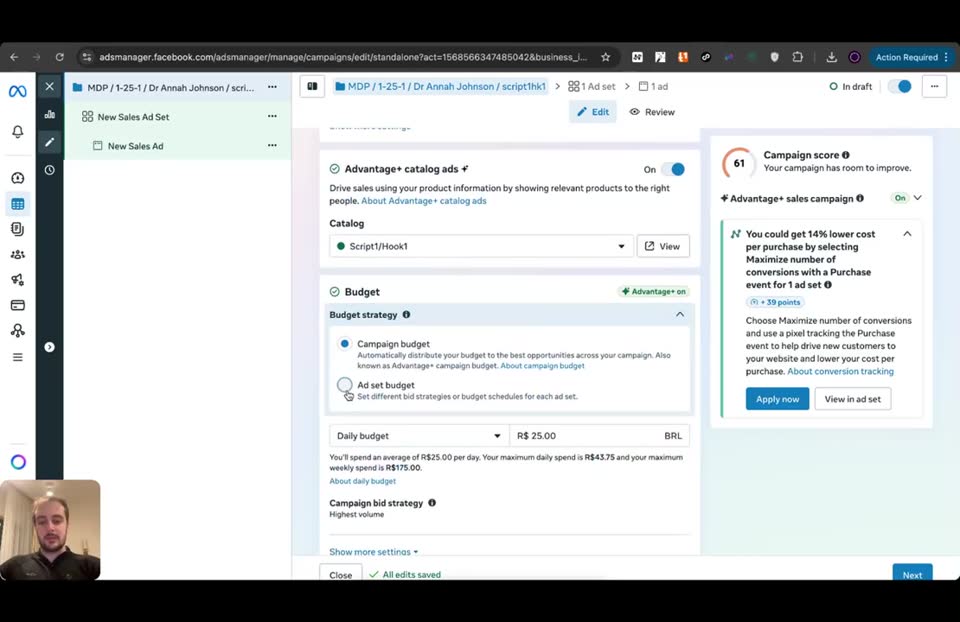
Step 402:46 to 03:01
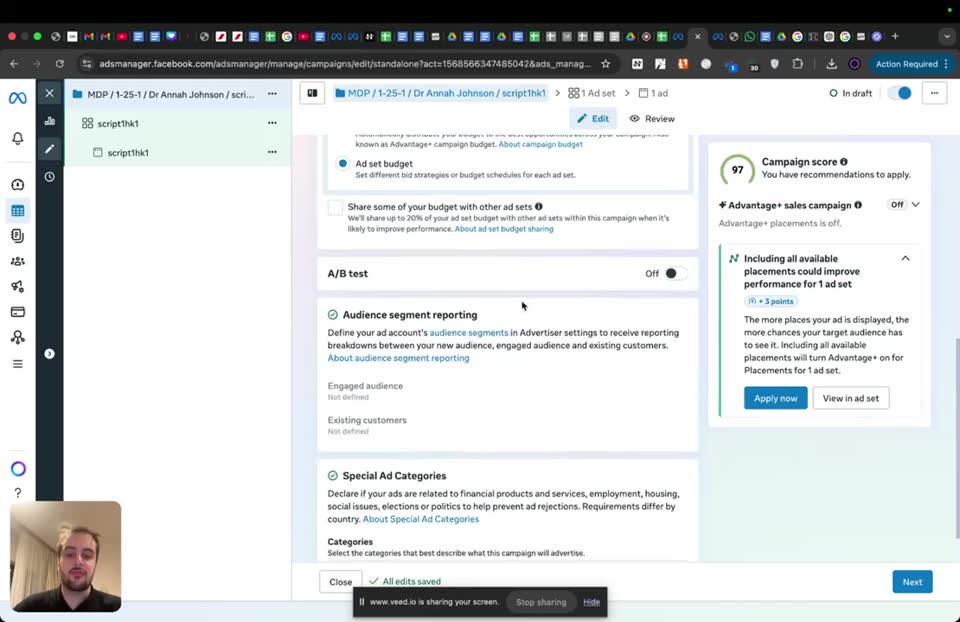
Configure the budget strategy at the Campaign level
- Budget strategy = Ad set budget
- Share some of your budget with other ad sets = Unchecked
It's an ABO, and you don't want to share budget, otherwise you're not really testing ABO.
Step 503:03 to 03:33
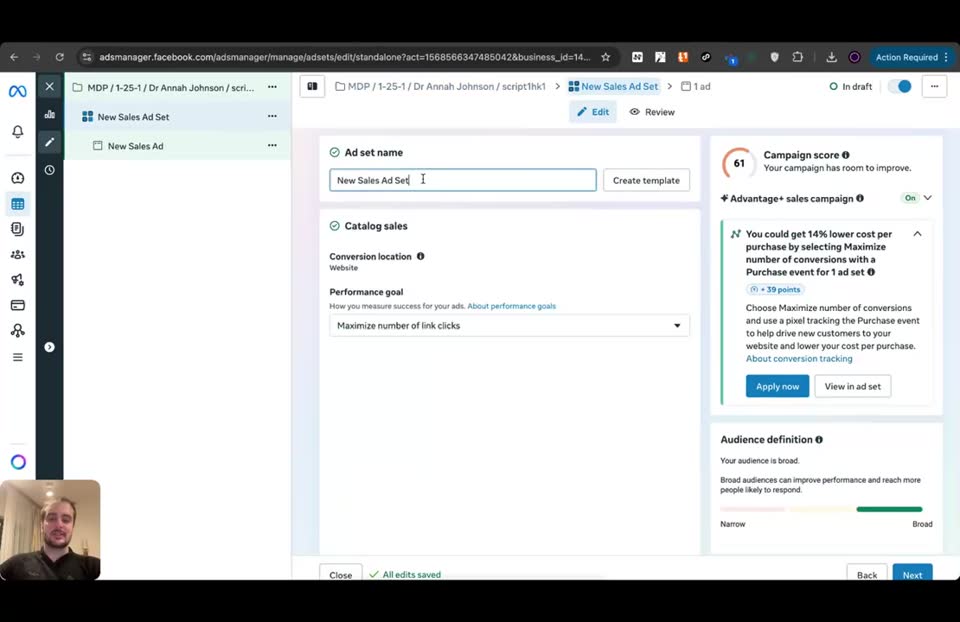
Name the ad set and configure conversion settings at the Ad set level
- Ad set name = script1hk1
- Conversion location = Website
- Performance goal = Maximize number of conversions
- Conversion event = Purchase
Step 603:55 to 06:50
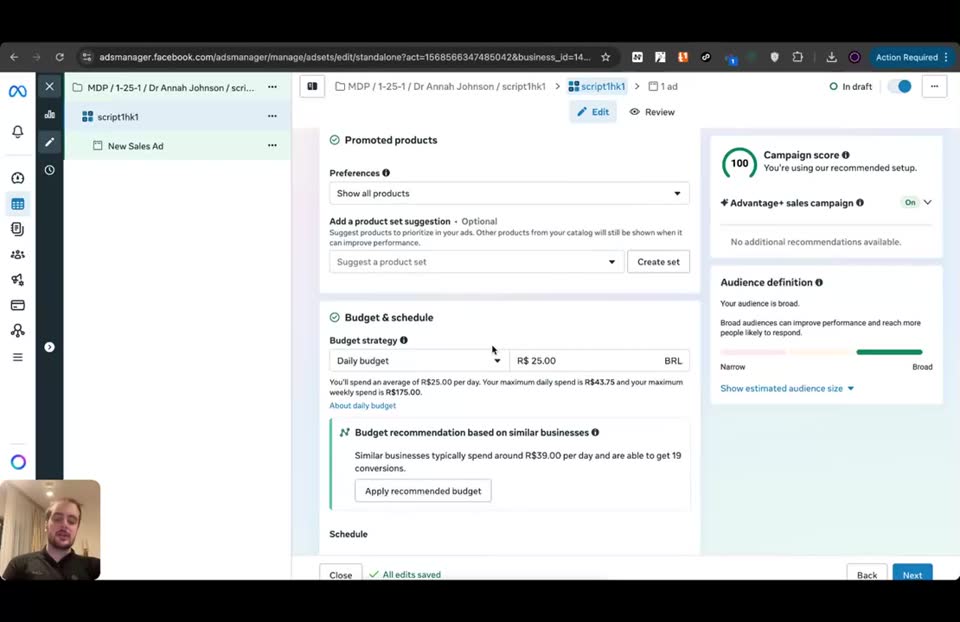
Set the daily budget to the absolute minimum allowed by your ad account currency
- Daily budget = 5.35
That's why the strategy works, is because you're using the minimum budget.
Step 707:00 to 07:10
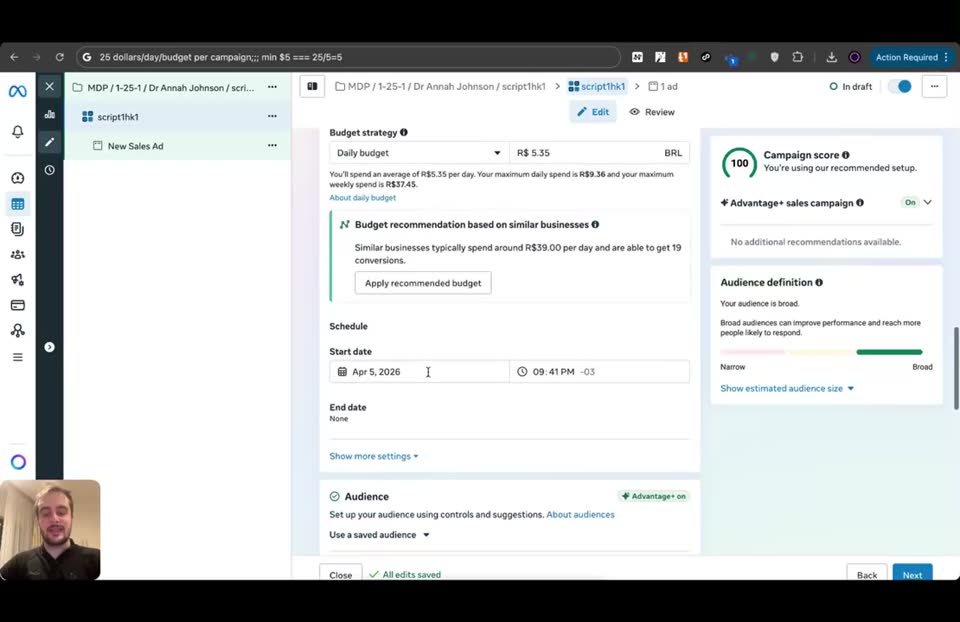
Schedule the ad set to start at midnight of the following day
- Start date = Apr 6, 2024
- Time = 12:00 AM
This makes it so Facebook doesn't rush to spend your full budget throughout the day you're launching.
Step 807:23 to 11:09
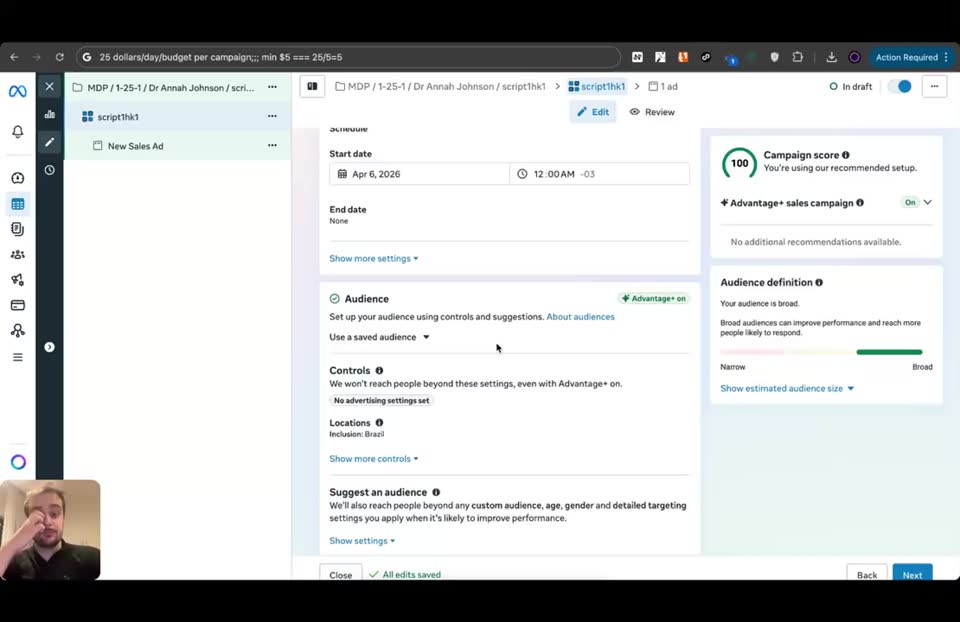
Configure audience targeting to match the offer's Notion document
- Locations = Germany, Austria, Switzerland
- Age = 45
- Gender = Women
- Languages = German
Just make sure it matches location, age, gender, and then obviously the language... for your specific offer.
Step 911:27 to 13:17
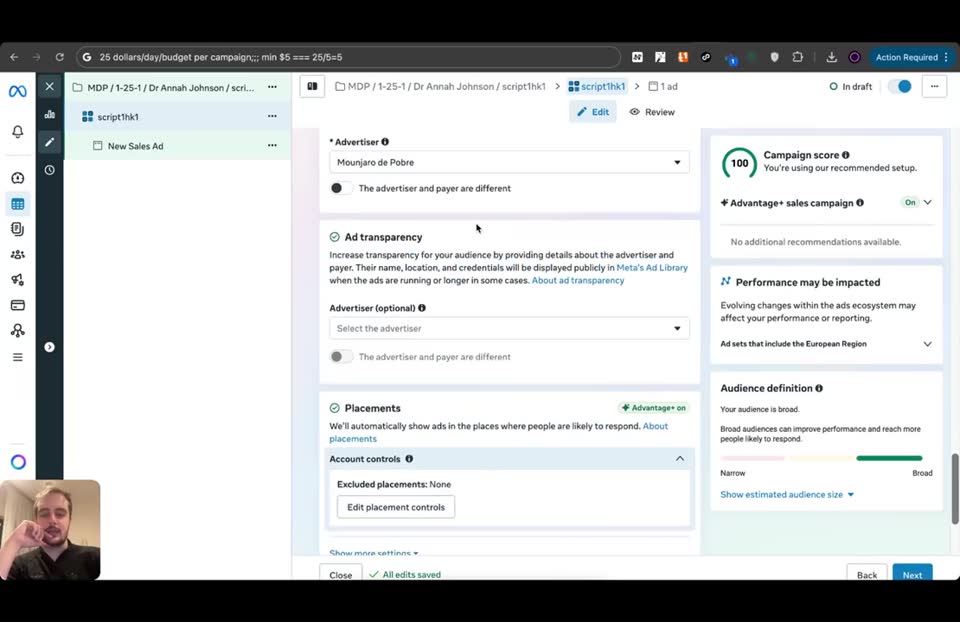
Edit placements to exclude Audience Network and Threads (optional)
- Placements = Edit
- Audience Network = Unchecked
- Threads = Unchecked
- Allow limited spend to excluded placements = Unchecked
For Threads and Audience Networks, they don't convert.
Step 1013:17 to 13:23
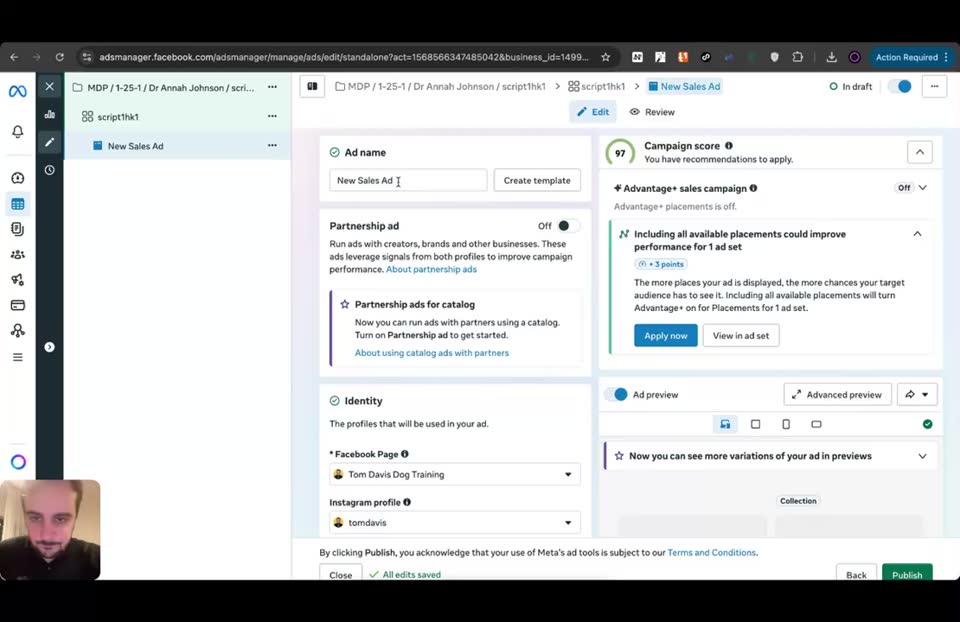
Name the ad and select the Facebook Page at the Ad level
- Ad name = script1hk1
- Facebook Page = Dr. Cintia Fischer
Step 1113:35 to 14:14
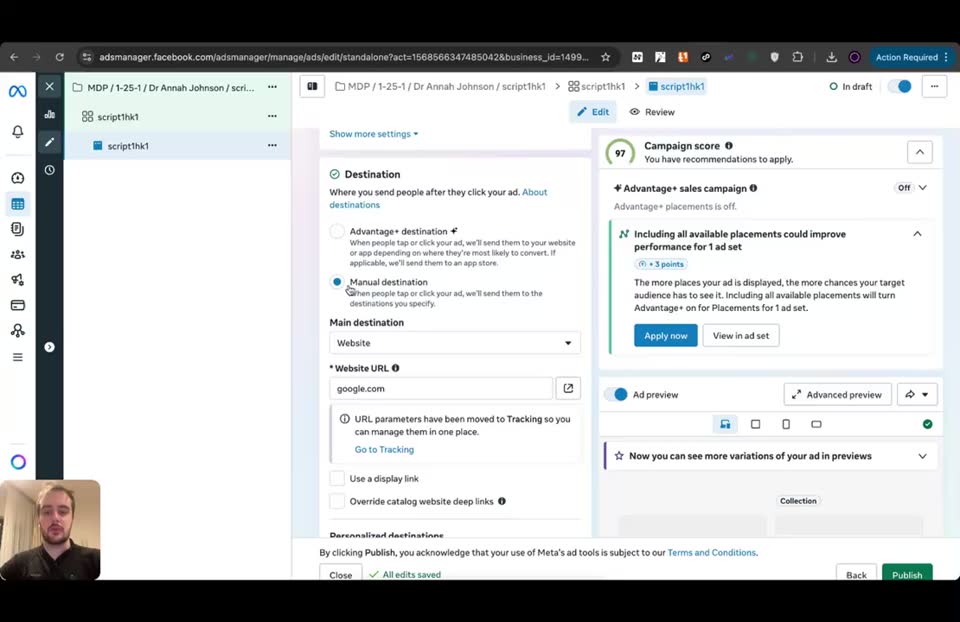
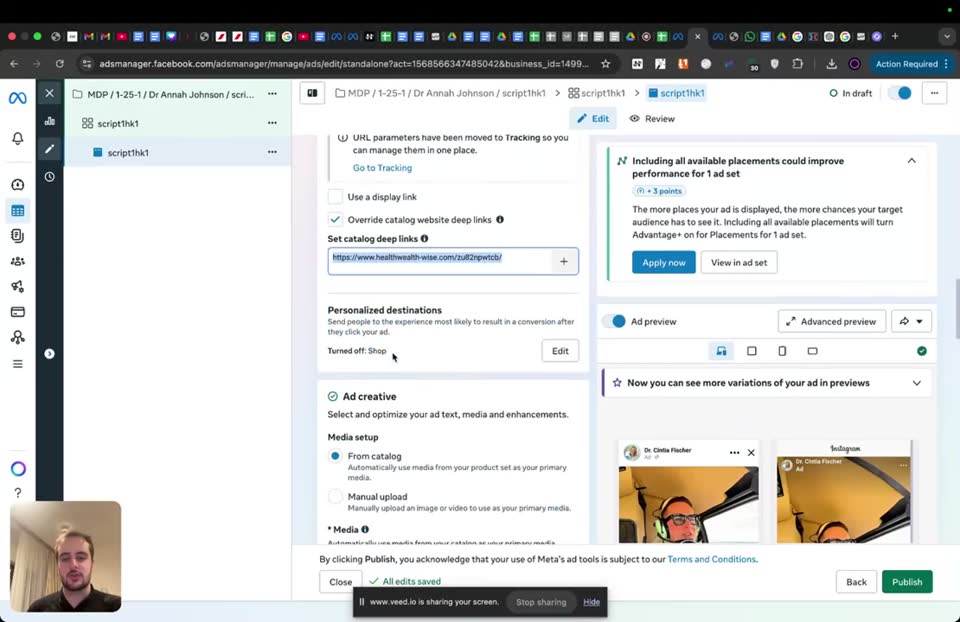
Set the manual destination and override catalog deep links with the real tracking URL
- Destination = Manual destination
- Website URL = https://www.healthwealth-wise.com/zu82npwtcb/
- Override catalog website deep links = ON
- Set catalog deep links = https://www.healthwealth-wise.com/zu82npwtcb/
This is telling Facebook, please spend on the real page and not on the catalog page.
Step 1214:39 to 15:10
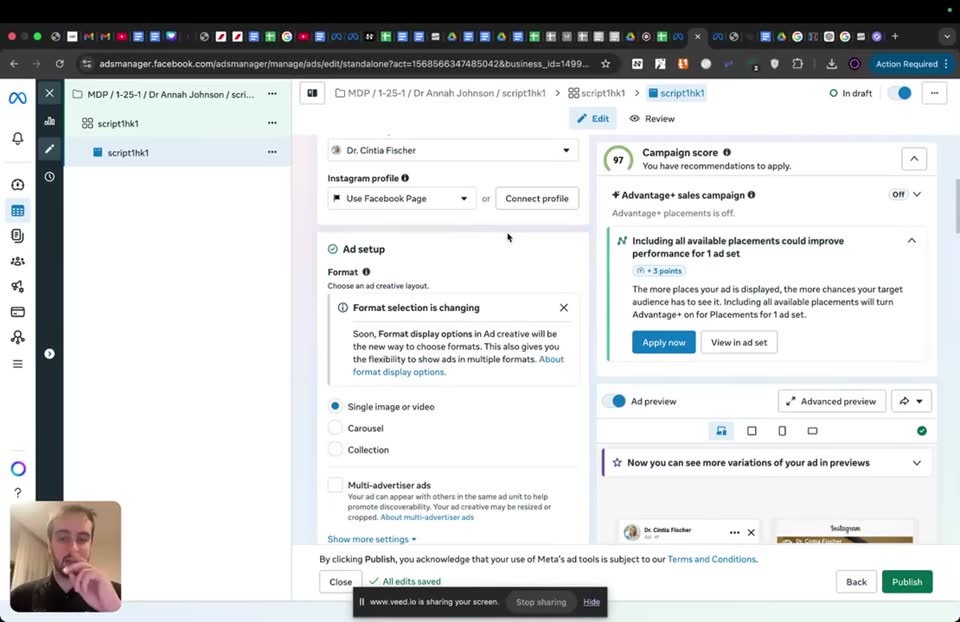
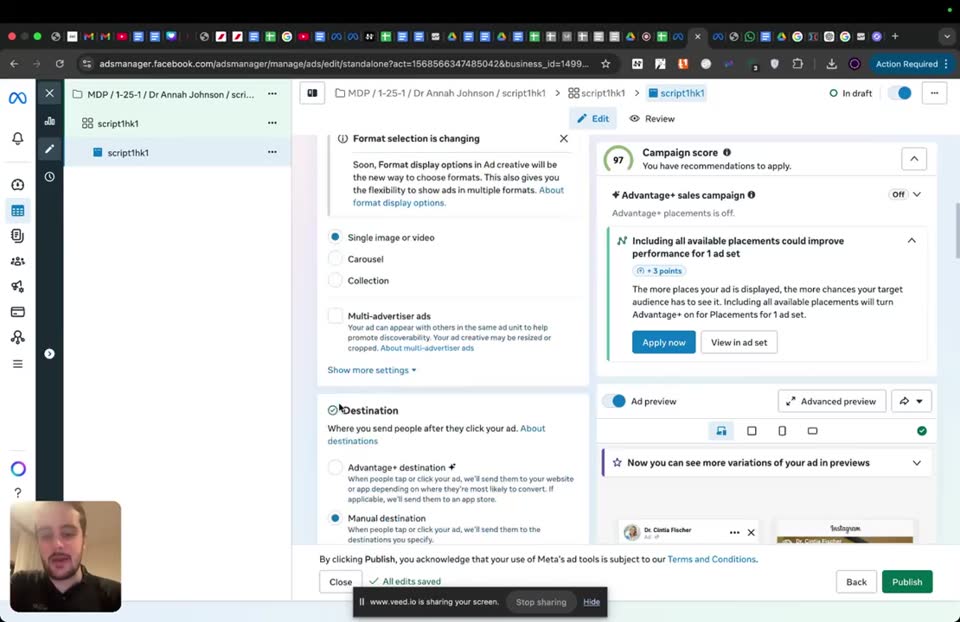
Change the ad format to single image or video
- Format = Single image or video
If they pre-select carousel, this is not going to work.
Step 1315:10 to 15:25
Edit dynamic media to optimize selection and prioritize video
- Media setup = From catalog
- Optimized media selection = Checked
- Prioritize video = Checked
This is what's going to make sure that it's going to prioritize the spend to your video.
Step 1415:30 to 16:08
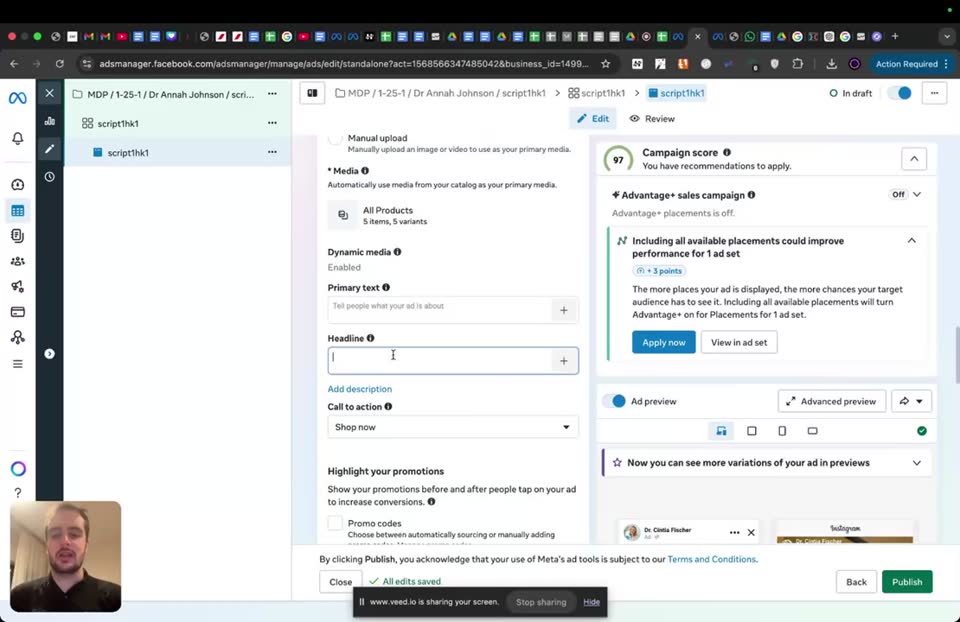
Set the headline, call to action, and turn off most enhancements
- Headline = Dr Cintia Fischer
- Call to action = Learn more
- Generate backgrounds = Unchecked
- Image touch-ups = Unchecked
- Dynamic description = Unchecked
- Enhance CTA = Unchecked
- Relevant comments = Checked
- Hide price = Checked
Step 1516:56 to 16:56
Ensure Facebook Shop destination is turned off
- Personalized destinations = Turned off Shop
Step 1617:48 to 18:01
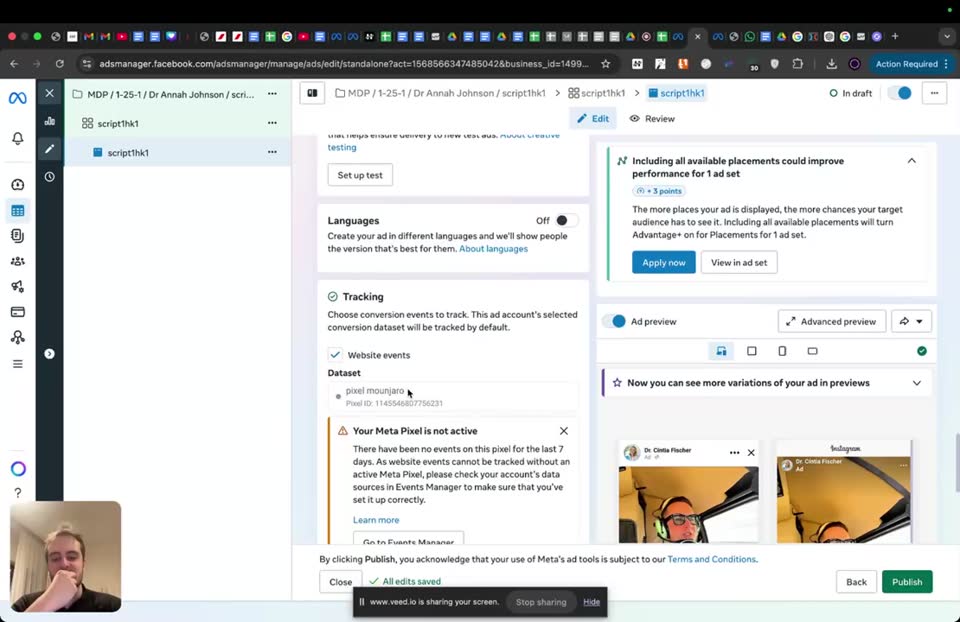
Add URL parameters from ClickMagick
- URL parameters = cmp={campaign.id}&name={campaign.name}&domain={domain}&placement={placement}&adset={adset.name}&ad={ad.name}&site={site_source_name}&xduerf90h2
Step 1718:35 to 19:14
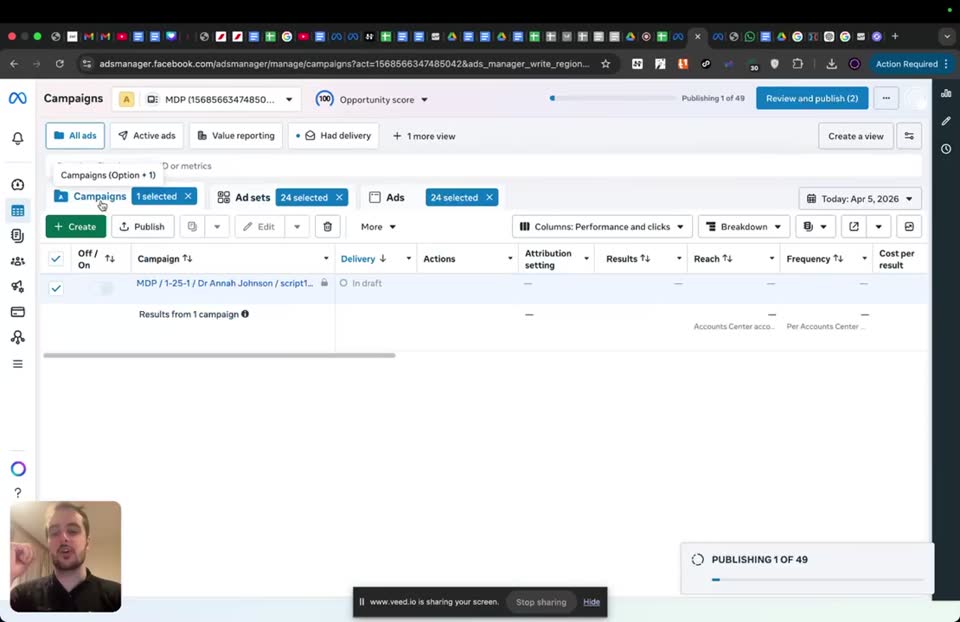
Duplicate the ad set 24 times and publish
- Advantage+ on for Placements = Unchecked
- Number of copies = 24
Because then you're going to have 25 variations, each with $1.
Step 1819:21 to 25:29
Duplicate the campaign for a new ad, update the catalog, tracking link, and ad names, then duplicate the ad set 24 times again
- Advantage+ on for Budget = Unchecked
- Advantage+ on for Placements = Unchecked
- Number of copies = 1
- Campaign name = script2hk1
- Catalog = Script2Hook3
- Ad set name = script2hk1
- Ad name = script2hk1
- Website URL = [new link]
- Set catalog deep links = [new link]
- Number of copies = 24
That's going to be the process to launch every new campaign.
Full timestamped transcript with on-screen notes
```
[00:00] ANTONIO: Guys, so finally after you have all of that from the previous classes, you're going to be able to launch your campaigns. So in this class, I'm going to show you how to launch it step by step. So we are within my Ads Manager, adsmanager.facebook.com/adsmanager. You need to make sure obviously you're launching ads from your ad account within the Business Manager that you created. That's something we taught you guys in the first modules.
[SCREEN 00:00] Ads Manager page. Campaign tab is selected.
[00:24] ANTONIO: When you come here, obviously make sure that the billing and payments are also taught you guys this in the first modules, but they're all good to go. So that your cards, you got ideally have a backup card. If you can't do this, it is what it is. But ideally that you have two cards within your billing and payments. So you make sure when you start paying for your ads, they actually get charged and you can just keep paying for them.
[SCREEN 00:24] Clicks on the hamburger menu (All tools) on the left sidebar. Clicks on "Billing & payments".
[00:47] ANTONIO: But that's not the whole point of this because we've seen all of this in this class up until this class. Now in this class, I'm going to show you how to launch your ads step by step using our suggested account structure and using catalog ads as well. So you're going to click on Create campaign. It's going to be a Sales campaign, very important. Click Continue.
[SCREEN 00:47] Clicks on "Campaigns" in the left sidebar.
[SCREEN 00:59] Clicks the green "+ Create" button.
[SCREEN 01:00] "Create new campaign" modal appears. Selects "Sales" under "Choose a campaign objective". Clicks "Continue".
[01:05] ANTONIO: Now within your Sales campaign, you can have whatever structure that you want. I prefer the structure Account Name / Structure / Page Name / AdName. So just to give you guys a very specific example, let's say the account name is MDP, I think is the case here. The structure is going to be a 1 25 1, which is what I recommend for most of you. The page name, I actually don't remember the page I'm going to be using in this test, but let's say it's Dr Annah Johnson. It's just literally going to be the page name that you put there. And then the ad name is going to be the name of your ad by definition.
[SCREEN 01:05] Campaign level settings. "Campaign name" field is selected. Types "Account Name / Structure / Page Name / AdName".
[SCREEN 01:16] Changes "Account Name" to "MDP".
[SCREEN 01:20] Changes "Structure" to "1-25-1".
[SCREEN 01:28] Changes "Page Name" to "Dr Annah Johnson".
[01:36] ANTONIO: So I'm going to be using the document that Chris already shared. So let's say the name of the ad for this first campaign is script1hk1, okay? Because you're going to have one ad per campaign. So let's say that's just the name of the first ad that you're creating because you're just testing the script and you're just testing the hook. Okay, so that's the name of the campaign. Very important, it's very organized.
[SCREEN 01:36] Switches tab to a Google Doc titled "Antonio Launch". Text on screen: "Camp1 - LD - script1hk1 - 25". Highlights "script1hk1".
[SCREEN 01:44] Switches back to Ads Manager. Changes "AdName" to "script1hk1".
[01:56] ANTONIO: Now first thing first, first thing you need to change here besides obviously the name is clicking toggle this on because you're going to be using Advantage+ catalog ads. Now because this is your first catalog, you have here, right? So it's just going to be pre-selected.
[SCREEN 01:56] Scrolls down to "Advantage+ catalog ads". Toggles it ON.
[SCREEN 02:05] "Catalog" dropdown appears, showing "Script1Hook1".
[02:12] ANTONIO: For you to actually create your second campaign, obviously you would need to create a new catalog using the method I shared in the previous class. And then you would just be able to select the new one here. Now obviously because it's our first campaign using the first catalog, you only have one and it's already pre-selected, okay? Very important that you always pick the ad that you're going to be running here. That's why in the catalog class, I recommended you name your catalog with the name of your ad. You see it's script1hk1. In my campaign, script1hk1. And then obviously the ad I'm going to pick here is going to be script1hk1 as well. Very important.
[SCREEN 02:12] Clicks the "Catalog" dropdown. Shows "Script1Hook1" and another catalog ID. Leaves "Script1Hook1" selected.
[02:46] ANTONIO: Now it's going to be an ad set budget, it's an ABO, and you don't want to share budget, otherwise you're not really testing ABO. So you're going to untoggle this here. So it's going to be toggled off. So ad set budget, script1hk1, that's the main thing you're changing here. Literally. Now you can click on Next.
[SCREEN 02:46] Scrolls down to "Budget". Under "Budget strategy", selects "Ad set budget".
[SCREEN 02:53] Unchecks "Share some of your budget with other ad sets".
[SCREEN 03:01] Clicks "Next" button at the bottom right.
[03:03] ANTONIO: I'm literally sharing step by step. Now here is just going to be the name of the ad. I told you guys this before, but it's just the name of the ad, very important.
[SCREEN 03:03] Ad set level settings. "Ad set name" field is selected. Types "script1hk1".
[03:12] ANTONIO: Conversion location, it will be on your website. But performance goal, you need to click on this dropdown here. It's not going to be maximize number of link clicks, it's going to be maximize number of conversions. Make sure to pick the purchase conversion event. It's probably going to be inactive. That's completely normal guys, because you haven't received a purchase yet. Very, very normal. Okay, very, very normal.
[SCREEN 03:12] Scrolls down to "Conversion location". "Website" is selected.
[SCREEN 03:16] Under "Performance goal", clicks the dropdown currently showing "Maximize number of link clicks". Selects "Maximize number of conversions".
[SCREEN 03:22] "Conversion event" field appears. Clicks the dropdown and selects "Purchase".
[03:33] ANTONIO: Just so you know as well, if you click on website, that's classic as well. But just make sure it's just pre-selected here as website as well and not app or calls. So just website. Very important. Okay?
[SCREEN 03:33] Clicks the "Conversion location" dropdown. Shows "Website", "App", "Website and app", "Messaging apps", "Calls". Leaves "Website" selected.
[03:44] ANTONIO: So that's pretty much it. You don't have to change any of all the rest, right? It's going to be just showing all the products and all the fun stuff.
[SCREEN 03:44] Scrolls down past "Cost per result goal", "Value rules", "Attribution setting".
[SCREEN 03:50] Scrolls down past "Promoted products". "Preferences" is set to "Show all products".
[03:55] ANTONIO: Now here in the budget guys, very, very important. First things first, my account is in BRL, which is just Brazilian Reais. So if you have a foreign account, you're just going to have to try putting one and then likely it's going to tell you the minimum in your currency is something. So for me, it's telling me the minimum in my currency is 5.35. So I'm just going to be using the minimum in my currency. You're going to be using the minimum budget. That's why the strategy works, is because you're using the minimum budget. Okay?
[SCREEN 03:55] Scrolls down to "Budget & schedule". Under "Daily budget", the value is "25.00 BRL".
[SCREEN 04:05] Changes the value to "1.00". An error message appears: "Your budget must be at least R$5.35 or your ads may not deliver. Please increase your budget for this ad set."
[SCREEN 04:15] Changes the value to "5.35". The error message disappears.
[04:24] ANTONIO: So if you have a USD ad account, it's going to be obviously USD here. And you're going to pick one. It's likely one or very, very close to one. The main thing here, very, very important, pick the minimum budget. Okay, so pick the minimum budget. Because I have a Brazilian Reais account and the minimum is 5.35, that's what I'm picking. If you have an AUD account, it's going to be different. If you have another currency, it's going to be different. If you have USD, very likely it's just going to be $1 the minimum budget. Okay, it really depends on the ad account, but it's going to be $1.
[SCREEN 04:24] Highlights the "5.35" value.
[04:55] ANTONIO: Now if the minimum is higher, very important, we suggest that you have a $25 a day budget in the beginning per campaign. Right, so I'm going to do this per campaign. It's just low to test a few ads. So we just suggest you have this in the beginning.
[SCREEN 04:55] Opens a new tab and searches Google for "25 dollars/day/budget per campaign".
[05:13] ANTONIO: So if by any chance, in any stretch of imagination, your budget, your minimum budget, because this can change account by account. It's very important that I'm telling you this. So if your minimum budget of your account, for example, is $5 per ad set, then obviously because your budget is $25, the overall number of ad sets you're going to have is going to be 25 divided by 5 is going to be 5. Right? So it's just going to be 5 ad sets. Why? Because each is going to have $5 and your total budget is needs to be 25.
[SCREEN 05:13] Switches back to Ads Manager tab.
[SCREEN 05:23] Switches back to Google search tab. Types "min $5".
[SCREEN 05:31] Types "25/5 = 5".
[05:45] ANTONIO: So just remember the total budget that we recommend in the campaign for each campaign is 25. So you're just going to need to do the calculation depending on the minimum budget. Right? So for me, it's 5.35 BRL, which is very, very close to $1. So it's pretty much just $1. So that's why I'm going to have 25 duplicates of this. That's how I get to that conclusion because I know it's $1.
[SCREEN 05:45] Switches back to Ads Manager tab.
[SCREEN 05:55] Highlights the "5.35" value in the Daily budget field.
[06:08] ANTONIO: So you just need your overall budget in USD to be $25. This is what's going to dictate how many ad sets you're going to have. Is that clear enough? So obviously if your minimum budget is one, you're just going to have $1 budget here and you're going to have 25 ad sets. That's why the recommended structure is 1 25 1.
[SCREEN 06:08] Highlights the "5.35" value again.
[06:26] ANTONIO: But for example, I'm going to give you an extreme scenario where you got an account where your minimum budget is $25, then you need to have just one ad set. Right, which is not ideal because that's not why we have the strategy. So probably that won't be the case. Probably you're going to have a USD ad account with a $1 budget. It's just going to be one. And then you're going to duplicate this 24 times so you have 24 ad sets. That's going to be the normal. But once again, because my account is in BRL, it's going to be 5.35 BRL, which is the equivalent of about $1. And that's how I know it's going to be 1 25 1. Very important.
[SCREEN 06:26] Highlights the "5.35" value again.
[SCREEN 06:43] Changes the value to "1.00". Error message appears.
[SCREEN 06:50] Changes the value back to "5.35". Error message disappears.
[07:00] ANTONIO: Then start date, typically I put it to midnight of the next day so it doesn't rush spending too much. So that's exactly what I'm going to do. The next day is going to be the 6th of April. So it's going to be 12:00 AM 6th of April. So just schedule to midnight whenever you launch a new campaign. So this makes it so Facebook doesn't rush to spend your full budget throughout the day you're launching. Very important. Okay?
[SCREEN 07:00] Scrolls down to "Schedule". Under "Start date", clicks the date picker. Selects "Apr 6, 2024".
[SCREEN 07:10] Changes the time to "12:00 AM".
[07:23] ANTONIO: Now in terms of location, obviously, you're going to have to change location based on what is in your Notion. So pick the Notion of the offer and know where the location is. Right? So let me pick for example, the Notion, just to give you guys an example.
[SCREEN 07:23] Scrolls down to "Audience".
[SCREEN 07:37] Opens a new tab and searches Google for "notion". Selects a Notion page from history.
[07:46] ANTONIO: Let's say I started with the first offer. So I started with weight loss. It's already open here. I scroll all the way down. I have the countries. So Germany, Switzerland, Austria. Women, 45 plus years old, German. That's exactly what I'm going to be picking here.
[SCREEN 07:46] Notion page "OG GROUP / Offer Area" loads. Clicks on "SLIMJARA" under the "WeightLoss" category.
[SCREEN 07:50] "SLIMJARA" page loads. Scrolls down to "Top Recommended Countries" and "Recommended Targeting".
[SCREEN 07:54] Highlights "1. Germany", "2. Switzerland", "3. Austria".
[SCREEN 07:58] Highlights "Women", "45+ Years Old", "Language: German".
[08:01] ANTONIO: So let's come here, locations, click to edit. I'm going to pick the locations that are there. So Germany, Austria, Switzerland. Bam. And obviously removing Brazil. Obviously. Because it typically pre-selects your country. Very important that you change the location guys, obviously, otherwise all of this is not going to work. So very, very, very important. Right, so just pick Austria, Germany, Switzerland. Okay?
[SCREEN 08:01] Switches back to Ads Manager tab. Under "Audience", clicks "Edit" next to "Locations".
[SCREEN 08:08] In the "Search locations" box, types "germany" and selects "Germany (Country)".
[SCREEN 08:13] Types "austria" and selects "Austria (Country)".
[SCREEN 08:17] Types "switzerland" and selects "Switzerland (Country)".
[SCREEN 08:21] Hovers over "Brazil" in the locations list and clicks the "X" to remove it.
[08:34] ANTONIO: Now typically you can suggest an audience. I just recommend that you suggest an audience. So for example, I'm going to pick an age. And by the way, there are two ways of doing this. I'm going to teach you two ways. The first way is picking an age, just matching literally matching what is in Notion. Where's the Notion again? Here it is. So 45 plus years old, women, language German.
[SCREEN 08:34] Scrolls down to "Suggest an audience". Clicks on "Age".
[SCREEN 08:55] Switches to Notion tab. Highlights "Women", "45+ Years Old", "Language: German".
[09:00] ANTONIO: So bam, I'm just going to pick 45 plus. So I just selected 45. All genders, I'm going to click on edit, very important. Just going to pick women. Right? And then detail targeting, you don't need to select anything here. Very important.
[SCREEN 09:00] Switches back to Ads Manager tab. Under "Age", clicks the minimum age dropdown and selects "45".
[SCREEN 09:08] Under "Gender", clicks "Edit". Selects "Women".
[09:19] ANTONIO: Or you can click on further limit the reach of your ads. Then apply value rules, sorry, no, it's further limit the reach of your ads like this. Bam. And then you're going to be able to do 45 plus, women, and the languages, pick in German. Right?
[SCREEN 09:19] Clicks on "Further limit the reach of your ads". A modal "Reach your preferred audiences" appears.
[SCREEN 09:27] Selects "Only use audience controls when some people shouldn't see your ads...". Clicks "Continue".
[SCREEN 09:34] The Audience section changes to "Audience controls". Under "Age", selects "45" as minimum age.
[SCREEN 09:36] Under "Gender", selects "Women".
[SCREEN 09:38] Under "Languages", clicks "Edit". Types "german" and selects "German".
[09:45] ANTONIO: So now you're able to do this. So one of two ways, right? Either you have to click on further limit the reach of your ads or you just straight away just select the locations, the age, and the gender. Right?
[SCREEN 09:45] Scrolls up and down the Audience section.
[09:59] ANTONIO: One more time, just so I show you guys, let me switch it back. So initially it's going to be like this. You just really need to make sure to change the location, really need to make sure to change the age and the gender. But if you want to be even stricter, so not even let Facebook think about spending for other ages, other genders and all the fun stuff, which some of you might want, further limit the reach of your ads, click here twice. And then women, 45 plus, and German. Same thing, same location.
[SCREEN 09:59] Clicks "Switch to recommended setup". The Audience section reverts to "Advantage+ audience".
[SCREEN 10:05] Points out "Locations", "Age", "Gender" under "Suggest an audience".
[SCREEN 10:19] Clicks "Further limit the reach of your ads". Modal appears. Selects "Only use audience controls...". Clicks "Continue".
[SCREEN 10:24] Points out "Locations", "Age", "Gender", "Languages" under "Audience controls".
[10:28] ANTONIO: So just make sure the location, the age, the gender, and the language all match what you have in the Notion for your specific offer. Because that's, that's for example, weight loss. Let's say you're running memory loss. It's different. Right? For memory loss, which I absolutely love this offer, hopefully a lot of you guys are going to test it as well. Maybe nowadays, I don't know, I really like memory loss. But you see it's different. Now it's 50 years old, but for women as well. Even though you could have for men too, by the way. But that's the recommended targeting. And these countries too. But it's a little bit different because it's 50 plus, not 45 plus. So for every offer, this is going to change a bit. Just make sure it matches the offer. Very important. Okay?
[SCREEN 10:28] Switches to Notion tab.
[SCREEN 10:36] Clicks on "MemoGuard" under the "Memory Loss" category.
[SCREEN 10:40] "MemoGuard" page loads. Scrolls down to "Top Recommended Countries" and "Recommended Targeting".
[SCREEN 10:51] Highlights "Women", "50+ Years Old", "Language: German".
[11:09] ANTONIO: And either you do it with further limit the reach of your ads or not, it really doesn't matter. Just make sure it matches location, age, gender, and then obviously the language, which is going to be German for these initial offers. Okay? Very important.
[SCREEN 11:09] Switches back to Ads Manager tab.
[11:27] ANTONIO: Now you don't need to worry about the rest here, honestly. Uh, and we typically just have Advantage+ on. If, and that's for intermediate and advanced people, but if you want to really control that, um, and you really want to just pay for premium, premium placements, uh, a lot of people like removing Threads and Audience Network. Now in these spaces, we haven't really seen a big difference when we remove them, to be very honest. That's why I think you can run with or without them, honestly. Right? So I don't even, when people are strict, they don't even allow limited spend to excluded placements. So they just remove Audience, Threads, Audience Network and Threads. They don't allow limited spend and that's it. You can do that or you can not touch the placements. Whatever you prefer, honestly, I haven't seen much of a difference. So you can do either or, literally. Okay?
[SCREEN 11:27] Scrolls down to "Placements". "Advantage+ placements" is selected.
[SCREEN 11:38] Clicks "Edit" next to "Placements".
[SCREEN 11:45] Under "Platforms", unchecks "Audience Network" and "Threads".
[SCREEN 11:55] Unchecks "Allow limited spend to excluded placements".
[SCREEN 12:08] Clicks "Switch to Advantage+ placements".
[12:18] ANTONIO: Now you can click on Next. And I'm always telling you guys when there's something you absolutely need to do and that's something that it doesn't matter. So in this case, I haven't seen matter much. Some accounts perform better with limiting placements, some accounts perform better without limiting placements. By the way, if you don't know what this is, right? It's just where your ads can show. And a lot of people say that within these placements, so just clicking on the edit again. So for Threads and Audience Networks, they don't convert. But I just see they don't spend much either. And like very, very rarely they convert. But because they don't spend much, it kind of compensates sometimes. For a lot of people it doesn't. So yeah, that's why some people run it like that, some people don't run it like that. If you're in doubt, just remove them and you're going to be fine. Right? If you just want to pick one, you're a beginner, you don't know what to do. So just click on edit placements as I showed you and then remove Audience Network and Threads if you will. Right?
[SCREEN 12:18] Clicks "Next" button at the bottom right.
[SCREEN 12:20] Ad level settings load.
[SCREEN 12:33] Clicks "Ad set" in the top breadcrumb navigation to go back to the Ad Set level.
[SCREEN 12:36] Scrolls down to "Placements". Clicks "Edit".
[SCREEN 12:41] Clicks "Edit placement controls".
[SCREEN 12:46] Under "Platforms", unchecks "Audience Network" and "Threads".
[13:17] ANTONIO: Now click on Next. Then ad name obviously is going to be the same ad name as before. So script1hk1. The page, just make sure you select the page that you, um, that you have here. So just to show you an example, let's say that's the name of my page because it's a doctor and it's a woman, Dr. Cintia Fischer.
[SCREEN 13:17] Clicks "Next" button at the bottom right.
[SCREEN 13:19] Ad level settings load. "Ad name" field is selected. Types "script1hk1".
[SCREEN 13:23] Under "Identity", clicks the "Facebook Page" dropdown. Selects "Dr. Cintia Fischer".
[13:35] ANTONIO: Um, now this is important. So destination is going to be a manual destination. The website is not going to be the google.com URL obviously. Right? So let me pick here the document that Chris already shared with you guys. Pretty sure it's this one. Yeah, it is this one. So you're just going to pick the real link, right? So this is where you put the real link. So I'm literally going to copy link address. Let me see if I copied it correctly. I think I did. Yeah, okay, cool, I did. So this is the real link, very, very important. That's where you put the real link.
[SCREEN 13:35] Scrolls down to "Destination". Selects "Manual destination".
[SCREEN 13:40] Under "Website URL", highlights "google.com".
[SCREEN 13:44] Switches to Google Doc tab.
[SCREEN 13:52] Highlights the URL under "ClickMagic Redirect link:".
[SCREEN 13:59] Right-clicks and selects "Copy Link Address".
[SCREEN 14:02] Opens a new tab and pastes the URL to check it.
[SCREEN 14:04] Switches back to Ads Manager tab. Pastes the URL into the "Website URL" field.
[14:09] ANTONIO: And it's very important that you click override catalog deep links. Right? And once again, I'm going to put this here because this is telling Facebook, hey, don't spend on that random page that I put in the catalog. Remember I told you to put a random page that people are going to see when they're trying to spy on you or when Facebook is trying to approve you or reject you. So this is telling Facebook, please spend on the real page and not on the catalog page. So you need to make sure you select the override catalog website deep links.
[SCREEN 14:09] Toggles ON "Override catalog website deep links".
[SCREEN 14:14] Pastes the same URL into the "Set catalog deep links" field.
[14:39] ANTONIO: One thing as well that you need to make sure it's selected is the single image or video. So a lot of the times it's going to pre-select carousel. But if they pre-select carousel, this is not going to work. So if they pre-select carousel when you come here, that's what's going to show. Right? It's going to show just single image, which you don't want, you absolutely don't want. Please make sure that's not the case. So come back here in terms of format and select single image or video. Okay? So that's very, very, very, very important. So that's what I'm going to do, single image or video.
[SCREEN 14:39] Scrolls up to "Ad setup". Under "Format selection is changing", "Carousel" is currently selected.
[SCREEN 14:50] Scrolls down to "Ad creative". Under "Product media", it shows "All Products".
[SCREEN 14:59] Scrolls back up to "Ad setup". Selects "Single image or video".
[15:10] ANTONIO: And then once you do that, now you can come back all the way here. It's going to have from catalog, five items, five variants. And down in under dynamic media, you're going to click on edit, optimize media selection, and also prioritize video. Because this is what's going to make sure that it's going to prioritize the spend to your video.
[SCREEN 15:10] Scrolls down to "Ad creative". Under "Media setup", "From catalog" is selected.
[SCREEN 15:20] Under "Dynamic media", clicks "Edit".
[SCREEN 15:23] Checks "Optimized media selection".
[SCREEN 15:25] Checks "Prioritize video".
[15:30] ANTONIO: And then the headline, it can just be the name of the page once again. So for example, in this case, we're using Dr. Cintia Fischer. So that's what I'm going to use. Dr. Cintia Fischer as the headline, literally.
[SCREEN 15:30] Under "Headline", types "Dr Cintia Fischer".
[15:45] ANTONIO: Now remember to change the call to action to learn more, very important.
[SCREEN 15:45] Under "Call to action", clicks the dropdown and selects "Learn more".
[15:50] ANTONIO: And now, well, now we're going to have to change all of it again. So let's change. Let's remove this and this. Literally remove everything except, as I told you, the hide price. If you want, you can have the relevant comments as well. But the hide price is the most important one. But let's, let's just have relevant comments and hide price. Okay? Very important.
[SCREEN 15:50] Scrolls down to "Advantage+ creative". Clicks "Edit" next to "Enhancements".
[SCREEN 15:54] "Advanced preview" modal opens.
[SCREEN 15:56] Unchecks "Generate backgrounds".
[SCREEN 15:57] Unchecks "Image touch-ups".
[SCREEN 15:58] Unchecks "Dynamic description".
[SCREEN 15:59] Unchecks "Enhance CTA".
[SCREEN 16:00] Leaves "Relevant comments" and "Hide price" checked.
[SCREEN 16:08] Clicks "Save".
[16:14] ANTONIO: And all the rest can be the same. So just quick recap, very important because you see there are a lot of details. Even myself, I had to recap it all to see all the details. So you're going to use the Facebook page you selected. You're going to select single image or video here under format. This is very, very important, otherwise everything can go wrong. Very important. Right?
[SCREEN 16:14] Scrolls up to "Identity". Points out "Facebook Page".
[SCREEN 16:24] Scrolls down to "Ad setup". Points out "Single image or video".
[16:35] ANTONIO: Under, let me see if there are any settings here, there are none. Under destination, manual destination. Here you're going to put the page that Chris showed you guys in the last time. So the actual page, the redirect page. Right? Very important. Override catalog website deep links, make sure this is toggled on. Put the page again, copy and paste the page again.
[SCREEN 16:35] Scrolls down to "Destination". Points out "Manual destination".
[SCREEN 16:38] Points out "Website URL".
[SCREEN 16:41] Switches to Google Doc tab. Highlights the ClickMagic Redirect link.
[SCREEN 16:48] Switches back to Ads Manager tab.
[SCREEN 16:50] Points out "Override catalog website deep links" and the "Set catalog deep links" field.
[16:56] ANTONIO: Make sure TikTok shop is turned off, sorry, not TikTok shop, by the way. Facebook shop is turned off. Okay, so this needs to be turned off.
[SCREEN 16:56] Points out "Turned off Shop" under "Personalized destinations".
[17:05] ANTONIO: Then select from catalog. Then it's going to be pre-selected the catalog that you already selected at the campaign level. Right? Very important.
[SCREEN 17:05] Scrolls down to "Ad creative". Points out "From catalog" under "Media setup".
[17:14] ANTONIO: Then dynamic media, edit, optimize media selection, and prioritize video.
[SCREEN 17:14] Points out "Dynamic media". Clicks "Edit". Points out "Optimized media selection" and "Prioritize video".
[17:20] ANTONIO: And on the headline, you're not going to have any primary text, we already talked about this. On the headline, we're going to have the name of the page. So this is just the page name. Page name here. Right, which in our case is Dr. Cintia Fischer.
[SCREEN 17:20] Points out "Primary text" (empty) and "Headline" ("Dr Cintia Fischer").
[SCREEN 17:26] Types "PAGE NAME" in the Headline field, then deletes it.
[17:34] ANTONIO: Call to action needs to change to learn more. All the enhancements you're going to turn off except relevant comments and hide price, if you will. Or you can just have hide price, one of the two.
[SCREEN 17:34] Points out "Call to action" ("Learn more").
[SCREEN 17:37] Points out "Enhancements".
[17:48] ANTONIO: Then website events just needs to be connected with the right pixel. And then the URL parameters like Chris showed you guys as well. Just going to be the parameters you got in ClickMagic. Okay, so that's very important.
[SCREEN 17:48] Scrolls down to "Tracking". Points out "Website events".
[SCREEN 17:53] Points out "URL parameters".
[SCREEN 17:55] Switches to Google Doc tab. Highlights the URL parameters block.
[18:01] ANTONIO: And then remember for each new campaign, as you can see here, you're going to have, like Chris shared, right? So for each new campaign, you're going to have a different URL. So this is what's going to change campaign per campaign, very important, just like Chris shared with you guys.
[SCREEN 18:01] Scrolls down the Google Doc to "Camp2 - LD - Script2hk1 - 25". Highlights the ClickMagic Redirect link for Camp2.
[18:21] ANTONIO: And for every new campaign, you're going to need to make sure at the campaign level, because this is going to be at the campaign level, that you have the catalog with the name of the ad that you're testing. So script1hk1, script1hk1. Right?
[SCREEN 18:21] Switches back to Ads Manager tab. Clicks "Campaign" in the top breadcrumb navigation.
[SCREEN 18:28] Scrolls down to "Advantage+ catalog ads". Points out "Catalog" ("Script1Hook1").
[18:35] ANTONIO: And now obviously before you finalize this, now after you triple and quadruple checked everything like I showed you guys, then you're going to come to the ad set level here on the top left. And then duplicate, you're going to select duplicate. Don't have Advantage+ on, so remove that, continue. And you're going to duplicate 24 times if your minimum budget obviously is $25. Because then you're going to have 25 variations, each with $1. And then you can click on publish. And then it's just going to publish. Right? So I'm even going to show you, let's click on publish. So it's going to publish. Bam. Typically takes a while to publish, by the way, guys.
[SCREEN 18:35] Clicks the three dots next to "script1hk1" ad set in the left sidebar. Selects "Duplicate".
[SCREEN 18:48] "Duplicate your ad set" modal appears. Unchecks "Advantage+ on for Placements". Clicks "Continue".
[SCREEN 18:52] "Duplicate your ad set" modal updates. Changes "Number of copies" to "24". Clicks "Duplicate".
[SCREEN 18:59] "Duplicating..." loading screen.
[SCREEN 19:03] Ad set level settings load for the duplicated ad sets. Clicks "Publish" button at the bottom right.
[SCREEN 19:14] "Publishing 1 of 49" loading screen.
[19:21] ANTONIO: And then if you're going to launch a second campaign, you're just going to come here and duplicate this campaign, this original campaign. But I'm going to show you in a second as well. Right? So a lot of details, guys. Please make sure you're seeing all that. Right? Because there are so many details. So any, anything that you do wrong here can literally cause a lot of money to be spent unsuccessfully. So it's very important that you guys do this step by step in a very, very precise way. Okay guys?
[SCREEN 19:21] Clicks "Campaigns" tab. Selects the campaign "MDP / 1-25-1 / Dr Annah Johnson / script1hk1". Clicks "Duplicate".
[SCREEN 19:55] Switches to Google Doc tab.
[19:55] ANTONIO: And once again, the main thing that's going to change campaign by campaign is going to be the URL and the ad, obviously. So the catalog is what you're going to change. So you change the catalog in your Commerce Manager. Right? So in your Commerce Manager, the next time you come here, so let's just click on the Commerce Manager so you see what's going to happen in a catalog ad. Because I already showed you guys how to create a catalog ad. So the next time you come to your Commerce Manager after you've created your first catalog, now you already have a catalog created here. You're just going to have to click on this little plus button here. You see the plus button to create a new catalog? You don't need to create an ad account. You don't need to do that. Click here on this plus button here next to catalogs. That's how you're going to create a new catalog. So you're just going to click then on continue.
[SCREEN 20:05] Switches to Commerce Manager tab.
[SCREEN 20:08] Clicks "Overview" in the left sidebar.
[SCREEN 20:13] Clicks the hamburger menu (All tools). Selects "Commerce Manager".
[SCREEN 20:22] Commerce Manager "Assets" page loads. Shows "Catalogs" section with "Script1Hook1".
[SCREEN 20:29] Clicks the "+ Add catalog" button (plus icon) next to "Catalogs".
[SCREEN 20:40] "Are you sure you want to create a new catalog?" modal appears. Clicks "Continue".
[20:45] ANTONIO: Then once again, it doesn't matter what you select here. It can be for example, services, doesn't matter, professional services. And then catalog name is going to be the name of the second ad. So let's say now you're testing script2 hook3, just as an example. Your pixel should be already the right one here. Next. And then you're just going to go back with the process that I showed you guys before. Right? So now you're going to, you can even have the same page. Right? So manually add your products, next. And here you're going to repeat the whole process. So first deleting them all, uploading the image, then uploading the video. But just remember this is going to be the second ad. So you're going to change the video obviously to be the right video, to be the second video, the one that you're naming script2 hook3 for example, or script2 hook1 or script2 hook2, it doesn't matter depending on what you're testing. So you're going to just repeat the whole process. So it's going to be a new catalog. Right?
[SCREEN 20:45] "Set up your catalog" page loads. Under "Choose what best describes your products or services", selects "Services" -> "Professional services".
[SCREEN 20:58] Under "Catalog name", types "Script2Hook3".
[SCREEN 21:08] Under "Connect your data", pixel is selected. Clicks "Next".
[SCREEN 21:18] "Choose how to add your products or services" page loads. Selects "Manually add your products". Clicks "Next".
[SCREEN 21:22] "Add products" page loads.
[SCREEN 21:24] Clicks the checkbox to select all default items. Clicks the trash can icon to delete them.
[SCREEN 21:27] Clicks "+ New item". Clicks the image icon under "Images and videos".
[21:50] ANTONIO: So once your first campaign is published, to launch the second ad, you would duplicate the campaign. Don't need to have all of this, so just unselect all this, continue. And you're going to duplicate 24 times if your minimum budget obviously is $25. Because then you're going to have 25 variations, each with $1. And then you can click on publish. And then it's just going to publish. Right? So I'm even going to show you, let's click on publish. So it's going to publish. Bam. Typically takes a while to publish, by the way, guys.
[SCREEN 21:50] Switches back to Ads Manager tab. Clicks "Duplicate" on the selected campaign.
[SCREEN 21:53] "Duplicate your campaign" modal appears. Unchecks "Advantage+ on for Budget" and "Advantage+ on for Placements". Clicks "Continue".
[SCREEN 21:59] "Duplicate your campaign" modal updates. "Number of copies" is "1". Clicks "Duplicate".
[SCREEN 22:01] "Duplicating..." loading screen.
[SCREEN 22:05] Campaign level settings load for the duplicated campaign.
[22:07] ANTONIO: And maybe it's going to be something else you want to test, a different hook and a different script, right? But let's just say script2 hook1 for example. Is the only thing you're changing for the second campaign. You need to make sure you're selecting the second catalog. It's going to appear here once you select the second one. It's not going to be this first one, script1hk1. It's going to be the new one that you're going to create following the same method. So it needs to show here script2 hook1 for example, with the associated video that you want.
[SCREEN 22:07] "Campaign name" field is selected. Changes "script1hk1" to "script2hk1".
[SCREEN 22:15] Scrolls down to "Advantage+ catalog ads". Clicks the "Catalog" dropdown.
[22:33] ANTONIO: And then I will go just to my drafted ad sets, delete the other 24 drafts. And that's for the new campaigns I want to launch, right? So it's just loading a bit, it's all good. So now I only have one for the duplicated campaign.
[SCREEN 22:33] Clicks "Ad sets" tab. Selects the 24 drafted ad sets (copies).
[SCREEN 22:37] Clicks the trash can icon (Delete).
[SCREEN 22:51] "Do you want to delete 24 ad sets?" modal appears. Types "24". Clicks "Delete".
[SCREEN 22:55] "Deleting..." loading screen.
[22:56] ANTONIO: But the things I'm going to change. So at the campaign level, I changed the name already, so I need to make sure this name matches at every level. So I'm going to need to make sure this matches at the ad set level. I'm going to need to make sure this matches at the ad level. So these are the things you're going to change on the new campaigns you're going to create, just to be very, very clear. Right? Change at the ad level, campaign level, ad set level. At the campaign level, remember it needs to be with the right catalog with the new ad, because you're going to have one new catalog per ad. So that's the third thing you're going to change. So actually sorry, the second thing. First thing was the name, second thing was the catalog name. Well, just selecting the right catalog that you already created.
[SCREEN 22:56] Selects the remaining drafted ad set.
[SCREEN 23:00] Ad set level settings load. "Ad set name" field is selected. Changes "script1hk1" to "script2hk1".
[SCREEN 23:10] Clicks "script1hk1" ad in the left sidebar.
[SCREEN 23:13] Ad level settings load. "Ad name" field is selected. Changes "script1hk1" to "script2hk1".
[SCREEN 23:24] Clicks the campaign in the left sidebar.
[SCREEN 23:26] Campaign level settings load. Scrolls down to "Advantage+ catalog ads". Points out "Catalog".
[23:43] ANTONIO: And then the final thing is obviously to change your catalog, you're always going to have a second tracking link, a different tracking link per ad. So for example, this is the second ad that you're creating. So you're going to have this different link. You see how the link changed? Right? So the link changed. So you need to copy this address here. Very, very, very important. Right? And as you can see, this other link didn't change. So the parameters didn't change, but just the main link changed. So that's exactly what you're going to need to change. So the website URL, you change it. And set catalog deep links, you change it as well. So you need to change website URL, you need to change set catalog deep links. You don't need to change that URL parameter here. Right? And because you already selected the right catalog at this level, well in this case it's not because I didn't actually create the second catalog, but you're going to have the second catalog here created. So you just need to make sure the right catalog matches the right script that matches the right link. Right? Literally.
[SCREEN 23:43] Clicks the ad in the left sidebar.
[SCREEN 23:45] Ad level settings load. Scrolls down to "Destination". Points out "Website URL" and "Set catalog deep links".
[SCREEN 23:51] Switches to Google Doc tab. Highlights the ClickMagic Redirect link for Camp2.
[SCREEN 24:00] Right-clicks and selects "Copy Link Address".
[SCREEN 24:08] Highlights the URL parameters block for Camp2.
[SCREEN 24:13] Switches back to Ads Manager tab.
[SCREEN 24:15] Highlights the URL in "Website URL".
[SCREEN 24:18] Highlights the URL in "Set catalog deep links".
[SCREEN 24:26] Scrolls down to "Tracking". Points out "URL parameters".
[SCREEN 24:31] Clicks the campaign in the left sidebar.
[SCREEN 24:33] Campaign level settings load. Scrolls down to "Advantage+ catalog ads". Points out "Catalog".
[SCREEN 24:47] Opens a new tab and searches Google for "right catalog (for each ad) matches right name matches right link (per ad)".
```
[25:00] ANTONIO: per ad. Just to summarize it, right catalog for each ad, that matches the right name, that matches the right link. Literally, the right tracking link. Just remember that. One catalog, one name, one tracking link per ad.

[SCREEN 25:14] Left navigation pane. Action menu opened for ad set "script2hk1". Options: Duplicate, Quick duplicate, Copy, Paste, Delete, Create ad, Create ad set, Create rule.

[25:18] ANTONIO: And then once you change all that, then you can just duplicate it again. Right? Now we can just duplicate it 24 times again, just following the same process.

[SCREEN 25:20] "Duplicate your ad set" modal. "Original campaign" selected. "Number of copies" field.

[SCREEN 25:23] "Number of copies" changed to 24. "Duplicate" button clicked.

[25:24] ANTONIO: And then you're going to publish it again. Literally the same process.

[SCREEN 25:25] "Duplicating..." modal with a progress bar.

[25:26] ANTONIO: So that's going to be the process to launch every new campaign. Literally. And then you're just going to publish it all again. Right? That's going to be the process to launch every new campaign.

[SCREEN 25:29] Ad sets tab. 25 ad sets selected (script2hk1 and 24 copies).

[25:37] ANTONIO: And then after it's published, like you've seen for the first campaign, let me just show you for the first campaign, the one that we actually scheduled it.

[SCREEN 25:39] Campaigns tab. Two campaigns listed: "HDP / 1-25-1 / Dr Annah Johnson / script2hk1" (In draft) and "HDP / 1-25-1 / Dr Annah Johnson / script1hk1" (Scheduled).

[25:45] ANTONIO: This one I didn't really publish, so that's why it's in draft. Right? It's going to show greenish like this. But the one that's actually scheduled, right? It's scheduled because remember I scheduled for midnight of the following day.

[25:58] ANTONIO: So this one is still not going to be active until midnight of the following day.

[26:02] ANTONIO: But that's how you launch ads with the dupe ad set strategy campaign and with catalog ads.

[26:08] ANTONIO: Real quick recap guys, to be super, super quick. I know I've done multiple of them, but it's very, very important.

[SCREEN 26:11] Campaign details panel for "HDP / 1-25-1 / Dr Annah Johnson / script2hk1". Campaign name: "HDP / 1-25-1 / Dr Annah Johnson / script2hk1". Buying type: Auction. Campaign objective: Sales.

[26:14] ANTONIO: Naming convention on the campaign name. Sales objective.

[SCREEN 26:18] Scrolled down to "Advantage+ catalog ads". Toggle is ON. Catalog: "Script2/Hask1".

[26:19] ANTONIO: With the right catalog name for the right ad. Very important, knowing that you created the catalog for that specific ad. Right? And each catalog has a random white hat image and the real ad that you want to run, which is going to be this one. Right? Matches this one.

[SCREEN 26:36] Scrolled down to "Budget". Budget strategy: "Ad set budget" is selected.

[26:37] ANTONIO: Ad set budget. You toggle this off. Right? Very important.

[26:44] ANTONIO: You don't change anything else here.

[SCREEN 26:45] Left navigation pane. First ad set "script2hk1 - Copy" selected. Ad set details panel open. Ad set name: "script2hk1 - Copy".

[26:46] ANTONIO: Then at the ad set level, the name needs to match. The name of the ad needs to match the name that's in the campaign level.

[SCREEN 26:53] Scrolled down to "Catalog sales". Conversion location: Website. Performance goal: Maximize number of conversions. Conversion event: Purchase.

[26:54] ANTONIO: Conversion location: website. Maximize number of conversions. Purchase event. Okay.

[SCREEN 27:04] Scrolled down to "Budget & schedule". Budget strategy: Daily budget. Amount: R$ 5.35 BRL.

[27:05] ANTONIO: Budget is going to be the minimum budget. Remember, budget, minimum budget. Typically it's going to be $1 because my account is in BRL, it's 5.35.

[27:14] ANTONIO: If it's more than $1 by chance, then you're probably going to have to have fewer ad sets so your overall campaign budget matches $25. Okay? Very important, we talked about this.

[SCREEN 27:24] Schedule section. Start date: Apr 6, 2024. Time: 12:00 AM.

[27:24] ANTONIO: The dates for the next day at midnight. Very important as well.

[SCREEN 27:29] Scrolled down to "Audience". Locations: Switzerland, Germany, Austria. Age: 65+. Gender: All. Languages: German.

[27:30] ANTONIO: In terms of audience, it needs to match the locations, the age, the gender, and the languages that is in your Notion doc.

[SCREEN 27:38] Notion document titled "OG GROUP / Offer Area". Section "Top Recommended Countries": 1. Germany, 2. Switzerland, 3. Austria. Section "Recommended Targeting": 65+ Years Old, Both Genders, Language: German to all.

[SCREEN 27:40] Commerce Manager tab briefly shown.

[SCREEN 27:42] Meta Ads Manager tab. Ad set details panel.

[SCREEN 27:46] Scrolled down to "Placements". "Advantage+ placements" is selected.

[27:47] ANTONIO: The placements, you can exclude certain placements like I showed you guys. Right? Because I already excluded certain placements, so I showed you guys how to do that. Right? They're pretty annoying, but it is what it is.

[SCREEN 28:00] "Show more settings" clicked under Placements.

[28:03] ANTONIO: Click show more settings, placement controls, edit placement controls. That's where you need to, you can edit the placements.

[SCREEN 28:07] "Edit placement controls" clicked. "Devices and operating systems" and "Platforms" sections visible.

[SCREEN 28:12] "Platforms" dropdown opened. Facebook, Instagram, Messenger are checked. Audience Network and Threads are unchecked.

[28:13] ANTONIO: And then you can click here again on platforms and I already showed you guys how to remove Audience Network and Threads.

[SCREEN 28:18] Left navigation pane. Ad level "script2hk1 - Copy" selected. Ad details panel open. Ad name: "script2hk1 - Copy".

[28:19] ANTONIO: Then ad level. Many details guys, but it's normal, first time you're doing this.

[28:24] ANTONIO: Ad name that matches the ad name on the ad set and matches the catalog as well at the campaign level.

[SCREEN 28:30] Scrolled down to "Identity". Facebook Page: "Dr. Cintia Fischer".

[28:31] ANTONIO: The right page, make sure it's the right page.

[SCREEN 28:32] Scrolled down to "Ad setup". Format: "Single image or video" is selected.

[28:33] ANTONIO: Make sure you selected single image or video.

[SCREEN 28:35] Scrolled down to "Destination". "Manual destination" is selected. Website URL: "https://www.healthwealth-wise.com/zu82npwtcb/".

[28:36] ANTONIO: Manual destination. Make sure this is the right URL with the right tracking link that you created per campaign.

[SCREEN 28:41] Google Doc titled "Antonio Launch". Text visible: "Camp1 - LD - Script1hk1 - 25", "ClickMagick Redirect link:", "https://www.healthwealth-wise.com/zu82npwtcb/?cmp={campaign.id}&name={campaign.name}&domain={domain}&placement={placement}&adset={adset.name}&ad={ad.name}&site={site_source_name}&xduerf90h2".

[28:43] ANTONIO: Right? So this is campaign 1, so that's the right tracking link.

[SCREEN 28:48] Commerce Manager tab briefly shown.

[SCREEN 28:50] Meta Ads Manager tab. Ad details panel.

[28:50] ANTONIO: Double check this. Right tracking link.

[SCREEN 28:52] Scrolled down to "Set catalog deep links". "Override catalog website deep links" is checked. Website URL: "https://www.healthwealth-wise.com/zu82npwtcb/".

[28:52] ANTONIO: Override catalog website deep links. Right tracking link, same thing.

[SCREEN 28:58] Scrolled down to "Ad creative". "Personalized destinations" toggle is OFF.

[28:59] ANTONIO: Now this is turned off.

[SCREEN 29:01] Scrolled down to "Dynamic media".

[29:01] ANTONIO: Then dynamic media, super important. Remember to go to dynamic media under your products, click on edit.

[SCREEN 29:07] "Edit" clicked under Dynamic media. Options visible: "Optimized media selection" (checked), "Automatic video cropping" (checked), "Prioritize video" (checked).

[29:08] ANTONIO: Optimize media selection and prioritize video.

[SCREEN 29:12] Scrolled down to "Headline". Headline: "Dr Cintia Fisher". Call to action: "Learn more".

[29:13] ANTONIO: Then the headline is the name of the page. The call to action needs to be Learn more specifically.

[SCREEN 29:18] Scrolled down to "Advantage+ creative". "Essential enhancements (2/3)" is visible.

[29:20] ANTONIO: In Advantage+ creative you have just relevant comments and hide price.

[SCREEN 29:24] Scrolled down to "Tracking". "URL parameters" field contains: "cmp={campaign.id}&name={campaign.name}&domain={domain}&placement={placement}&adset={adset.name}&ad={ad.name}&site={site_source_name}&xduerf90h2".

[29:25] ANTONIO: And then finally, URL parameters. These are the URL parameters.

[29:28] ANTONIO: So each of these steps guys, needs to be correct. Literally. Any mistake on each of these steps, on any of these steps by the way, can be a huge mistake that costs a lot of money. So if you need to rewatch this multiple times, rewatch it. Definitely the most technical, the most advanced, the most step-by-step class we've ever seen so far. So pay close attention. Hopefully this was clear enough and see you guys in the next one.
Recording 5 5 How To Launch Your First Campaign Step-by-Step.mp4. Gemini video pass. Rebuilt 31 Oct 2026 15:24 Melbourne.