
Module 5: Going Live, lesson 5.4
Creating Meta Catalog Ads
15 steps13:23 long10 rules
This lesson teaches how to create a Meta catalog ad to bypass ad rejections and hide creatives from competitors. It covers navigating to Commerce Manager, setting up a digital product catalog, and connecting a pixel. The core strategy involves manually adding a product with a bland decoy image uploaded first, followed by the actual video ad, and duplicating the item to meet the minimum product requirement.
Catalogue methodProduct type is set to 'Digital products or content' -> 'Streaming media'. Data is connected to the pixel. Products are added via 'Manually add your products'. In the product table, a 500x500 bland decoy image (e.g., a white dog) is uploaded first to 'Images and videos', followed by the actual video ad (which must be compressed under 100 MB). 'Title' is set to the exact Facebook page name. 'Description' is set to a bland, positive phrase (e.g., 'Beautiful dog'). 'Website link' is set to a white hat URL (e.g., http://google.com). The product row is duplicated 4 times to create exactly 5 identical items, which is the minimum required to run catalog ads.
Rules and numbers
- Use the ad accounts created within your business portfolio, not your personal ad account.
- Catalog name must be the name of your ad (e.g., Script1/Hook1).
- Images must be at least 500x500 pixels.
- Videos must be under 100 MB.
- Put the image first and then the video, not the other way around.
- Title must be the exact Facebook page name you are using.
- Avoid using all capital letters in the Title.
- Description must be bland, positive words with no problematic words.
- Website link must be a white hat website link (e.g., google.com).
- You need at least five products to run catalog ads (duplicate the item 4 times).
Gotchas
- The UI sometimes can change depending on where you are in the world or how long your Facebook account is.
- If you don't see a pixel pre-selected, you probably didn't create the pixel yet and need to go to Events Manager.
- If your video is over 100 MBs, it will throw an error and you must use a free online video compressor like freeconvert.com or videocompress.ai.
- If a video compressor doesn't get the file under 100 MB on the first try, you can compress the already compressed file again.
“This is one of the most powerful techniques for you to avoid your ads getting rejected.”
“This is the image that Facebook and that any anybody who's going to be trying to spy on you on your ads library is going to actually see.”
“It's very important that you put the image first and then the video and not the other way around.”
“You need at least five products to run catalog ads.”
Step 100:29 to 00:40
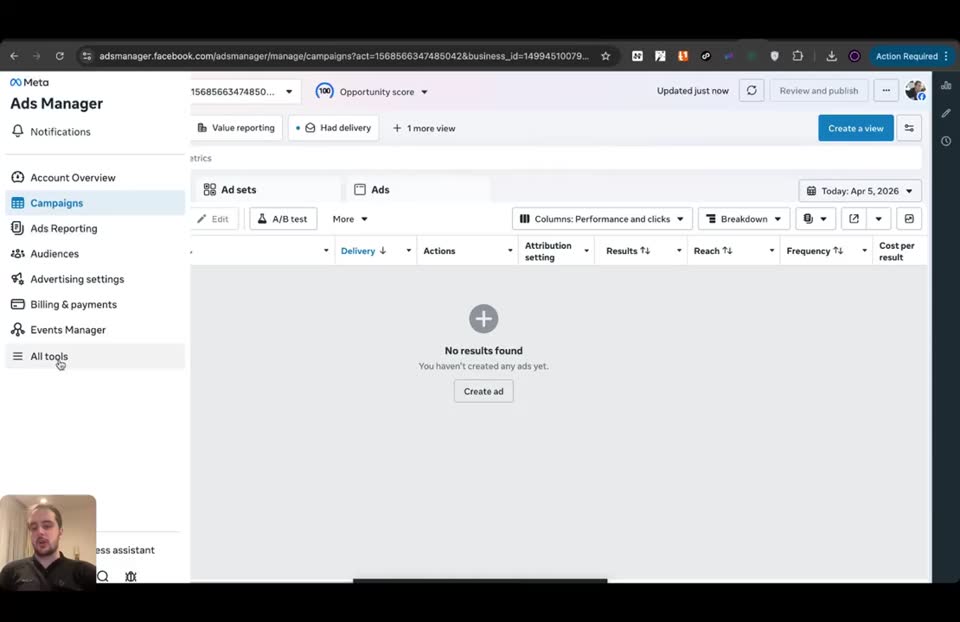
Click 'Commerce Manager' under the 'Sell products and services' section in the 'All tools' menu on the left sidebar.
To access the tool needed to create catalog ads.
Step 200:44 to 01:09
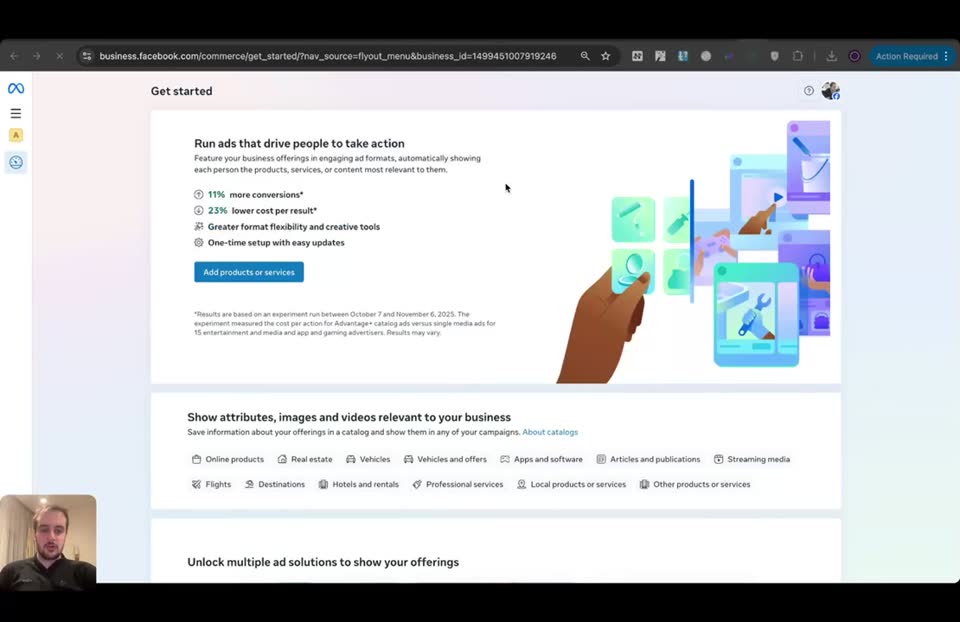
Click the 'Add products or services' button on the Commerce Manager Get started page.
To begin creating a new catalog.
Step 301:11 to 01:20
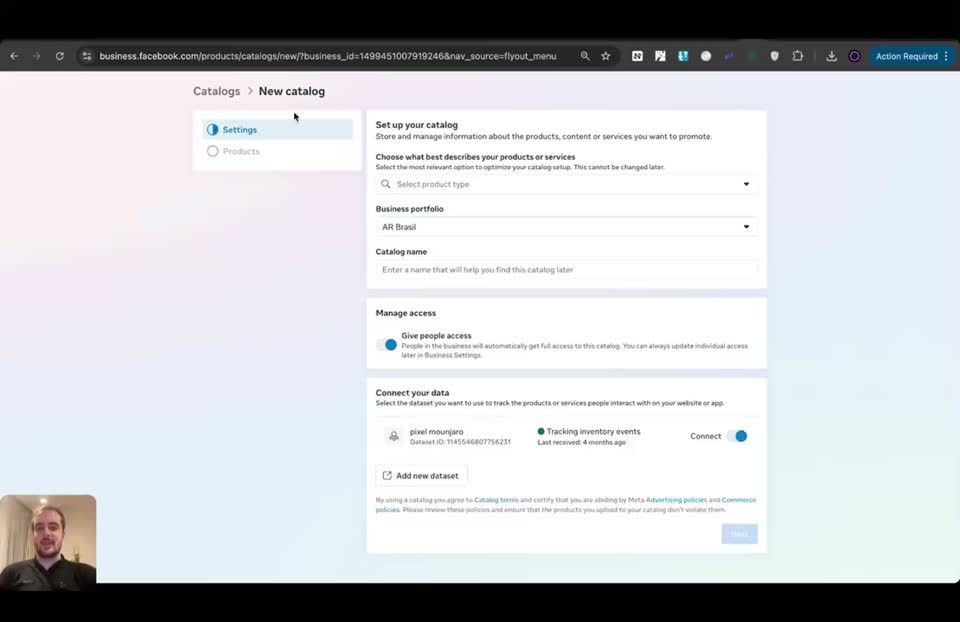
Select the product type from the dropdown on the Settings tab.
- Choose what best describes your products or services = Digital products or content
- Sub-option = Streaming media
It doesn't make a big difference, but this categorizes the catalog.
Step 401:28 to 01:43
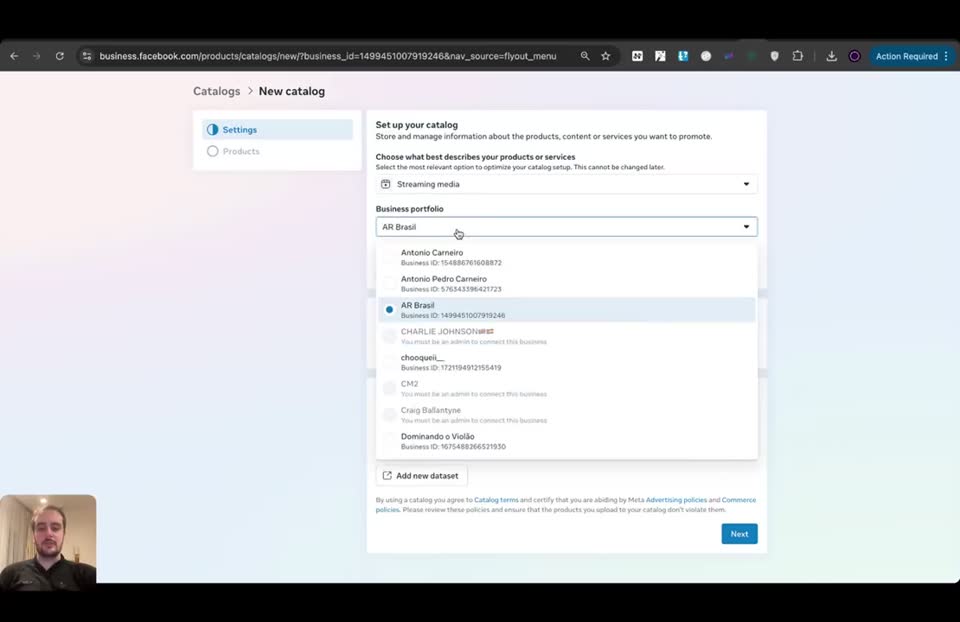
Select your business manager from the Business portfolio dropdown.
- Business portfolio = AR Brasil
To pick the business manager you are actually going to use to run your ads.
Step 501:46 to 02:18
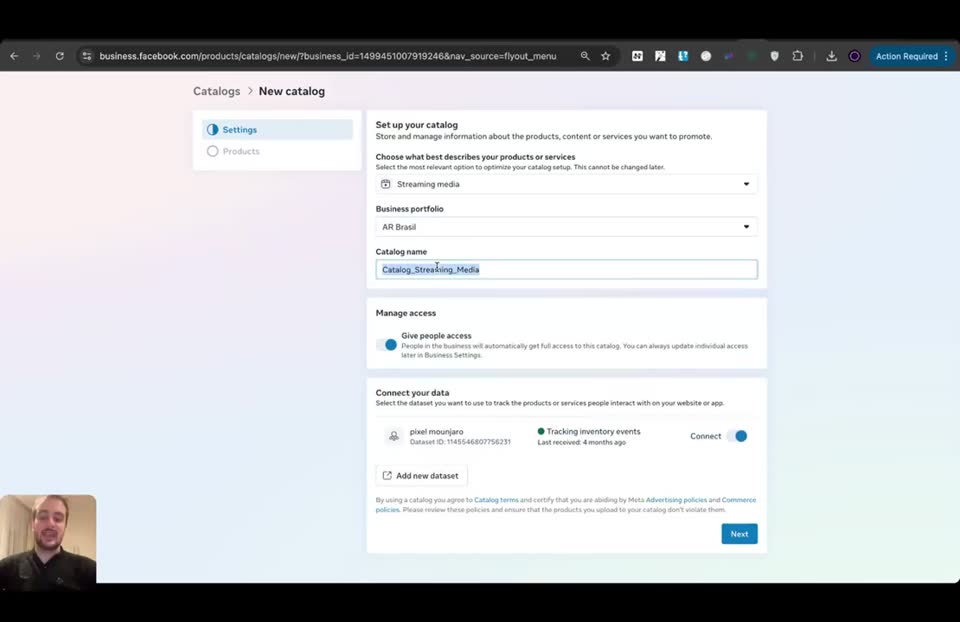
Type your ad name into the Catalog name field.
- Catalog name = Script1/Hook1
The catalog name should be the name of your ad for split testing purposes.
Step 602:22 to 04:11
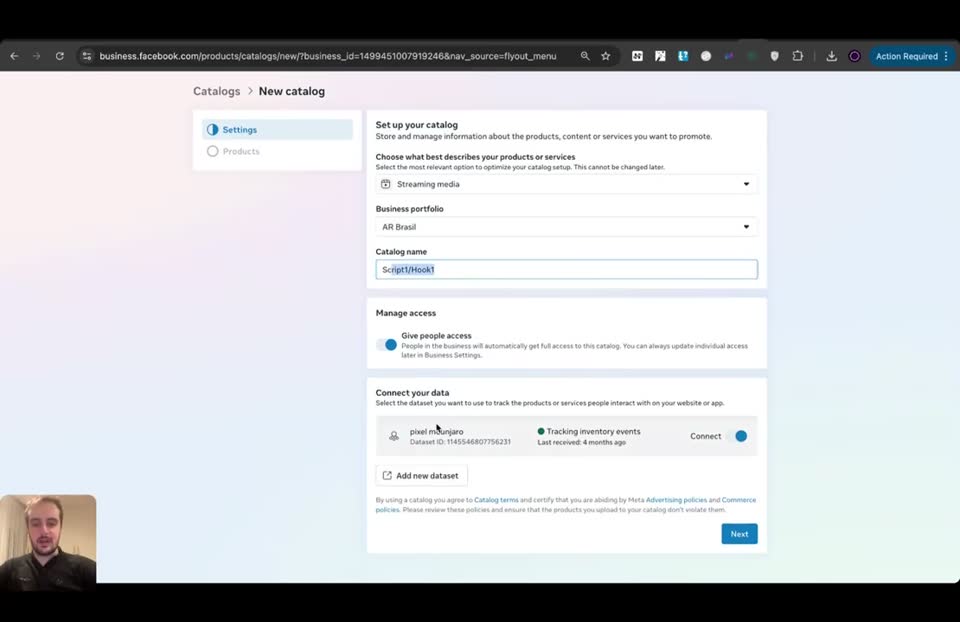
Connect your pixel in the Connect your data section.
- Dataset = pixel mourjaro
- Tracking inventory events = ON
To track the products or services people interact with.
Step 704:16 to 04:20
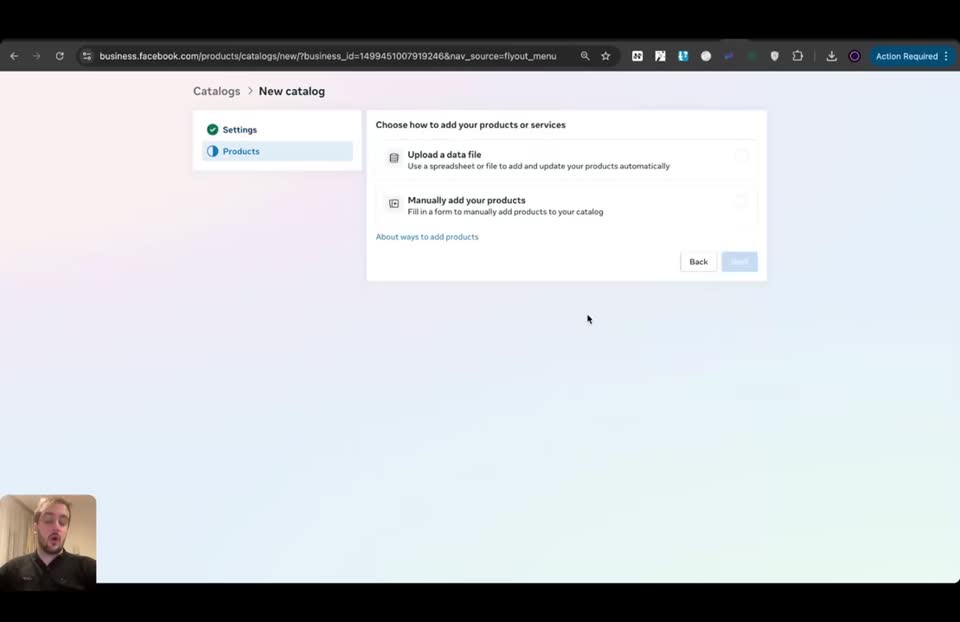
Select the manual upload option and click Next.
- Choose how to add your products or services = Manually add your products
Because adding the decoy and video is going to be a manual process.
Step 804:23 to 04:27
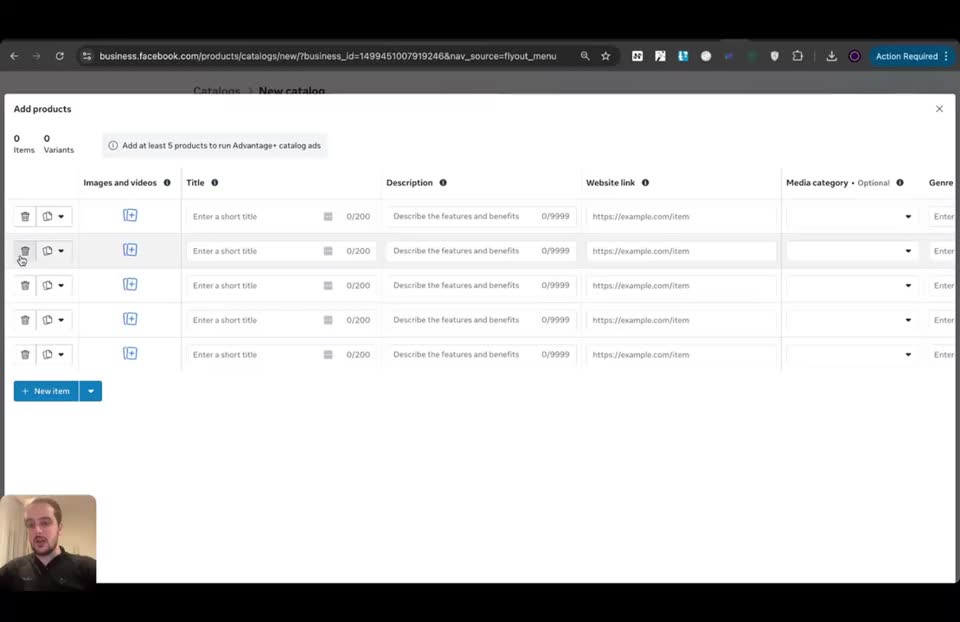
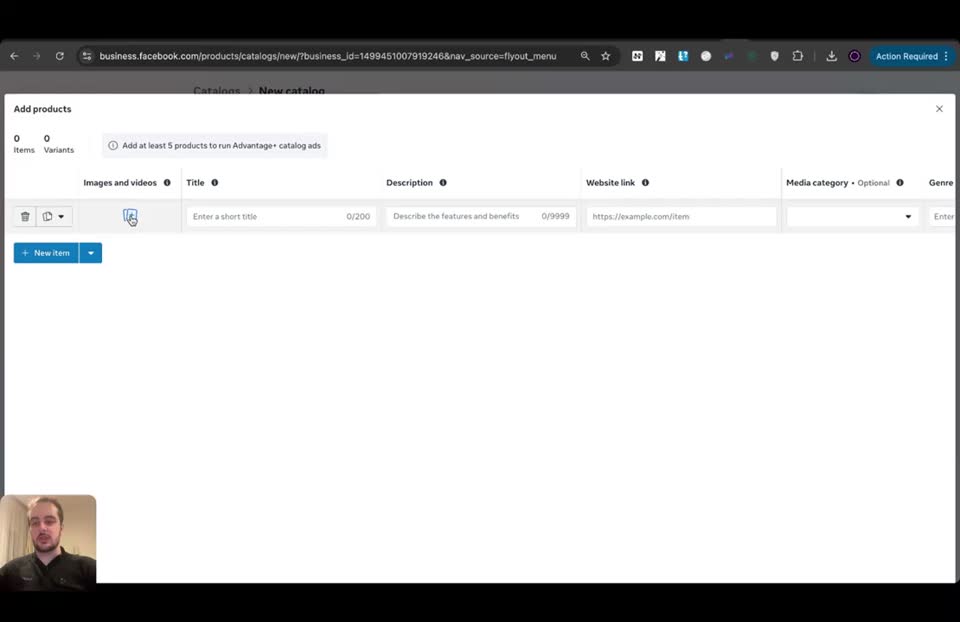
Delete the extra empty rows in the Add products table by clicking their checkboxes and the trash can icon.
To start with a clean slate for your single product.
Step 904:29 to 05:24
Upload a 500x500 bland image into the Images and videos column.
- Images and videos = Image 1 Main image
Because this is the image that Facebook and anybody trying to spy on your ads library is going to actually see.
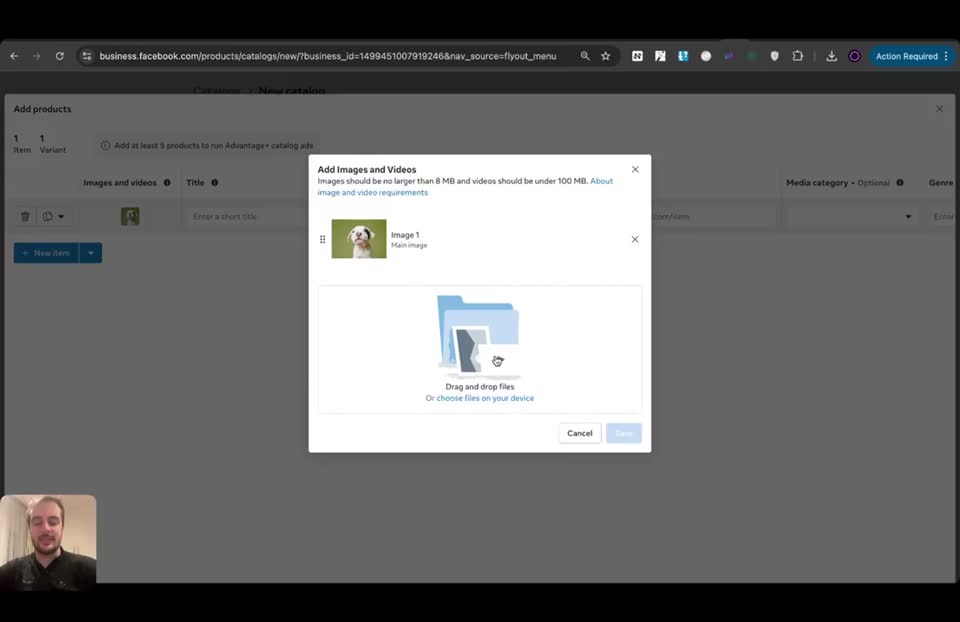
Step 1005:29 to 06:14
Upload your actual video ad into the same Images and videos column.
- Images and videos = You won't believe - final (1).mp4
Because you need to upload the real video that will serve as the ad.
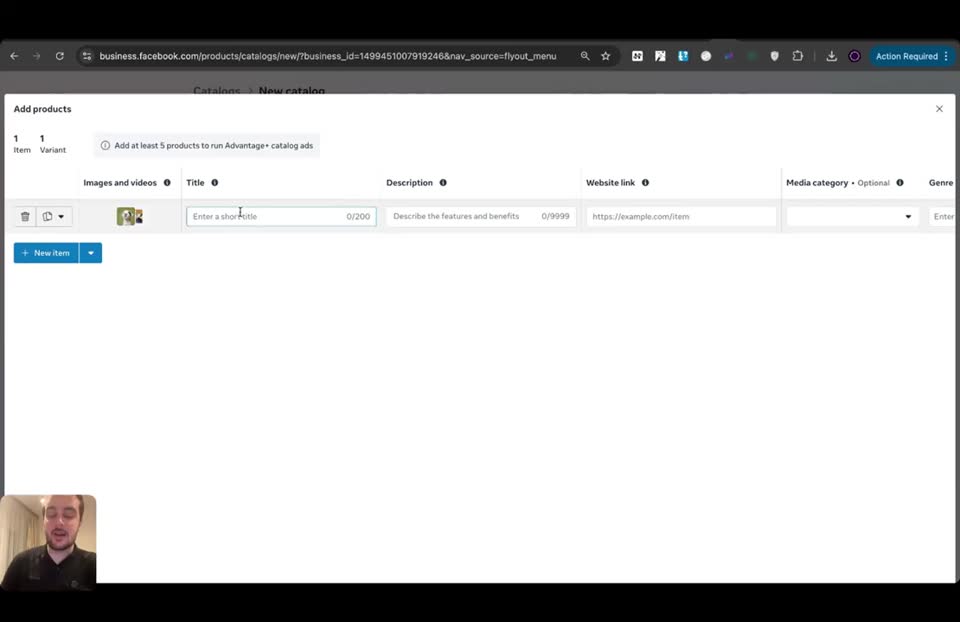
Step 1107:59 to 08:28
Type your exact Facebook page name into the Title field.
- Title = Dr Anna Johnson
It needs to be congruent with the specific page name you are using.
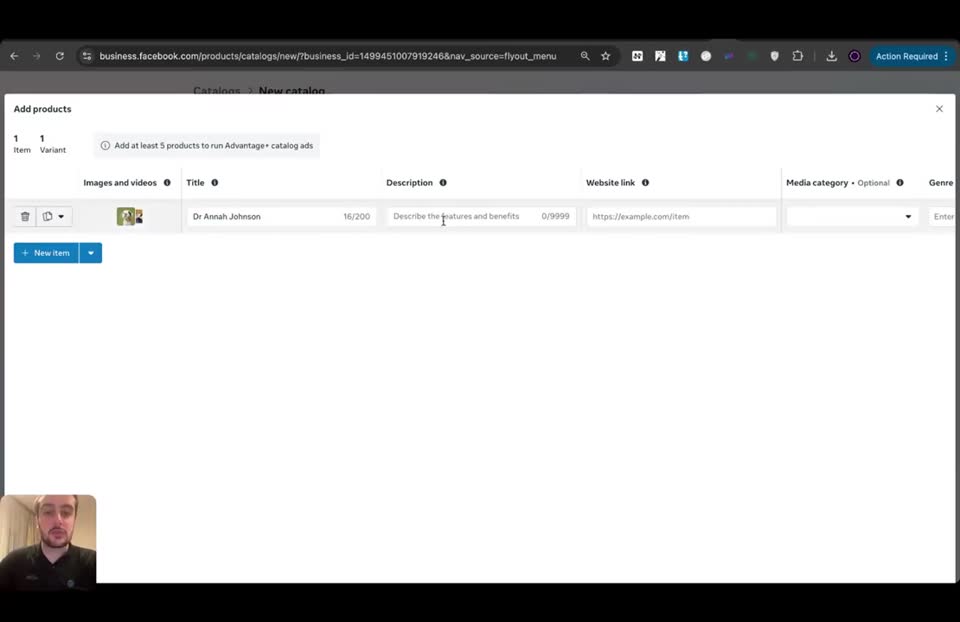
Step 1208:33 to 08:59
Type a bland, positive phrase into the Description field.
- Description = Beautiful dog
So Facebook approves it and people who are spying on it get confused.
Step 1309:11 to 09:13
Enter a white hat URL into the Website link field.
- Website link = http://google.com
So Facebook approves it and people get lost when they try spying on you.
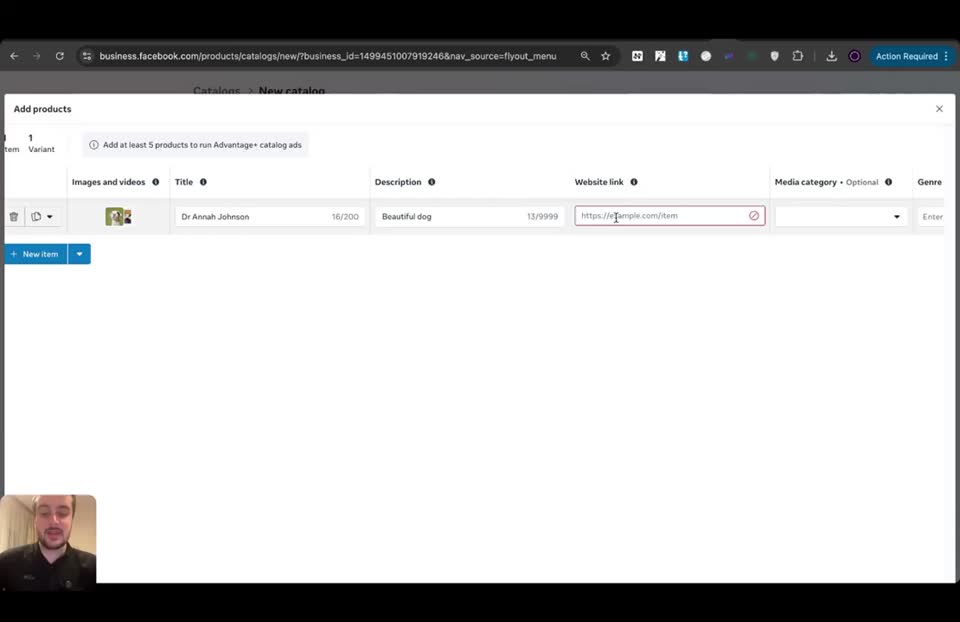
Step 1412:06 to 12:32
Duplicate the product row four times using the three dots icon.
- Total rows = 5
Because you need at least five products to run catalog ads.
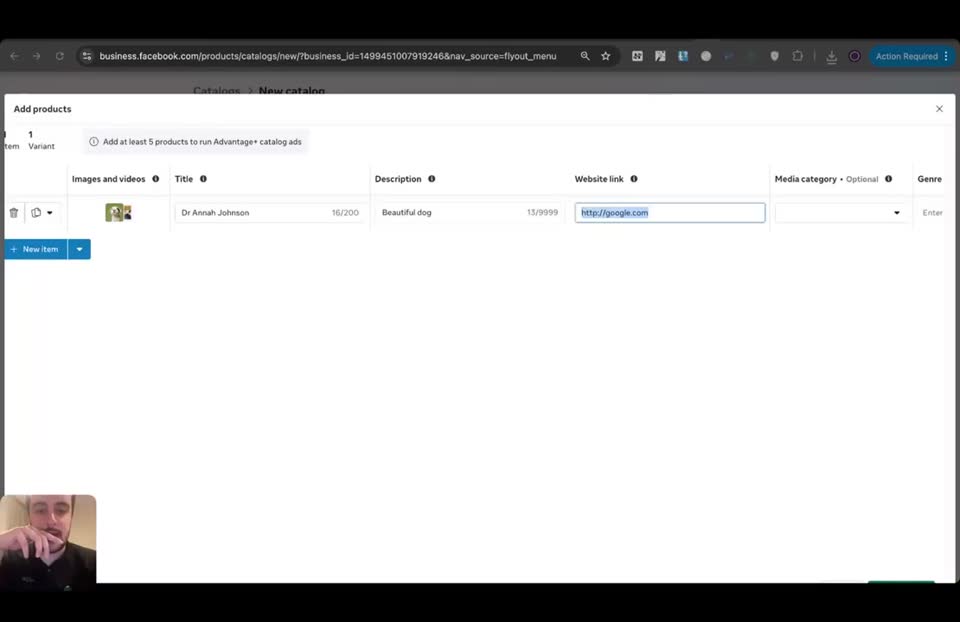
Step 1512:38 to 12:39
Click the Upload items button at the bottom right.
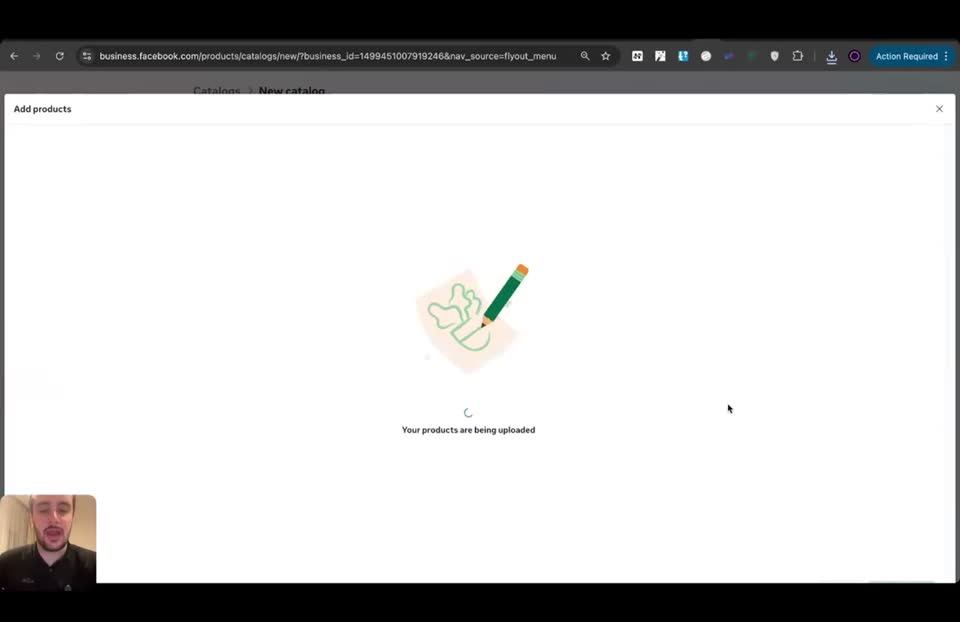
To finalize the catalog creation.
Full timestamped transcript with on-screen notes
[00:00] COACH: Hey guys, so today a very important class. So I'm going to show you how to create your catalog ads. Remember I told you guys this is one of the most powerful techniques for you to avoid your ads getting rejected. That's how you create it. So first place where you're going to be at, obviously it's probably going to be the Ads Manager because you guys already know how to get here. So adsmanager.facebook.com. So just make sure you're using the ad accounts that you created within your business portfolio, not your personal ad account. That's the first thing.
[SCREEN 00:13] Meta Business Suite. Page: Get started. "Run ads that drive people to take action". Button: Add products or services.
[SCREEN 00:16] Loading Ads Manager.
[SCREEN 00:17] Ads Manager. Campaigns tab.
[SCREEN 00:21] Ads Manager. Account dropdown shows "MQP (106886534748504)".
[00:29] COACH: Then you're going to go here to All Tools. So I just went to this drop down on the left, clicked on All Tools, then scrolled all the way down on the right and click on Commerce Manager. Because this is going to be really amazing.
[SCREEN 00:30] Clicks "All tools" hamburger menu icon on the left sidebar.
[SCREEN 00:35] All tools menu opens.
[SCREEN 00:38] Scrolls down to "Sell products and services" section. Clicks "Commerce Manager".
[SCREEN 00:40] Loading Commerce Manager.
[00:44] COACH: Then if it's the first time you're creating this, there's going to be something like this where you're going to have a button. And once again guys, I always say this, but the UI sometimes can change depending on where you are in the world or how long your Facebook account is. Honestly, they are always rolling out the UI. You just need to understand that you're going to have to click to add a catalog or in my case, add products or services within my Commerce Manager. So it's just going to be this big blue button here. I'm going to click there, add products and services.
[SCREEN 00:44] Commerce Manager. Page: Get started. "Run ads that drive people to take action". Button: Add products or services.
[SCREEN 01:09] Clicks "Add products or services" button.
[01:11] COACH: And then you're creating a catalog. Right? So here, first things first, you can say it's a digital product or content. It really doesn't make any difference. So for example, streaming media, for example. It really doesn't make as much difference as you would think.
[SCREEN 01:11] Catalogs > New catalog. Settings tab. "Set up your catalog". "Choose what best describes your products or services". Dropdown selected: "Select a product type".
[SCREEN 01:18] Clicks dropdown. Options: Physical products, Digital products or content, Services, Local products or services. Clicks "Digital products or content".
[SCREEN 01:20] Sub-options appear: Apps and software, Publications and subscriptions, Streaming media. Clicks "Streaming media".
[01:28] COACH: Then business portfolio. This is the business portfolio. So this is the business manager that I taught you guys how to create. So you're just going to pick the right business manager. If it's the first one you created, you will only have one that's going to be pre-selected, so you don't need to change it. Obviously, if you have multiple, just pick the one that you're actually going to use to run your ads. Okay?
[SCREEN 01:29] "Business portfolio" dropdown. Currently selected: "AR Brasil".
[SCREEN 01:43] Clicks dropdown. Shows list of business portfolios. Selects "AR Brasil".
[01:46] COACH: Now the catalog name is going to be the name of your ad. So it's going to be ad name. So remember the ad name, there are multiple ways for you to name it. It can be for example, Script 1 / Hook 1, if you're just split testing the script and the hook. If you're split testing multiple things, it can be Angle 2 and it can be for example, Avatar 3. If you're using numbers, I even prefer using names. So naming your script, naming the hook, naming the angle, naming the avatar. But it's going to be something like this. So if you're using numbers, let's say you're just testing scripts and hooks. So let's change to Script 1 Hook 1 for the first one. Right?
[SCREEN 01:47] "Catalog name" field. Currently says "Catalog Streaming Media".
[SCREEN 01:50] Deletes text. Types "Ad Name".
[SCREEN 01:55] Deletes text. Types "Script1/Hook1".
[SCREEN 02:03] Types "Script1/Hook1/Angle2".
[SCREEN 02:06] Types "Script1/Hook1/Angle2/Avatar3".
[SCREEN 02:18] Deletes text. Types "Script1/Hook1".
[02:22] COACH: Now connect your data. By the way, manage access, it just means that whomever is in your business manager, which in the beginning should be just you, is going to have access to this catalog. Right? So to this ad pretty much. But you don't need to change anything here. Don't click anything.
[SCREEN 02:22] "Manage access" section. "Give people access" toggle is ON.
[02:38] COACH: And here, connect your data, you're just going to be selecting the pixel that you created. So here is already pre-selected. There's a pixel pre-selected here because it's the only pixel. But you could just unclick that. So if you just have like add new data set, you need to come here and then just select the pixel. But if you have already created the pixel like I showed you guys, you don't need to do all of that because I just have already one pixel created, it already pre-selected my pixel. If it's not there, you just need to click here connect to connect it. Right? So for example, to disconnect is like this, to connect is just like this. So if there's this blue toggle on for your pixel, you should be good to go. And if you don't see anything here, probably you just didn't create the pixel yet. So just go back to the class where I teach you guys how to create your pixel so you can create your pixel first within your Events Manager. So eventsmanager.facebook.com/events_manager. And then you can just go here or you can just click on Events Manager here as well within your Ads Manager. And then connect data and then create your pixel. I already showed you guys this in one of the modules before, so you can just rewatch it if you haven't created your pixel yet.
[SCREEN 02:40] "Connect your data" section. "Select the dataset you want to use to track the products or services people interact with on your website or app."
[SCREEN 02:45] Shows "pixel mourjaro" with ID 1156590775642311. "Tracking inventory events" toggle is ON. Button: Disconnect.
[SCREEN 02:51] Clicks "Add new dataset".
[SCREEN 02:52] Opens new tab: Events Manager.
[SCREEN 02:56] Events Manager > Overview. Shows "pixel mourjaro" under Datasets.
[SCREEN 03:02] Switches back to Commerce Manager tab.
[SCREEN 03:08] Clicks "Disconnect" button next to pixel. Toggle turns grey. Button changes to "Connect".
[SCREEN 03:09] Clicks "Connect" button. Toggle turns blue. Button changes to "Disconnect".
[SCREEN 03:24] Switches to Events Manager tab.
[SCREEN 03:35] Clicks hamburger menu. Shows "Events Manager" in the menu.
[SCREEN 03:47] Switches back to Commerce Manager tab.
[03:47] COACH: After you create your pixel, just come back here because that's where you're going to see the pixel pre-selected here. Okay? So if you don't see a pixel pre-selected, probably you just didn't connect the pixel or you're just going to have to click on connect to connect to the pixel. Just make sure you have a toggle on for the pixel you have already created. So this is the name that you created and this is just a random ID that Facebook assigns to your pixel. Now you can click on Next.
[SCREEN 03:48] Commerce Manager. "Connect your data" section. "pixel mourjaro" is connected.
[SCREEN 04:11] Clicks "Next" button.
[04:16] COACH: So honestly, nothing to change there. And then you're going to select manually add your products because it's going to be a manual process.
[SCREEN 04:17] "Choose how to add your products or services". Options: "Upload a data file", "Manually add your products".
[SCREEN 04:20] Selects "Manually add your products". Clicks "Next".
[04:23] COACH: Now here, you're going to delete all the other ones. And in images and videos, you're going to click on this little plus here. And first you're going to put the whitest image you can find. So the image that's... oh by the way, it's too small. But for example, I literally come to ChatGPT here and I ask it, give me a dog image 500x500 literally. Right? For example, it can be a dog, a cat, or anything that's very, very like bland. Right? It can literally be this, for example. It doesn't matter. Because this is the image that Facebook and that any anybody who's going to be trying to spy on you on your ads library is going to actually see. And that's why this method is so, so powerful. Right? Because this is the image that people are going to see.
[SCREEN 04:23] Add products page. Table with columns: Images and videos, Title, Description, Website link, Media category, Genre. 3 empty rows are shown.
[SCREEN 04:25] Clicks checkbox on the second row. Clicks delete icon (trash can).
[SCREEN 04:27] Clicks checkbox on the third row. Clicks delete icon.
[SCREEN 04:29] Clicks the "+" icon in the "Images and videos" column of the remaining row.
[SCREEN 04:32] Popup: "Add images and videos". "Images should be no larger than 8 MB and videos should be under 100 MB." "Drag and drop files or Choose files on your device".
[SCREEN 04:35] Clicks "Choose files on your device".
[SCREEN 04:36] Opens file browser. Selects an image.
[SCREEN 04:38] Error message in popup: "1 image wasn't uploaded because it's smaller than 500 x 500 pixels."
[SCREEN 04:42] Opens new tab: ChatGPT.
[SCREEN 04:45] Types in ChatGPT prompt: "give me a dog image 500x500".
[SCREEN 04:54] ChatGPT generates images of dogs.
[SCREEN 04:59] Clicks on one of the generated dog images (a white puppy).
[SCREEN 05:00] Right-clicks image, selects "Save Image As...".
[SCREEN 05:02] Saves image as "pit-bull-puppy-square-dog-photography.jpg".
[SCREEN 05:09] Switches back to Commerce Manager tab.
[05:13] COACH: So let me show you guys this. I'm going to put... oh yeah, it's not here, sorry. I just downloaded it here. So bam. So I just uploaded the image. You need to upload the image first. Right?
[SCREEN 05:14] Clicks "Choose files on your device".
[SCREEN 05:15] File browser opens.
[SCREEN 05:20] Closes file browser.
[SCREEN 05:22] Drags and drops the downloaded dog image from the browser downloads bar into the popup.
[SCREEN 05:24] Image appears in the popup. Label: "Image 1 Main image".
[05:29] COACH: And now you're going to add the actual video. So you can pick any video. Literally any video. Just for the sake of the example, I'm going to pick this one. Okay, oh it's over 100 MBs. So probably not a good example. Let me pick a shorter one. Okay, this one should be short. Is it also over 100 MB? I have very... I have very heavy, heavy videos.
[SCREEN 05:30] Clicks "Choose files on your device" again.
[SCREEN 05:32] File browser opens.
[SCREEN 05:36] Selects a video file.
[SCREEN 05:39] Error message in popup: "1 video wasn't uploaded because it's over the 100 MB size limit."
[SCREEN 05:41] Clicks "Choose files on your device".
[SCREEN 05:42] File browser opens.
[SCREEN 05:45] Selects another video file ("Reddit Ad Neesha - re-edit (1).mp4").
[SCREEN 05:48] Error message in popup: "1 video wasn't uploaded because it's over the 100 MB size limit."
[05:55] COACH: And by the way guys, one quick thing as well. If by any chance your video is over 100 MBs, there are multiple things that you can do to improve it. Because you do need to upload the real video. So this is the ad. Right? So for example, if this is Ad 1, the name is going to be Ad 1 that I just uploaded and then I'm going to click on Save. Now if you're finding that issue where it needs to be under 100 megabytes and your video is over 100 megabytes, honestly there are many things you can do. But just video resizer online free and you can have many, many tools that do that. Literally many. Like Canva does that. You have like video compressors as well. For example, this... this is a video compressor. Right? Where if I put a video... so I'm going to literally upload a video here from my device. So for example, let's take that video that was super long that I tried uploading and it didn't really upload. So this one that was over 100 MBs. So it's 200 MBs. Right? Which is pretty heavy. Because the catalog only accepts videos under 100 MBs. So I'm going to click Compress Now. And typically it's going to compress it at under 100 MBs. Let's see if it works. Honestly not 100% sure. A lot of the times you're going to have to find a video compressor. I'm showing you guys this and if it doesn't work I'm going to find another one, but it's all good.
[SCREEN 05:56] Clicks "Choose files on your device".
[SCREEN 05:57] File browser opens.
[SCREEN 06:00] Selects a video file ("You won't believe - final (1).mp4").
[SCREEN 06:01] Video uploads successfully. Appears in popup next to the image.
[SCREEN 06:12] Clicks "Save" button.
[SCREEN 06:14] The image and video are now in the "Images and videos" column of the product row.
[SCREEN 06:22] Opens new tab: Google.
[SCREEN 06:23] Searches for "video resizer".
[SCREEN 06:25] Search results for "video resizer".
[SCREEN 06:32] Searches for "video compressor".
[SCREEN 06:33] Clicks on "Free Online Video Compressor" (freeconvert.com).
[SCREEN 06:34] FreeConvert Video Compressor page.
[SCREEN 06:39] Clicks "Choose Files" > "From Device".
[SCREEN 06:42] File browser opens.
[SCREEN 06:46] Selects "Reddit Ad Neesha - re-edit (1).mp4".
[SCREEN 06:47] File added. Shows size: 208.86 MB. Output: MP4.
[SCREEN 06:56] Clicks "Compress Now!" button.
[SCREEN 06:58] "Compression Results" page. Shows "Uploading...".
[07:13] COACH: Then that's just in the case of you have a video that's heavier than 100 MBs. Obviously if you don't, you can just follow what I just showed you before where you're just going to upload your video after the image. But if you do, you're going to have to compress your video. That's important. So it's compressing my video. There are many tools like this online by the way guys, just so you know. Um, because yeah, because it's just a rule here. Right?
[SCREEN 07:35] Switches back to Commerce Manager tab.
[07:38] COACH: And meanwhile, I'm going to show you. If you are already able to have your ad here alongside with the initial image, it's very important that you put the image first and then the video and not the other way around. Because the image is what the algo is going to see to approve your ad. Right? So that's how this method works.
[SCREEN 07:38] Commerce Manager. Add products page.
[07:59] COACH: Now the title, this will show up a lot of the times in your ad. So it's just going to be the page name, the page that you're using. Right? So that's the page name. So for example, Dr. Anna Rose, I don't know. It's going to be literally the page name that you're going to be using, the Facebook page. Right? Just like I showed you guys, but it's going to be the specific page name that you have. Right? It's very important because it needs to be congruent. Right? It needs to be congruent. Oh and they say don't use capital letters. It's all good. Let's say it's Dr. Anna Johnson for example. But here is just going to be the actual page name that you're using so it's congruent.
[SCREEN 07:59] Clicks in "Title" field.
[SCREEN 08:04] Types "Page NAME".
[SCREEN 08:08] Deletes text. Types "Dr Anna Rose".
[SCREEN 08:20] Deletes text. Types "PAGENAME".
[SCREEN 08:22] Warning appears: "Avoid using all capital letters."
[SCREEN 08:26] Deletes text. Types "Dr Anna".
[SCREEN 08:28] Types "Dr Anna Johnson".
[08:33] COACH: Now the description and the website link, this one is going to show you in the ads library when people are spying on you. And that's what Facebook is going to see when it's trying to approve your ad or reject your ad. Right? So the description, it can literally be something like beautiful dog teaches you something. Right? Or it can just be literally just beautiful dog. It doesn't matter. But it's really just something that has any problem... no problematic words, so Facebook approves it. And people who are going to be spying on it are going to be like, what the hell is this? Right? So this is the goal.
[SCREEN 08:34] Clicks in "Description" field.
[SCREEN 08:46] Types "Beautiful dog".
[SCREEN 08:50] Types "Beautiful dog teaches you".
[SCREEN 08:53] Types "Beautiful dog teaches you something new".
[SCREEN 08:59] Deletes text, leaving only "Beautiful dog".
[09:11] COACH: And then website link can literally be for example google.com. Any white hat website link works. It's just so Facebook approves it and people get lost when they try spying on you. Right?
[SCREEN 09:12] Clicks in "Website link" field.
[SCREEN 09:13] Types "http://google.com".
[09:22] COACH: Um, and in terms of non-optional stuff, I think this is pretty much it. Yeah, there's no price, the status is active. So you don't need to change anything else. Literally. Okay? So just description, super like bland, not really saying anything. The title is going to be the page name, the actual Facebook page you're going to be using, very, very important. And the website link can literally just be google.com or any white hat page.
[SCREEN 09:22] Scrolls horizontally to the right in the table. Shows columns: Content rating, Featuring, Director, Production company, Global unique identifier, Release date, Price, Sale price, Status (Active), Brand, Content ID.
[SCREEN 09:32] Scrolls back to the left.
[09:47] COACH: So now let's see if our video got compressed or not. Uh... oh okay, so it's from 208 to 118. So typically you're just going to have to compress it again. Right? Or find another tool honestly to keep compressing. Um, because yeah, it just needs to be under 100 megabytes. Let me try to do this with you guys here. Uh, let's try doing it again. Compress more videos. Let's try doing the same video again. Hopefully... hopefully we're going to be able to. Cool. Let's see if we compress it again, it's going to compress it further. And there are many video compressors that do that by the way. We can try finding one that um... that is different as well. This is something I literally just do it online because there are so many options. Um... compressor under 100 MB for example. Literally look for this, I'm not even kidding. Yeah, Veed does that too by the way. I really like Veed a lot of the times. But let's try another option just because I don't have Veed.
[SCREEN 09:48] Switches to FreeConvert tab.
[SCREEN 09:51] "Compression Results". Shows "Saved 43% (from 208.86 MB to 118.79 MB)".
[SCREEN 10:01] Opens new tab.
[SCREEN 10:02] Switches back to FreeConvert tab.
[SCREEN 10:13] Clicks "Compress More Videos".
[SCREEN 10:16] Clicks "Choose Files" > "From Device".
[SCREEN 10:19] File browser opens. Selects "Reddit Ad Neesha - re-edit (1).mp4".
[SCREEN 10:28] Clicks "Compress Now!".
[SCREEN 10:31] "Compression Results" page. Uploading.
[SCREEN 10:42] Switches to the new blank tab.
[SCREEN 10:44] Searches Google for "video resizer".
[SCREEN 10:48] Searches for "video compressor under 100mb".
[SCREEN 10:52] Search results.
[SCREEN 11:00] Clicks on "Video Compress - Free Online Video Compressor" (videocompress.ai).
[11:01] COACH: Choose file. Bam. Let's try. You guys see I do... I do everything that you need. Right? So you can pick the output here. So you can literally pick the output. So let's have it under 100 MB. And it should work because now you're picking the output. So if that works, you could just use videocompress.ai. Let's see if the other one worked. The only problem with this one, with freeconvert.com/video-compressor/download, you can see the URL here. The only problem is that you're not picking the output. So it's not ideal. Um... okay, now it's 66 megabytes. So you see, which is so cool and it didn't really change the ad, which is pretty freaking awesome. Right? So... so without changing the ad, you can just compress it multiple times until it's under 100 megabytes. Literally. Um, and it didn't really change it. Like still the same ad. So you can just compress it over and over. That's just in case um you have that issue that I showed.
[SCREEN 11:01] videocompress.ai page.
[SCREEN 11:05] Clicks "Choose File" > "From Device".
[SCREEN 11:08] File browser opens. Selects "Reddit Ad Neesha - re-edit (1).mp4".
[SCREEN 11:11] Video loads. Shows "Output file size" slider. Currently at 71.28 MB.
[SCREEN 11:13] Drags slider to 102.8 MB.
[SCREEN 11:14] Drags slider to 99.8 MB.
[SCREEN 11:16] Clicks "Start Compression".
[SCREEN 11:17] Shows "Upload Progress".
[SCREEN 11:26] Switches to FreeConvert tab.
[SCREEN 11:40] "Compression Results". Shows "Saved 44% (from 118.79 MB to 66.05 MB)".
[SCREEN 11:57] A Zoom "AI Companion" window pops up on screen, obscuring part of the browser.
[SCREEN 12:01] The Zoom window disappears.
[SCREEN 12:03] Switches to Commerce Manager tab.
[12:06] COACH: So anyways, come back here, come back in here. So image, then video. Page name as a title. Random description. And then... but it's just like two... two words, like two beautiful words, positive words so Facebook doesn't reject it. And then website link. And now literally you're just going to duplicate it five times. So one, two, three. I mean you're going to duplicate it four times so you have five variations. Bam. Because you need at least five products to run catalog ads. And then you're going to click on upload items.
[SCREEN 12:06] Commerce Manager. Add products page.
[SCREEN 12:25] Clicks the three dots icon on the left of the product row. Selects "Duplicate item".
[SCREEN 12:26] Row is duplicated. Now there are 2 rows.
[SCREEN 12:27] Clicks three dots on the second row. Selects "Duplicate item".
[SCREEN 12:28] Now there are 3 rows.
[SCREEN 12:29] Clicks three dots on the third row. Selects "Duplicate item".
[SCREEN 12:30] Now there are 4 rows.
[SCREEN 12:31] Clicks three dots on the fourth row. Selects "Duplicate item".
[SCREEN 12:32] Now there are 5 rows.
[SCREEN 12:38] Clicks "Upload items" button at the bottom right (button is not visible on screen, but action is implied).
[SCREEN 12:39] Loading screen: "Your products are being uploaded".
[12:41] COACH: Literally that's the process. That's how you set up your catalog ads. Uh, the only problem that you saw there that I faced and I showed you guys how to solve is having a video that's over 100 megabytes. But then you can just use a compressor. It can be for example videocompress.ai or it can be for example freeconvert.com/video-compressor/download for example. Right? So very easy to fix. It's pretty freaking awesome. Um, and then after you have that, you already have your product. Which is pretty amazing. And then you're going to be able to use this in your campaigns. And it's already named as Script 1 Hook 1. But I'm going to show you how to use this in a campaign in the next class. See you guys there.
[SCREEN 12:49] Loading finishes.
[SCREEN 12:50] Commerce Manager > Overview.
[SCREEN 12:53] Page shows "You're all set. Your catalog is ready. You can now start promoting your products, content or services in ads."
[SCREEN 12:54] Switches to videocompress.ai tab. Shows compression progress at 18.9%.
[SCREEN 12:56] Switches to FreeConvert tab.
[SCREEN 13:02] Switches to videocompress.ai tab.
[SCREEN 13:04] Switches to Commerce Manager tab.
[SCREEN 13:22] Video ends.
Recording 5 4 How To Set Up Catalogue Ads.mp4. Gemini video pass. Rebuilt 31 Oct 2026 15:24 Melbourne.